

The Underrated Feature Of Physical Keyboards You Should Be Using More
We may receive a commission on purchases made from links.
When choosing a new keyboard, most people focus on the design, including switch types, general layout, lighting effects, and other minor features. To be fair, all that stuff is important. But there's another aspect of physical keyboards that goes overlooked, and quite frankly, it's something that everyone should be using more. That's the dedicated media keys to pause, play, skip tracks, and adjust volume. Even keyboards that don't have physical keys for each of these controls often have a Function key (Fn) that you can use as a secondary option — you press the function key and another in combination.
The dedicated keys are really the cream of the crop though. The issue is that when switching to a smaller physical keyboard, manufacturers often omit these extra buttons to save space. The same is true of physical keyboards that are perfect for traveling or on-the-go use; they're compact and eliminate a lot of extra functions in lieu of a portable profile, like dropping the side numpad. You almost have to seek out physical keyboards that specifically incorporate media keys. The Razer Huntsman V3, Redragon K512, and HyperX Alloy Core are all examples of boards that have dedicated keys. They're also available at varying price points, showing that you don't necessarily have to spring for an expensive or ultra-premium model to find the feature.
But why media keys? It's simple, they make controlling media so much easier, and you don't need onscreen feedback to understand when a command works. You can use them while doing other things like playing games, watching online video, or even manipulating your background media during a meeting.
Dedicated media keys are convenient and reliable
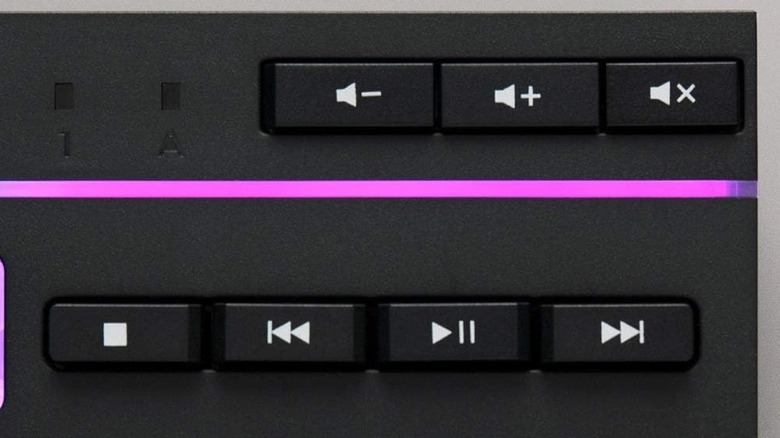
In Windows 11, media key notifications don't show, so you're never entirely sure when a key has been pressed, especially if it's combined with an Fn key. If you're looking at the standard desktop when pressing keys that's not a big deal, but if you have anything else open, like a game, meeting, or video, it can be unclear when you've hit the wrong button combo or when a hotkey isn't registering. The dedicated keys fix that because they're the only keys for that specific function, whether you're trying to pause playback or change tracks.
There are workarounds, of course. There are apps that add back the notifications, macro tools to customize key presses, and separate media and macro pads that add dedicated buttons for whatever you set, like the Elgato Stream Deck. The latter is certainly a handy computer gadget that will speed up your daily tasks and most-used functions. But even with these alternatives, the most convenient solution is to simply plug-in and use a physical keyboard with dedicated media keys.
It's the easiest, as you don't have to configure or set up anything, besides plugging the keyboard into an available USB port. Moreover, it's supported by Windows 11 natively, works smoothly to control all media from music and videos to photo slideshows, and you have a lot of freedom to find a keyboard that matches your interests, whether you go with a mechanical model or a more traditional basic keyboard.