

When Should You Clear The Cache On Your Xbox Series X?

When unexplained technical hiccups happen, like a game not loading as fast as it should or you're seeing it lag or freeze, the old-school fix of restarting your game console or clearing the cache can sometimes be enough. Thankfully, Xbox Series X and S owners can clear the system cache without complication. Like clearing the cache on your Android phone, doing so routinely can fix software glitches, remove temporary files that take up precious storage space, and easily de-junk your gaming system.
For example, if your Xbox Series X is running slower than usual or struggling to play media, consider clearing the cache to improve performance. It's one of those actions that has nearly zero consequences compared to other things that can brick your Xbox. You can also clear the cache for your Blu-ray discs instead — though that is separate from the system cache and is found under Devices and Connections and Blu-Ray. From there, you can select Persistent Storage > Clear Persistent Storage.
Technically, you can clear the system cache in two ways: power-cycle the system by unplugging it, waiting two minutes, and reconnecting everything, or you can reset it. You can reset it through the console settings by going to System > Console Info, then selecting Reset Console > Keep my Games and Apps. This resets the operating system back to its factory state, though. Be warned that by utilizing the reset function, you are going to need to sign back into your accounts since this is almost treated like a fresh install or a factory reset (though it keeps your game and app data intact), thus losing some of your user data.
What else can fix your Xbox Series X performance problems
Sometimes, even a software reset isn't enough to fix all your Xbox Series X problems. These premium Microsoft gaming consoles are meant to last at least 10 years, considering that plenty of users are still powering up their Xbox 360 and Xbox One systems. So either your hardware starts to feel sluggish with age, or everything works well, but you want to optimize it by boosting performance to keep it in good condition. Luckily, there are a few tweaks you can do on your console.
For example, changing the preferred mode when you load a game can stabilize the frame rate. If an in-game option allows it, set it to performance mode instead of graphics mode to ensure the system prioritizes FPS over visuals while playing. Otherwise, you can use FPS Boost for some legacy titles by navigating to your Compatibility options under Manage game & add-ons.
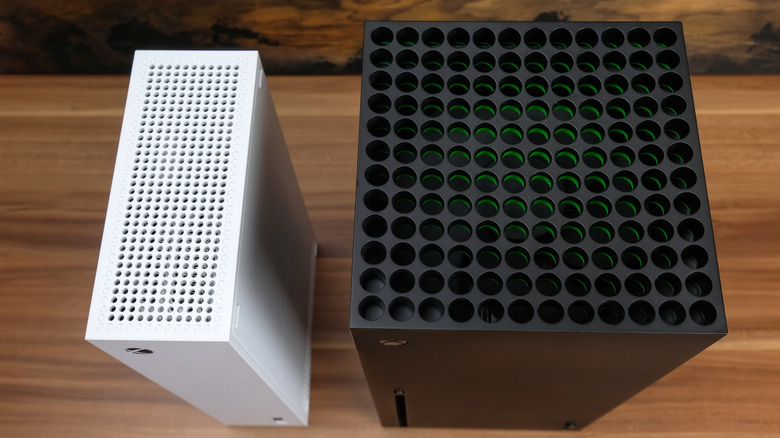
Finally, heat management can go a long way toward maintaining physical hardware health, and it also depends on how well you take care of it. For example, properly cleaning the outside of the console by clearing out air vents can prevent dust buildup, which can cause thermal throttling or premature shutdowns. Also, placing your system where vents aren't blocked is quite helpful for cooling it down.