

5 Common Problems Owners Have With Asus Laptops
We may receive a commission on purchases made from links.
In my own experience with Asus ROG and TUF laptops, they're very solid, but that doesn't mean software and hardware issues can't happen from time to time. Like all laptops, Asus machines aren't immune to software bugs, loose connections, and hardware issues. Named after the mythical Greek flying horse "Pegasus" via a shortened namesake, Asus dominates the laptop market across its Zenbook, Vivobook, ROG, TUF, and ProArt lines, so plenty of people live with an Asus laptop on a daily basis.
Owners will eventually come across a frustrating quirk thanks to Asus laptops being everywhere, so naturally there will be more visible complaints than there are with smaller brands. Asus is a legit major player in the PC and laptop markets — specifically, a publicly traded Taiwanese firm that isn't owned by a parent company.
Given my experience with Asus laptops, I've rounded up the five most common issues with Asus laptops and how to fix them properly. Most of these fixes can be applied to other laptops, too, so even if readers aren't currently running an Asus machine or thinking of buying one, it's worth knowing the warning signs for the below issues before a little problem becomes a bigger issue.
Overheating, fan noise, and thermal throttling
This is usually the most common Asus laptop complaint, and it's often the most preventable. Dust is a laptop's worst enemy short of pouring a can of Monster into the fan vents (don't do that), but it can easily be cleaned out using canned air or a desk vacuum like the Hoto Air Duster & Vacuum.
For those who want to take off the back panel and dust out the inside of an Asus laptop, I'd recommend using something like the Olight ArkPro flashlight to double check components with a solid amount of flood and spot lighting, and its UV light is fantastic for double-checking components for any stubborn bits of dust or liquid stains that need cleaning with isopropyl alcohol.
There are plenty of users who will complain about overheating, loud fans, and thermal throttling when using an Asus laptop, but this usually comes down to how it's being used. Running any laptop on a bed or soft surface without a cooling pad in gaming modes is a very good way to fry components. I use a wood laptop tray with a cushioned bottom for using my MainGear Ultima 18 when I'm not at my desk, and it works a treat while being comfortable.
Battery drain and charging problems
Fast battery drain and charging quirks are another common complaint, but again, this is likely caused by certain usage patterns rather than a hardware failure. If an Asus laptop battery dies too fast or won't charge fully, optimizing Windows can help. I recently covered how to get Xbox Mode on PCs and laptops, and there are some fantastic tools to use for everyday users, such as Chris Titus Tech's Windows Utility that can stop unnecessary processes in Windows, which means better battery life.
It's also a good idea to check in the dedicated Asus app and Armoury Crate for gaming laptops to apply BIOS and driver updates, as outdated drivers can sometimes be less power efficient. A big killer of battery quality is leaving the laptop plugged in constantly. Use a power-saving or balanced power profile to keep battery life going for longer, unplug the laptop when fully charged, and turn on the battery care mode that can usually be found in the MyAsus app under Device Settings > Power & Performance. This will make sure your battery doesn't charge to 100%, keeping it healthier for longer.
If, after all this, the Asus laptop doesn't take a charge or drains its battery very quickly, the battery might need to be replaced. This can be dangerous if a battery is swollen or leaking, so make sure to get in touch with Asus customer support before trying to carry out a replacement personally. An issue like this may be covered under warranty.
Slow performance and lag
Slow or degrading performance is usually down to a neglected system. As I said previously, there are plenty of ways to optimize system performance. With Asus making some of the most powerful laptops on the market, it's rarely the hardware that's letting users down in day-to-day usage.
The first thing to check is your startup programs. Hit the Windows button on your keyboard and search for "Startup Apps," then deactivate anything that isn't needed. I've been using Avast Cleanup Premium to clear out unnecessary system files and automatically remove internet browser cached data and cookies, and it also helps with clearing broken registry keys — these can slow down almost any kind of laptop. There are free options available, too, but I've found Avast Cleanup Premium to make this quick and easy, proving to be well worth the yearly or biannual fee. Optimizer is also a great program to debloat Windows and get rid of pesky telemetry in the Windows Start menu, alongside making Windows Copilot-free.
A full hard drive can slow down processes as well. A quick fix for this is moving anything that isn't used very often, like photos, videos, or past project files, onto an external SSD. Asus gaming laptops usually come with an extra M.2 SSD port on their motherboards, too, so installing another 1 to 4 terabytes of storage is as simple as buying another M.2 drive and plugging it in. For those on a budget, there are plenty of encrypted cloud services, such as IceDrive, to store everything on instead.
Display problems: flickering, black screens, and brightness
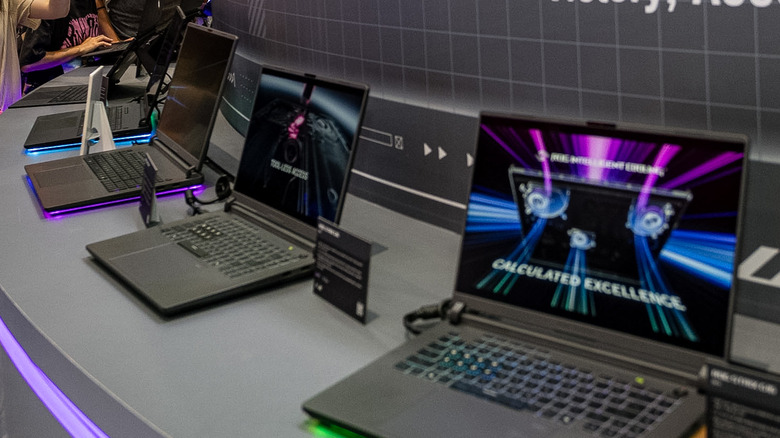
This was an issue with my last Asus ROG Strix laptop that I bought around four years ago. The screen kept intermittently working, then not. Luckily, Asus laptops are quite user-friendly for repairs in my experience. I managed to remove the front frame, carefully remove the shielding tape around the screen, and remove the panel. It turns out it was a loose connection, which I then plugged back in, secured with a bit of electrical tape, and put it all back together.
Screen flickers, black screens on startup, and brightness not adjusting can also be software issues. The first port of call with any display issues is updating your graphics drivers, which may differ depending on the Asus laptop. For Nvidia, use the Nvidia app; for AMD, use Adrenalin; and for Intel, use the Intel Driver and Support tool. Otherwise, go into the MyAsus app for all the driver support needed. Armoury Crate on Asus gaming laptops is a good update hub, too.
If none of this fixes the issue, try using an external monitor on both your USB-C and HDMI ports. If it works, make sure to back up any files and revert to an earlier system restore point to try and fix the issue. Failing that, try reinstalling Windows, and if there's still a laptop display issue, reach out to Asus customer support to make a claim under warranty or to get a repair quote.
Wi-Fi and connectivity problems
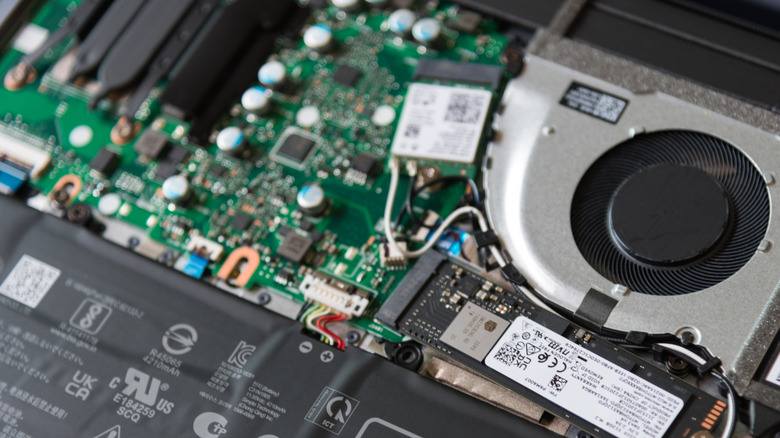
Wi-Fi and overall connectivity problems with any laptop can be a tricky issue to diagnose and fix, and it can also affect Bluetooth in some cases. The truth here is the network cards in some Asus laptops aren't the best, which is a small issue to worry about from an otherwise solid brand of laptops. But let's start with software fixes before going inside the laptop.
Using Wi-Fi diagnosis software that checks channel health, such as Oscium's range of programs, is a good start. For a quick fix, try restarting the router and laptop to see if the situation improves — but if this is a common occurrence, then it's worth digging deeper. Go to the MyAsus app and ensure that there are no WLAN, Ethernet, or Bluetooth driver updates pending. If that doesn't fix anything, try deactivating and reactivating the correct network adapter in Windows Device Manager.
If this doesn't work, try plugging an ethernet cable from the router directly into the laptop to check if a hardwired connection works. If it does, it could be an issue with the network adapter's Wi-Fi antenna. It's a good idea to check out iFixit for a dedicated video or guide for the specific Asus laptop model. From there, it would be a case of finding the loose connection and securing it. If this fails, it might be time to either replace the Wi-Fi adapter or make a claim under warranty.