

5 Good Lock Modules That Enable Powerful Customization On Samsung Phones
If you own a Samsung smartphone, Good Lock is one hidden feature you should definitely try. The app hosts several plugins that can unlock a whole suite of new functionalities. You're almost guaranteed to find a plugin that'll enhance your experience, even if you don't consider yourself a power user. For starters, it can tweak your camera capabilities, make one-hand operations more seamless, and provide you with even more customization options than the stock experience offers.
The best part is that you don't have to download every module; you can install and toggle the ones you want to use and ignore the rest if you prefer the stock experience for specific features. Lastly, since Samsung officially supports Good Lock, you also don't have to worry about compatibility, as Samsung actively updates the custom plugin suite for each major OS version. You only need to manually update your modules within the Good Lock app or through the Galaxy Store.
Home Up
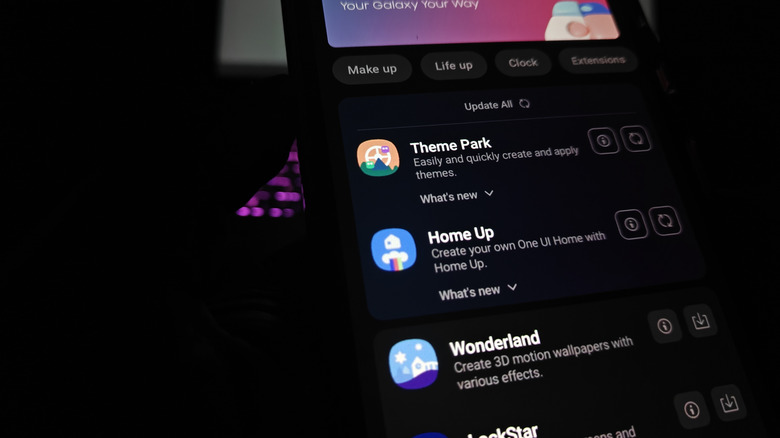
If you want a nice middle-ground option to add new features that usually require installing a custom launcher while keeping the stock one, you'll love what Good Lock's Home Up module offers. It's essentially a native tool that lets you dress up Samsung One UI Home with an array of options like changing the grid size of your apps to match widgets, tweaking the number of app icons you want to fit in one space, and option to make major changes to your Edge Panels.
For devices running One UI 8.5, you'll find options like:
- Adding stickers and images to your home screen
- Creating gesture animations
- Layouts for your home screen, apps screen, and folder
- Customization for your pop-up folder styles and layouts
- Customization for app window type and Edge Panels
- Editing your phone's share sheet
Overall, it gives you flexibility in your device's screen layout and how you want to use it.
Camera Assistant
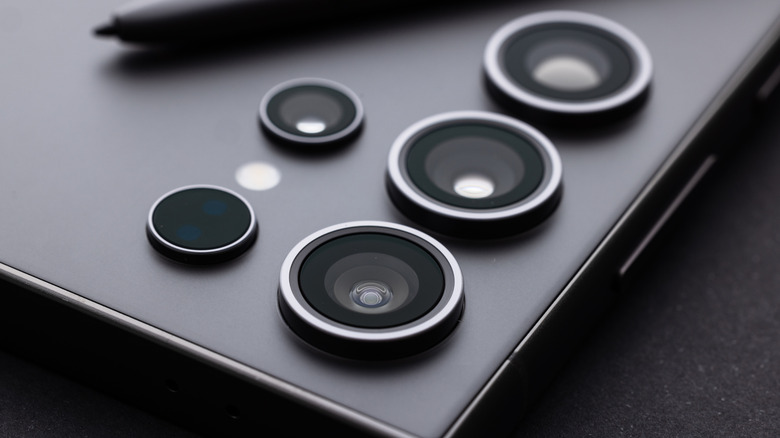
Camera Assistant is a Good Lock module you'll want to install immediately if you're finicky about camera controls. Features you'll find with Camera Assistant that provide extra togglable and selectable settings for the Samsung camera app include (as of One UI 8.5):
- Lens and zoom toggles, like Auto lens switching
- Focus controls like prioritizing focus over speed
- Shutter options like a toggle for quick tap shutter
- Photo effects like enabling or disabling Auto HDR
- Video options like adding HDR10+
- Presets and capture options for Galaxy XR
- Additional mode selection like Single take or Dual recording
- Camera preview customizations
You can think of Good Lock's Camera Assistant as a software extension to the default camera — it largely keeps the camera experience the same but lets you access new controls inside the camera app. Camera Assistant is also expanding out to Samsung's other budget-friendly devices like the Galaxy A and M series.
Sound Assistant
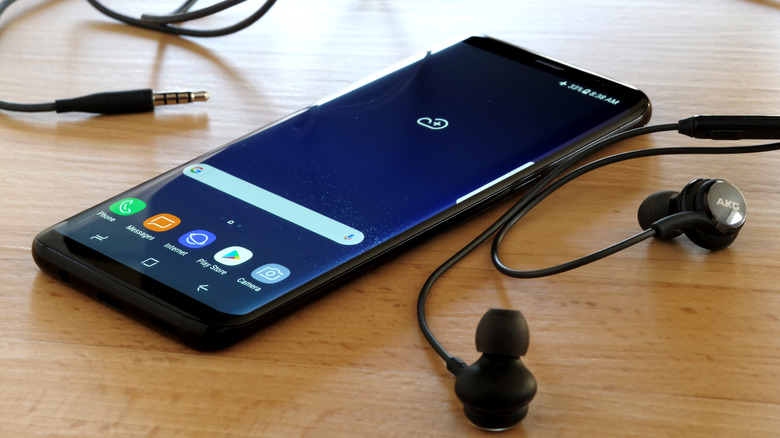
Fine-tuning audio to get the exact volume you want is sometimes difficult with default controls. The Sound Assistant module offers granular controls; you can add more increments (steps) by enabling it and also adjust the volume per app. It's a fantastic module for bypassing the frustration of not having enough precision with the sound. Additionally, you can enable the volume button to skip tracks even when the screen is off, so you don't need to interact with your Spotify playback buttons directly if you don't want to.
Some options you'll find in Sound Assistant as of One UI 8.5 include:
- Customizing the volume panel by changing the buttons and colors
- Media key shortcuts
- Using Bluetooth metronome with external devices and maintaining media volume while using navigation
- Sound and vibration effects like customizing vibration patterns, concert hall and voice changer toggles
- Multi sound toggle to allow certain apps to play sound simultaneously with another app
One Hand Operation+
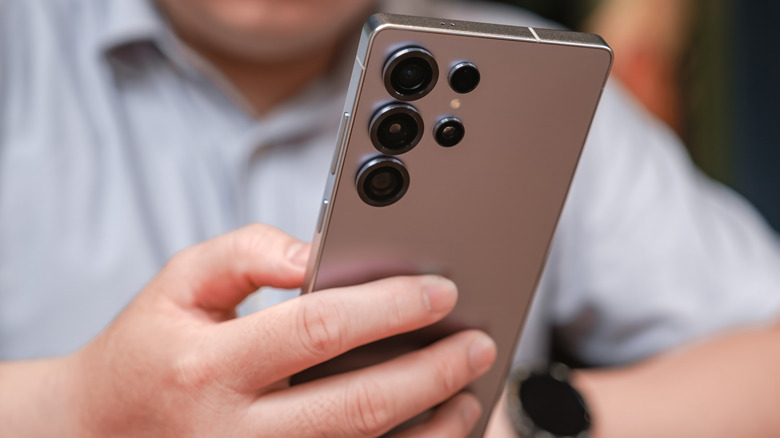
Anyone who strongly advocates one-hand phone use or hopes to master gestures should install One Hand Operation+ from the Good Lock set. It adds gesture handles to the left or right side of the screen to accommodate one-hand use. The module lets you customize the handles by changing transparency and color, as well as touch width, size, and position with sliders. Plus, controlling the handle's position and size is crucial to avoid accidental interactions while using your phone normally. When you don't need to use your device with one hand, you can simply tap the toggle at the top of the module.
Some advanced settings you'll find in One Hand Operation+ as of One UI 8.5 include app exceptions, choosing apps that don't show and use the gesture handles, animation toggle, fit to keyboard toggle, and the option to hide the handle in certain places like the lock screen or quick panel. For gesture settings, you will find options to customize swipe distance and angles, as well as vibration intensity.
LockStar
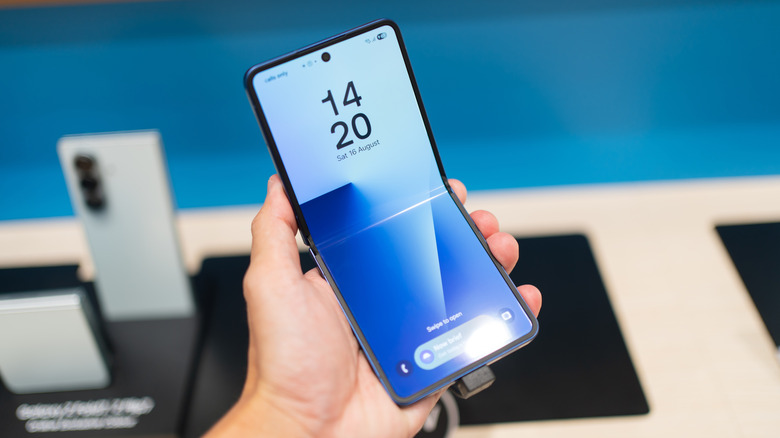
Pairing LockStar with Home Up, and technically Theme Park, can really transform the look of your Samsung Galaxy. But LockStar and Home Up make up the essentials. You can use LockStar to create advanced app widgets for your Always On Display and lock screen, add new clock faces (you can pair it with the ClockFace module to make new designs), and change your lock screen layout. You can also change the two corner app icons on your lock screen — usually Phone and Camera — to any of your choosing. The module also gives you the option to add text and stickers to your lock screen.
The only issue you may run into with LockStar is that it may ask you to turn off the battery optimization setting while using the module. That said, the battery optimization setting can dramatically extend your phone's battery life, so some users might hesitate to disable it.