

5 Samsung Galaxy Features You Have To Enable Yourself
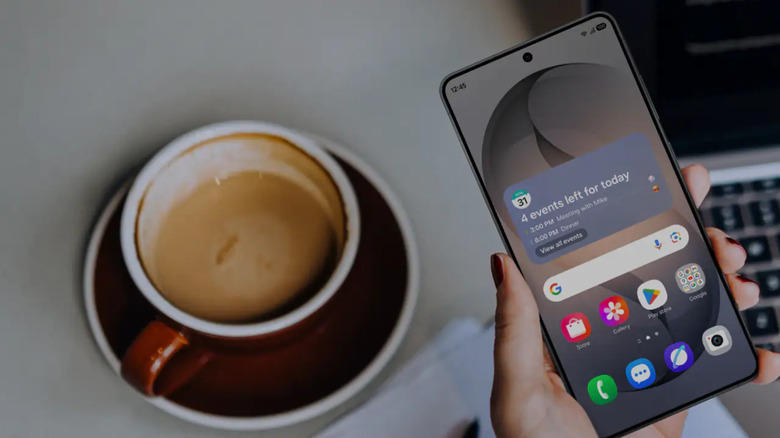
Your Samsung Galaxy phone is already an impressive productivity tool out of the box. This is thanks in part to most of its major features being turned on by default, making them much more accessible to you. For instance, you can automatically split your screen into two apps as soon as you set up your device. Multi control, which supports controlling all your Galaxy devices at the same time with just a single keyboard and mouse, is also enabled. Then, you have Circle to Search, where you can use what's on your screen as a search query for Google.
But beyond these headline features, your Samsung Galaxy hides even more handy tools behind a toggle switch. These under-the-radar settings aren't automatically activated, so you might be missing out on some nifty features exclusive to the Samsung Galaxy without even realizing it. If you're looking for more ways to get the most out of your phone, here are five Samsung Galaxy features that need to be enabled manually.
Control music with volume keys in Good Lock
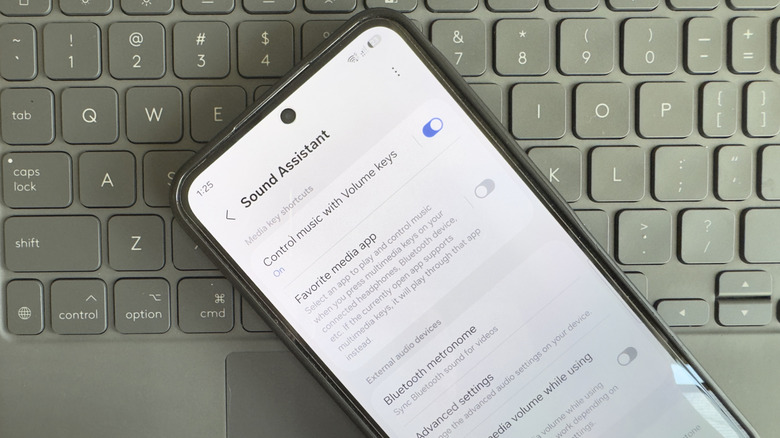
While controlling the music on your phone screen is easy, there are instances when you'd prefer a physical control button instead. Maybe your phone is in your pocket, and you don't want to be bothered pulling it out. Or perhaps you're wearing gloves or have sweaty hands and can't touch the screen. Lucky for you, your Samsung Galaxy phone comes with music control via volume keys, but it isn't on by default. To enable this feature, you need the Sound Assistant module in the Good Lock app. Good Lock is essentially a customization hub for Samsung phones, designed to improve the overall user experience, similar to how Sound Assistant allows you to better manage audio on the device. Here's how to set it up:
- Launch the Good Lock app. If you don't already have it, install it from the Galaxy Store.
- In the Plugins tab, find Sound Assistant.
- Press the download button next to it.
- After downloading the app, open Sound Assistant from either the Good Lock app or your phone's app drawer.
- Give Sound Assistant the necessary permissions.
- Scroll down to the Media key shortcuts section.
- Enable the Control music with Volume keys option.
- Tap Control music with Volume keys.
- Select your preferred configuration: Up for previous songs and Down for next songs, or Up for next songs and Down for previous songs.
Now, whenever your screen is locked, you can press and hold the volume key to go to the next or previous song. This works on streaming apps like Spotify and YouTube Music and local music players like Poweramp and Musicolet.
Auto restart in Device care settings
If you're like most users, the only time you remember to restart your Galaxy phone is whenever you're running into some sort of issue. When everything is working as expected, rebooting your device is probably the last thing you'd think of doing. But this is one habit you should start breaking. That's because how often you restart your phone has an impact on its performance — the longer its uptime is, the more problems can pop up later on. Rebooting regularly can help keep your Samsung Galaxy running smoothly.
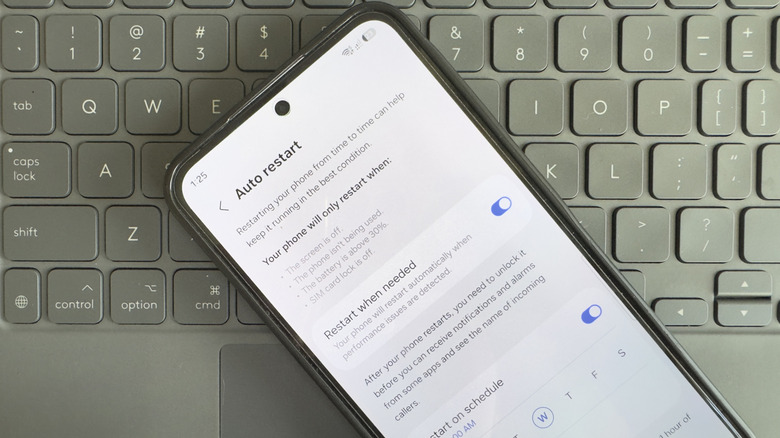
But what if you forget? That's where the Auto optimization option in Settings comes in handy. This menu allows you to automatically restart your Galaxy phone. This, however, doesn't necessarily mean you'll be dealing with random restarts while you're actively using your device. Auto restart will only be activated during certain scenarios, such as while your phone is idle, the screen is off, the battery is at 30% or more, and the SIM card lock is disabled.
To turn on auto restart on your Samsung Galaxy, follow these steps:
- In the Settings app, scroll down to Device care.
- Under Performance, tap Auto optimization.
- Open Auto restart.
- To make your Galaxy restart whenever it detects performance issues, toggle on Restart when needed.
- To have your device restart regularly, enable Restart on schedule and set your days and time of choice. You're free to select multiple days.
Once your Samsung Galaxy restarts automatically, make sure to unlock it afterwards. Otherwise, it won't be able to receive alerts, sound alarms, and display the names of any incoming callers.
Voice Focus mic mode in Phone
While on a call, the last thing you want is for the other person to hear nothing but noise from your end. The good news is, your Samsung Galaxy phone includes a nifty feature that can make your voice stand out better in busy environments: Voice Focus. It filters the audio and minimizes ambient sounds to allow you to make clear phone calls even while you're out in public spaces.
Voice Focus is one of the three mic modes on your device. The other two are Standard and Full Spectrum. Standard does some audio filtering, but it doesn't eliminate most background noise. Full Spectrum, on the other hand, doesn't filter audio at all and lets both your voice and all the sounds around you pass through. Calls are set to the Standard mic mode by default, so you have to manually switch to Voice Focus when you need to improve the clarity of your voice for a particular call. To do that, follow these steps:
- Place a call or answer one on your Galaxy phone.
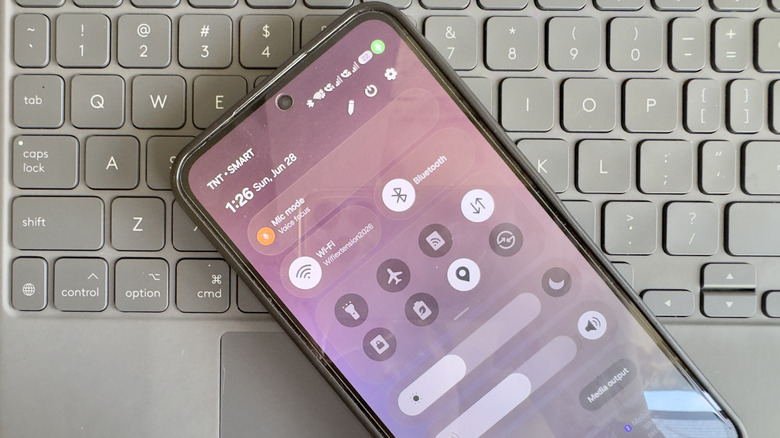
- Open the Quick Settings panel.
- Tap on Mic mode at the very top of the panel.
- Switch to Voice focus.
- Hit Done.
- Go back to the calling screen.
Your voice should now sound clearer to the person you're talking to. Other than phone calls, Voice Focus also works for third-party video conferencing apps, including Google Meet, Skype, Zoom, and Facebook Messenger. However, mic mode itself isn't supported on every Galaxy phone. If you can't find it in the Quick Settings panel, it might not be available for you.
Floating shutter button in Camera
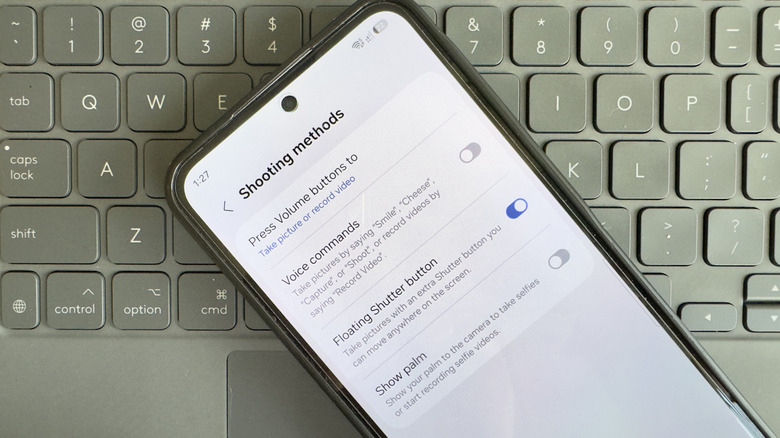
So you're trying to take a selfie on your phone, but the way you're holding it makes it impossibly hard to press the shutter button. Thankfully, there's a setting on your Samsung Galaxy device that you can enable to make snapping photos a lot easier. Called the Floating Shutter Button, it essentially creates a copy of the shutter button on the screen. It's just the same size, but unlike the original, you can freely drag it around to where you can quickly reach it. Here's what you need to do to turn on this Android camera feature (which iPhone doesn't have):
- Open your Camera app.
- Tap the menu icon (four dots forming a square) in the bottom-right corner.
- Go to Settings.
- Under General, select Shooting methods.
- Switch on Floating Shutter button.
Then, when you go to the Photo or Portrait mode in your camera, you'll see a white shutter button floating over the viewfinder. Simply drag and drop it to your preferred location. It's important to note that the Floating Shutter Button doesn't behave exactly like the original shutter. For one, it doesn't support any other gesture but a single press. That means you can only use it to snap pictures, whereas the original shutter lets you pull down to take burst photos and long-press to start a video recording. The Floating Shutter Button is also available exclusively in Photo and Portrait mode, not anywhere else.
Notification categories in Notification settings
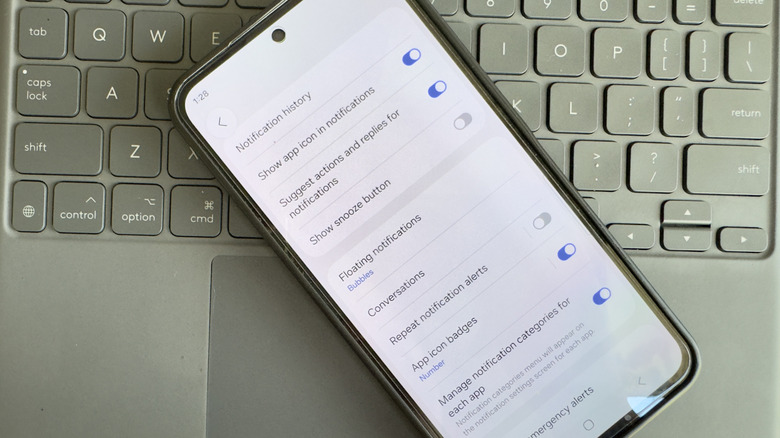
Notifications on your phone are useful tools, but they can also be the bane of your existence. Just imagine how annoying it is to receive 20-plus different alerts from different apps in a day. Sure, you can always turn off notifications from some apps. But doing so often means blocking every single alert from that specific app. So, what if you just want to disable a certain type of notification?
In that case, you can activate notification categories in your Galaxy phone. Notification categories allow you to turn off only specific notifications from an app while keeping the rest active. For instance, for Facebook, you can block birthday notifications but keep alerts about comments and tags. Here's how to enable notification categories on your Samsung phone:
- Go to the Settings app.
- Select Notifications.
- Tap on Advanced settings.
- Toggle on Manage notification categories for each app.
- Return to the main Notifications page.
- Open App notifications.
- Tap on the app you want to manage.
- Press Notification categories at the bottom.
- Turn off the categories you don't want to receive.
If you want to further customize each notification category, you can do so from the Notification categories page of the app. Simply tap on the type of alert you'd like to customize. From here, you're free to set that specific notification category to silent, change the sound, turn on/off vibrate, and hide the content from the lock screen. These options will only apply to that category and not every alert from the app. Keep in mind, though, that notification categories and customization options might not be available for every app you have installed.