

How To Disable Gemini On Your Android Phone

Generative AI is seemingly everywhere right now. Google's ecosystem is certainly no exception, with the company having recently pushed its new Gemini chatbot as the default voice assistant onto newer Android phones. But for those who enjoy setting a simple tea timer or turning off the lights in their living room without launching an LLM, this switch from Google Assistant to Gemini may have felt a bit jarring — some even feel like Gemini wants to take over our phones. Thankfully, you can easily revert to the classic digital helper, and it'll only take a few moments.
To get started, open the Google app and tap your profile photo or initials in the upper-right corner to access the main account menu. From there, select the Settings option and then the Google Assistant option. Scroll down through the list of preferences until you see the Digital assistants from Google option, and tap it.
Once inside, you'll see Gemini selected; just tap the button next to Google Assistant to make the switch. A quick confirmation prompt will pop up where you'll confirm your decision. It will also explain that advanced generative capabilities will no longer be integrated into everyday shortcuts. Accepting this prompt makes your transition official, and your phone will apply the change right away. This toggle works the same regardless of which type of Android device you have. And don't worry; you can always revert to Gemini later on whenever you want by following the same steps.
Why would people want to switch from Gemini back to Google Assistant?
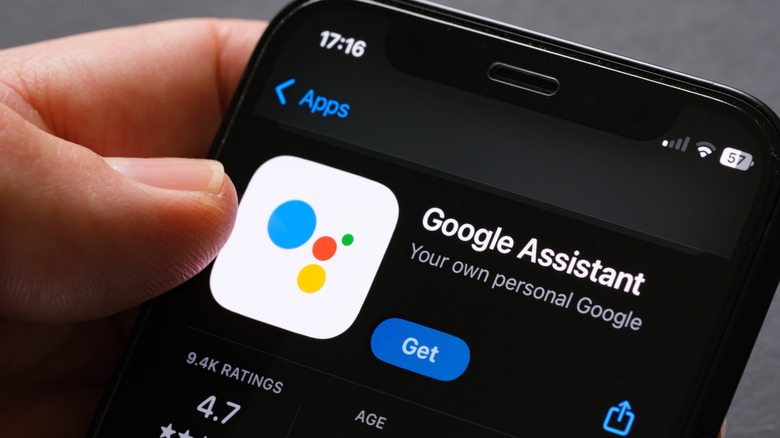
Understanding the basic differences between Assistant and Gemini explains why so many users are wanting to go back. Google positioned Gemini as an upgrade from its older Assistant voice tool; the change marks the official shift from command-first phone usage to more conversational usage, even in cases like using Gemini on Android Auto. The newer assistant brings serious power to smartphones. In addition to doing most of what Assistant could, it can handle a variety of more complicated tasks with more variables, like creating a weekly meal plan, helping you practice for a job interview, and writing spreadsheet formulas. However, Gemini's sky-high processing power is total overkill for the times when you just need to turn on a light.
By contrast, Google Assistant operates as a more simple, rules-based digital helper; it's built primarily for speed and practical convenience. It relies on straightforward commands to do garden-variety things like set a reminder, control smart home gadgets (whether proprietary or third-party), fire off a text message while driving, or even just tell you a dad joke. And because Assistant skips the heavy processing overhead large language models like Gemini require, it has faster response times with whatever you ask it for.
When it comes to everyday phone management, this simple and focused efficiency is all many folks want from their digital assistant. Sure, Gemini's overpowered feature set may occasionally come in handy for phone users, but many times, it's just in the way of basic utility. Keeping Google Assistant active ensures things stay reliably simple and fast.
How to stop Gemini's extra data collection and uninstall the app

There are some uncomfortable truths about using Gemini, and anyone advocating for stricter privacy may want to take things a step further. Depending on your account settings, Google may use your interactions with Gemini to train future models. Since Gemini can appear in other Google apps like Chrome and Google Messages, you may want to play it extra safe here — beyond simply not interacting with the Gemini app or website. To stop this training, open the Gemini app and tap the two horizontal lines in the top left, then press the settings gear and open the Gemini Apps Activity menu. Here, you'll see Keep Activity at the top of the page — toggle it off. However, as Google notes, "Your chats are saved in your account for up to 72 hours, whether Gemini Apps Activity is on or off."
Want the Gemini app removed from your Android phone? There are a few more steps to take. Open your phone's main Settings menu, navigate to Apps, then tap See all apps and select Gemini from the list. Depending on how the software was installed, tapping either Disable or Uninstall will remove Gemini from your app drawer and stop its background processes. Google may potentially be able to push Gemini back onto your Android in a future system update, however — much of its functionality is built into the main Google app — so check your app drawer the next time you update your phone.
Finally, Samsung Galaxy phone owners might notice their power button still triggers an AI prompt instead of the regular shutdown screen. To fix this lingering hardware quirk, search for Side Button in the Settings menu, then change the long-press command to launch the power-off menu instead.