

How To Get The Best Gaming Performance With Nvidia Control Panel
PC hardware upgrades are, in many cases, prohibitively expensive these days. Some crafty enthusiasts have even gone so far as to make their own RAM in response to soaring prices. This makes squeezing the most performance you can out of your setup more important than ever, and tweaking a few settings in the Nvidia Control Panel can help you do just that.
First things first, you can get to the Nvidia Control Panel by right-clicking on your desktop, choosing "Show more options," and then clicking "Nvidia Control Panel." This is separate from the Nvidia App, which lets you modify other game-related settings. Here, you'll see a list of navigation options on the left-hand side. There are some settings you'll want to enable for the best performance, and others you'll want to make sure are disabled. Locate the "3D Settings" group in the navigation options (closest to the top of the list) — we'll start here.
Select the "Manage 3D Settings" option to open the Global Settings page. This is where you can edit a number of hardware-intensive options like ambient occlusion, anisotropic filtering, and more. Note that if you ever want to revert back to the default settings, there's a "Restore" button beneath the settings options.
Best Nvidia Control Panel 3D Settings for performance
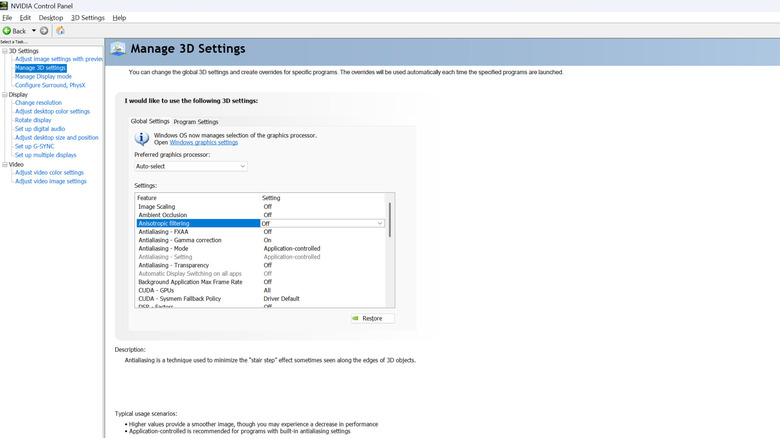
Leave "Image Scaling" and "Ambient Occlusion" disabled. Anisotropic filtering, which reduces blurriness of busy scenes, is the first setting you'll want to change –- it's likely set to "Application-controlled" by default, but for the best possible performance, set it to "Off."
Leave all Antialiasing settings at default, as these have next to no impact on performance. Next up is "Background Application Max Framerate," which can be a major boon if you have a dual- or triple-monitor setup. This, as the name suggests, throttles the FPS of any application that you don't currently have in focus, so if you're playing a game on your main monitor, you could limit background apps to 30FPS on your second monitor to reduce performance impact. The next setting to look at is "Low Latency Mode", which isn't as important nowadays because Nvidia Reflex is typically enabled in supported games already, but setting "Low Latency Mode" to "On" is a nice catch-all for performance improvements.
Max Framerate is another you'll want to set for optimal performance. You want this set just below your monitor's refresh rate. So if you have a 120Hz monitor, set the Max Framerate to 117 FPS. This helps minimize latency spikes, and you should experience more uniform gameplay. Next, under "Power Management Mode," select "Prefer maximum performance." Set "Texture Filtering – Anisotropic sample optimization" to "On" for better performance in DirectX programs. "Texture Filtering – Quality" should be set to "High performance" rather than "Quality." Once you've changed the settings, make sure to click "Apply" at the bottom right of the window.
Other Nvidia Control Panel settings
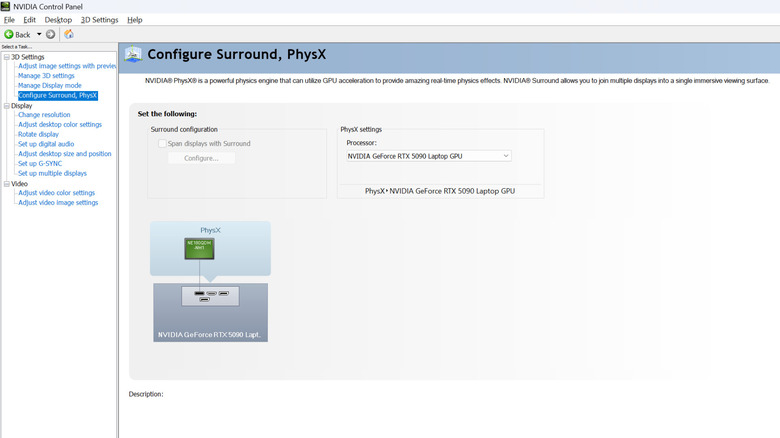
Head to "Configure Surround, PhysX" and make sure the PhysX setting is set to your GPU rather than Auto-select. Then, go to "Change Resolution" in the navigation menu and ensure your monitor is set to the proper resolution and the highest possible refresh rate.
Next, head to the "Adjust desktop size and position" menu and, if you're not currently using a stretched resolution, set the scaling mode to "No scaling." And that's it! Those are the best Nvidia Control Panel settings for PC gaming. There are a number of other options you can adjust to get the best performance using the Nvidia App, such as configuring G-Sync and disabling global game optimization. Always be sure to double-check the in-game settings for performance killers like ray-tracing, high shadow quality, and volumetric effects. Outdated GPU drivers can have major performance impacts, too, so make sure they're up to date!