

Spotify Could Be Ruining Your Android Auto Audio - Here's How
As the top music streaming platform, Spotify can be a handy companion to Android Auto, but there may be instances where you find that your audio quality is lacking. Though there can be uncomfortable truths about using Spotify, having audio suddenly or randomly dropping in quality isn't supposed to be one of them. Fortunately, it may very well be one setting interrupting your experience between the two programs.
If you find that your audio quality is sporadically dropping, it may be due to Spotify's Volume normalization feature. It's well-intentioned, as it's a means to ensure audio is sounding uniform between tracks, but it may also cause users to believe there's a dip in how their audio sounds. Exploring this as an option simply involves navigating Spotify's settings, and we also have a few more ideas for settings to tweak while you're there.
These additional settings include adjusting your EQ and audio quality, though some settings may have an impact on your phone bill. If you find yourself diagnosing audio issues between Spotify and Android Auto, it may also be good to take a look at some common Android Auto problems and how to fix them. You may also want to check the user's manual for your vehicle's infotainment system to see what information you can gather, including checking to see if there are any audio settings that can be adjusted.
Why is my Spotify sound quality so bad suddenly?
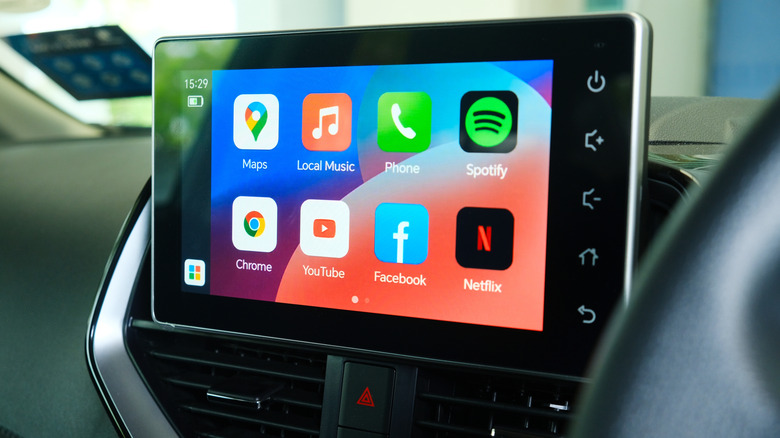
If you find that you're having issues with Android Auto and Spotify playing nicely, it may be due to a certain feature known as Volume normalization. Essentially, this setting is meant to provide "a more uniform listening experience" by ensuring a balance between loud and soft songs. Useful as it may be for creating this balance, users can often mistake it for their audio quality sounding worse. Fortunately, finding this one is simple. Here's the steps:
-
From your phone, open Spotify.
-
Select your profile icon from the top.
-
Choose Settings and privacy.
-
Select Playback.
-
Find Volume normalization under Volume controls and ensure it's disabled.
Remember that you can't change audio settings from within Spotify if you have Spotify Connected playing on another device. It's worth knowing that next to Volume level, users are also able to adjust the overall levels for their music. Users can choose between Loud, Normal, and Quiet. Normal is the default.
We'll take a look at some other tips that may also be useful below, but be sure to check the EQ settings within your vehicle's head unit, as well. The issue may be coming from the vehicle rather than your smartphone. Be sure to consult your manual, if necessary. There may also be some settings ruining your Android Auto experience, but fortunately we have a guide that can tell you more.
Other Spotify settings worth checking
As you navigate Spotify's settings, there are additional controls you may want to look at if you're looking to get better sound from Android Auto. For example, while under the Playback settings menu, it's worth mentioning that the Listening controls section has an Equalizer that can be adjusted to suit your tastes. Make sure the EQ is enabled, and there's also several presets you can choose from.
Additionally, if you go to your profile icon, then select Settings and Privacy, you can find audio quality settings under Media Quality. By default, Auto-adjust is enabled, which automatically adjusts quality so that music can be played without stuttering. Try adjusting these settings, as Spotify is capable of going up to 24-bit/44.1kHz lossless audio, but remember that higher audio quality also means higher file sizes, so your data usage will likely be impacted. Lossless is also only available for Spotify Premium users.
Lastly, if audio quality is really your concern, you can also check to see if the Data saver feature is enabled. Turning it off may result in higher data consumption, but you'll ensure that audio quality isn't randomly being reduced. If available, try and use Wi-Fi if you plan on turning off Data saver. Nonetheless, select your profile icon in Spotify, then navigate to Settings and privacy > Data-saving and offline, and ensure Data saver is off. There's also some additional things users may not be aware that Spotify can do.