

You Can Use Your Old Xbox Controller With Your iPhone
We may receive a commission on purchases made from links.
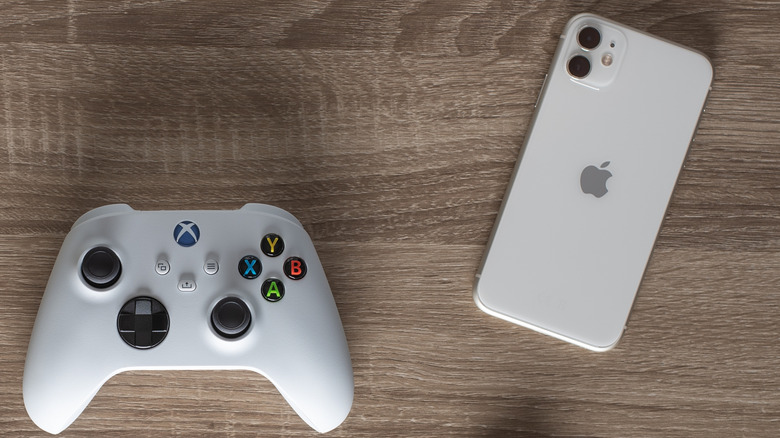
Sometimes, when playing a mobile game, touchscreen controls can block part of the screen, be imprecise, or unintuitive. I have experienced all of this when I tried to play "Dead Cells" or "TMNT: Shredder's Revenge" on my iPhone since they're part of my Netflix subscription. For the life of me, I can't get the combat to be as fluid as when I'm playing the exact same games using a controller because they demand a level of speed, dexterity, and precision that is hard to pull off with touch controls. Furthermore, a controller is just more comfortable to hold thanks to its ergonomic grip. When I want to play these games, I just use my old Xbox One controller. You can use yours too.
There are two ways you can do this: Bluetooth or cable. Just note that some online multiplayer games like "Call of Duty: Mobile" will put you in a lobby with other controller users. Because of this, you might experience long wait times in the queue. Also, I personally find the touchscreen more precise to aim with in first-person shooters than an analog stick (but not more precise than a mouse). But for action games and platformers, it can be better to reuse an old video game controller that's collecting dust as a dedicated mobile controller.
How to connect your old Xbox controller to your phone
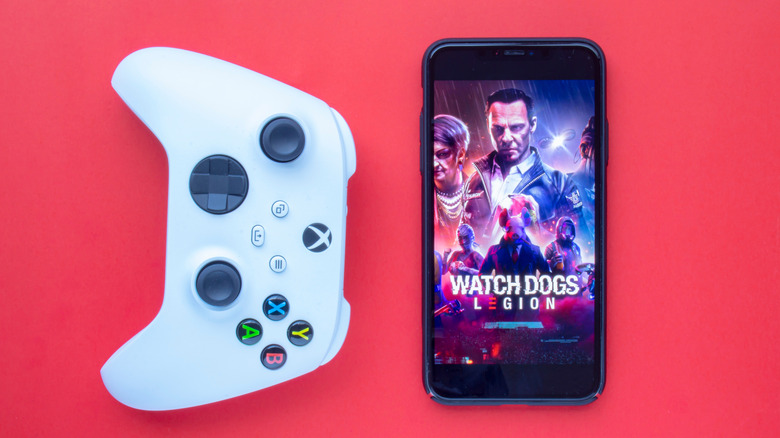
The quickest way to connect your old Xbox Controller to your iPhone is using Bluetooth. It's as easy as pairing any other Bluetooth device. Just ensure the Xbox controller's AA batteries or battery pack have enough power for wireless play. To connect, follow the steps below:
-
Press the Xbox button to turn on the controller.
-
Press and hold the Pair button at the top until the controller starts blinking quickly.
-
Open Settings on your iPhone.
-
Tap Bluetooth.
-
Under Other Devices, tap Xbox Wireless Controller.
-
Tap Pair.
-
The controller should stop blinking and become a solid color. You can now use it in games that support controllers.
You can also connect the Xbox One controller to an iPhone with a micro-USB to USB-A cable. For the iPhone 14 or older, you'll need a USB-A to Lightning adapter, such as Ivshowco's version for $9.99. If you're using an iPhone 15 or newer you'll need something similar to the Ugreen USB-A to USB-C Adapter, which costs $9.99 for a two-pack.
If you have a modern Xbox Wireless Controller you can connect it directly to an iPhone 15 or newer using a USB-C to USB-C cable. However, you will also need a USB-C to Lightning adapter for the iPhone 14 or older. Just remember that the Xbox controller will now be powered by your phone and could drain the battery faster.
Get a stand to hold up your iPhone during long play sessions
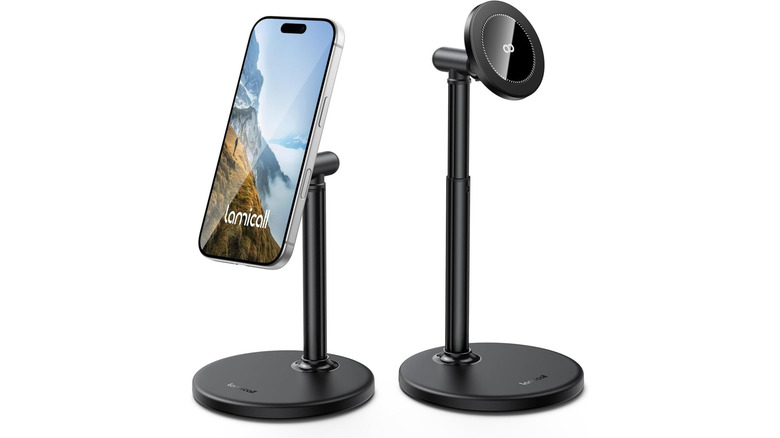
Since you will put your phone down in order to play with a controller, it helps to have something to hold it, instead of lying it flat on a surface while you stare down at it. That's not something you should do to your neck and posture. You need a stand like the Lamicall Magnetic Phone Stand for Desk, which costs $19.99. It's a MagSafe stand, so if your iPhone has a MagSafe case, it will easily snap on to it; otherwise, you'll need to take it out of the case. The best part about this stand is that you can adjust its height between 5.9 inches and 9.8 inches, and tilt it up to 90 degrees, allowing you to find a comfortable viewing angle.
If you're looking for a non-MagSafe alternative, the JSAUX Fold-Flat Cell Phone Stand, which costs $8.99, can work. Just pop your phone on the stand and adjust the angle up to 90 degrees for the best view. If you want more of a portable gaming experience, consider getting a mobile controller for your iPhone instead.