

Pairing Your Old PS4 Controllers With A Steam Deck Unlocks A Clever Feature
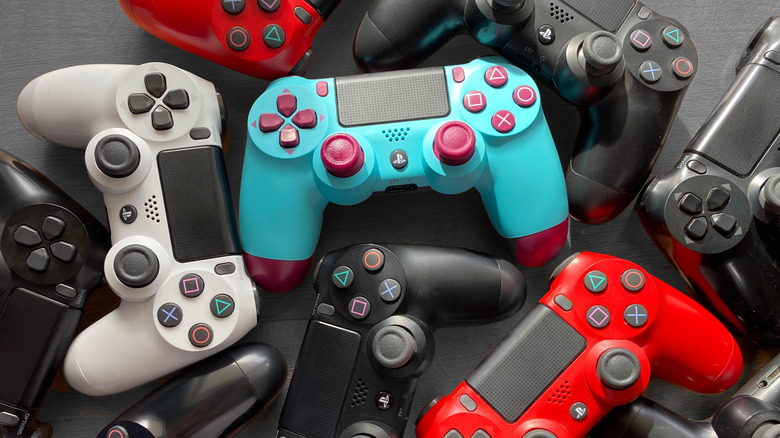
The Steam Deck is an excellent and robust handheld gaming platform. Granted, the ROG Ally is cheaper, but the Steam Deck offers a better user experience, especially thanks to its trackpads. But what if you wanted to use the power of trackpads without shelling out $99 for a Steam Controller? Just use (or buy) an old PlayStation 4 controller.
Many people with a DualShock 4 controller have learned that its trackpad works on the Steam Deck for a variety of functions. The DualShock trackpad serves the same purpose as a mouse in game menus and the Steam Deck's desktop mode, making it one of the best controllers to use when the handheld is docked and connected to an external monitor. In fact, since the DualShock 4 and the PlayStation 5's DualSense controller (arguably the best gaming controller currently available) share the same underlying systems, you can pair a DualSense to the Steam Deck and get the same result, trackpad functionality and all.
Before you start linking a DualShock 4 or DualSense controller to your Steam Deck, a few words of caution. The vast majority of games won't use PlayStation button prompts and will default to Xbox button icons, so keep that in mind when a quick-time event wants you to press the "X" button. Haptic functionality is also a roll of the dice — some games work with DualSense/DualShock haptics, some don't. Finally, even though you can use the controller's trackpad, its built-in speakers will not work, but we can hardly expect developers to code in a function for a controller most people probably won't use, can we?
How to set up the controller
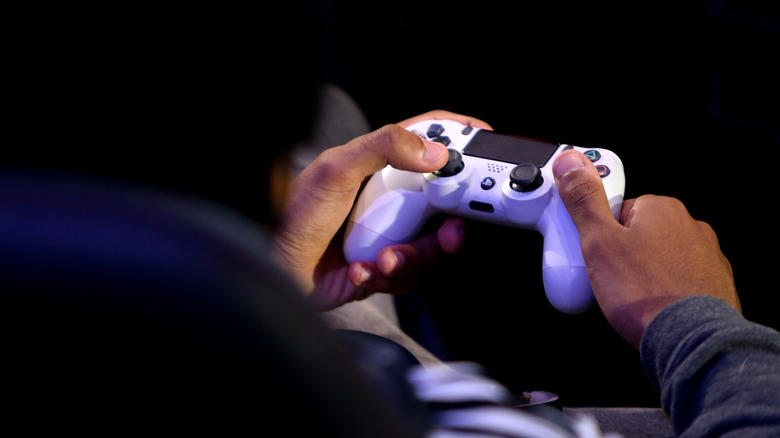
Like most modern gaming controllers, the DualShock 4 and DualSense rely on Bluetooth. This technology lets the controllers seamlessly communicate with their respective consoles and PCs. Bluetooth also makes pairing straightforward, once you know the correct button combination.
To pair a PlayStation controller to your Steam Deck, first press the "Steam" button and select "Settings." Next, click "Bluetooth" and toggle the feature on if it isn't already. Also make sure "Show all devices" is toggled. Now take your controller, hold down the PlayStation logo button and the "Share" button to enable pairing mode — the lightbar should start flashing. A "Wireless Controller" will pop up under "Searching for Devices" (which will turn into "Available to Pair" when it does) on your Steam Deck. Click on the controller, and your devices should pair.
Even though most controllers don't include trackpads, since the Steam Deck features two of them, you don't have to finagle any settings to use a PlayStation controller's trackpad. Out of the box, it will function like a regular mouse, but you can reconfigure the trackpad functions like any other button on the Steam Deck. And speaking of customization, since PlayStation controller trackpads include lightbars, you can even use the Steam Deck to change its base color. From the Settings menu, select "Controller," then click "Open" next to "Calibration and Advanced Settings." Select "LED Settings," and tweak the hues to match your content.