

What Does The Infinity Symbol Mean On Apple Music?
Whether you've always used Apple Music or you just switched to Apple Music from Spotify, it's easy to spend hours in the app curating playlists and listening to great tunes. But when that final track ends, sometimes the music keeps going. This stream of seemingly random tunes is driven by a tiny, sometimes overlooked icon: the infinity symbol. In the Apple Music app, this figure-eight loop represents the Autoplay feature. If it's highlighted, it is turned on and actively working in the background. When you tap on the infinity symbol, Apple Music's Autoplay kicks in to keep awkward silences away by playing some similar songs to your chosen album or playlist once it wraps up.
The point is to let Apple's algorithm take the reins of your music-listening journey. It analyzes the genre, tempo, and vibe of the most recently played tracks, giving you a sort of radio-like experience with tunes that Apple is pretty sure you'll like. Autoplay is a fantastic way to learn about new artists or keep a party going without you needing to be the DJ. However, this eternal flow isn't for every person or scenario. Having a hard stop is good if you're trying to wind down for the night, and the same goes for enjoying "Disintegration" the way The Cure intended, from the opening note to the final fade-out.
Autoplay can also have other unintended negative side effects. For example, you might notice a spike in your phone's data usage if you end up having Autoplay do its thing when you're not on Wi-Fi. Understanding how to manage this tiny symbol ensures that the algorithm never oversteps its boundaries.
How to turn off Apple Music's autoplay on your phone
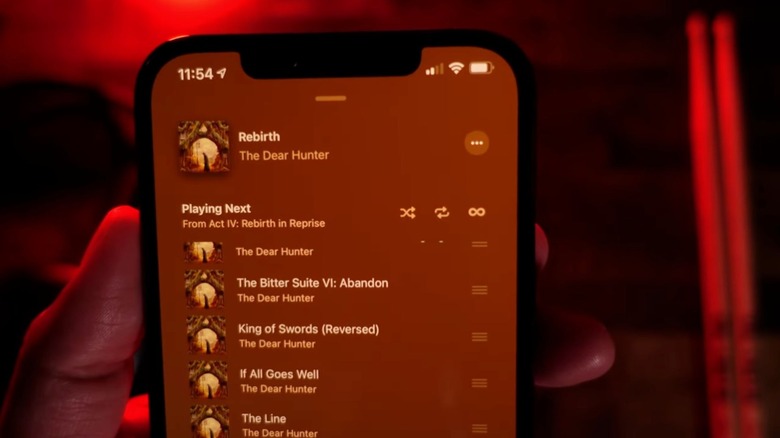
Taking back control of the queue on your device only takes a few quick taps. Whether you're using an iPhone, iPad, or Android device, the Apple Music app keeps the Autoplay toggle tucked away inside the current playback screen. So start by opening the app and tapping on the mini-player resting at the bottom of the screen. That'll expand the view to show the current song's album art and playback controls. From there, locate the Playing Next button in the bottom-right corner and tap it.
Doing so will reveal your upcoming queue of songs. Up at the top right of this list, sitting neatly beside the shuffle and repeat icons, is the infinity Autoplay symbol. If the symbol is highlighted, Autoplay is turned on and ready to fire up more tunes. All you need to do at this point to disable it is simply tap the infinity icon and voila! The highlight will vanish, and Apple Music's playlist-extending algorithm is no more (unless you want to turn it back on again at some point, in which case you'd just tap to highlight the infinity button).
It's also worth noting that this feature syncs across all of your Apple gadgets using the same Apple ID. Turning off Autoplay on an iPhone will simultaneously disable it on any other device logged into the same Apple ID, like your iPad or MacBook. That makes it easier to consistently keep whatever you're listening to tight instead of wandering through Apple Music's back catalog, despite it being among the music streaming services with the best audio quality.
How to better manage Autoplay on your desktop

Listening to Apple Music on a desktop computer offers a slightly different interface, but the app's Autoplay mechanics remain the same. If you're using a Mac to power your workday soundtrack, stopping the endless loop of algorithmic suggestions is just as straightforward. Just launch the Apple Music app on the computer and look toward the top-right corner of the window. There, next to the volume slider and lyrics button, sits the familiar Playing Next icon, represented by the same three lines seen on the mobile version.
Clicking this button opens a dropdown menu that displays the current song and everything lined up to play next — at the top of this queue panel is the Autoplay button, with the same infinity symbol. Again, if the button is highlighted, the Autoplay feature is turned on. Just click the infinity symbol once to turn it off. The background highlight will disappear, showing you that playback halts entirely when the final scheduled song finishes. Should you want to turn it back on via the desktop in the future, just click it once more to highlight it again.
Understanding how this small setting works and what all it offers can transform your listening experience, regardless of which device you use Apple Music on. It can stop unexpected music from blaring through your speakers after a chosen album finishes or, alternatively, keep the party going by playing similar songs and genres. It's a helpful feature, and it's got us excited to see what other new Apple Music features are coming in the next iOS update.