

Waze Has Some Hidden Features You Should Try On Your Next Drive
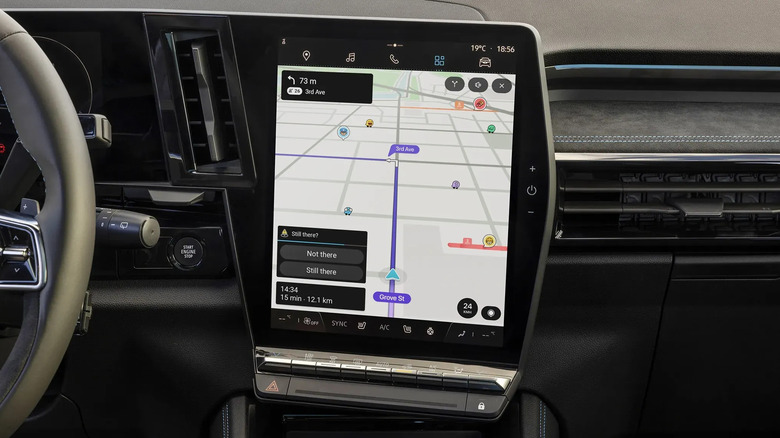
Waze is easily one of the top Google Maps alternatives that are free to download and use. Many drivers swear by it, mostly because of its community-driven capabilities. But beyond the popular features like user-reported crashes, traffic jam detection, and nearly real-time gas price updates, Waze comes with little-known tools that you might not have encountered yet.
These aren't advertised as often, but they're actually helpful in adding convenience to your daily driving experience. They make it easier to visit your loved ones, keep your kids safe, and ask for roadside assistance right when you need it. The problem is, these hidden Waze features are pretty tucked away, so you might not notice them even when you're on Waze all the time.
But fret not, we'll walk you through how to find and use some of Waze's best under-the-radar features. Here are five worth checking out the next time you open the app.
Drive to friends and family using their contact names instead of their addresses
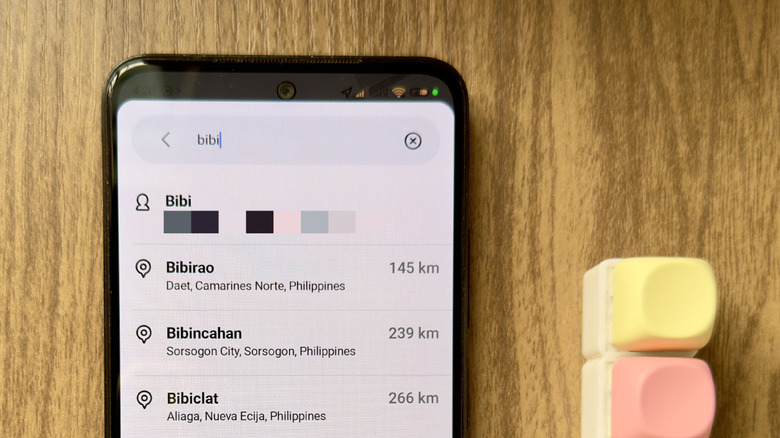
Whenever you want to visit your friends and family, you'd normally just type their address in the Waze search bar and go. But there's actually an easier way of doing so if you already have their home address saved in your phone's contacts: via the underrated "Drive to friends and family" feature on Waze. This integrates the contacts' saved addresses into Waze and makes them searchable using just the contact's name. To set up the Drive to friends and family feature, follow these steps:
- Launch Waze.
- Pull up the search panel to expand it.
- Select Drive to friends & family.
- When prompted to allow Waze to access your contacts, hit Next.
- Press Allow on Android, or Share All Contacts/Select Contacts on iOS.
From here, anytime you'd like to go see a friend or family member, all you have to do is input their contact name in the Waze search bar. Their saved address will be the first result on the list. Just tap on it as you'd normally do any other destination, then hit View routes to start navigating to it. Keep in mind, though, that only contacts with a saved address will pop up in the search results. If you try entering a contact's name and Waze doesn't show a result, that means you haven't added an address for that person in your phone's Contacts app. If, however, a contact appears twice in the search results, then they have multiple addresses saved. Pick one you'd like to go to. Aside from your phone, Drive to friends & family also works on Android Auto, Android Automotive, and CarPlay.
Enable hidden Waze features with secret search codes
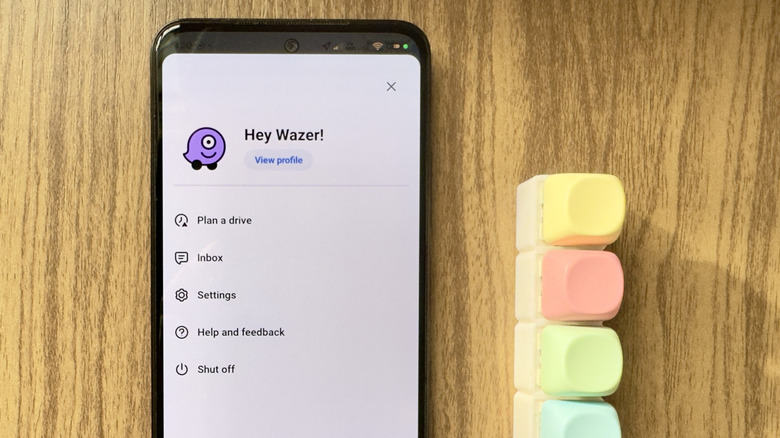
The "Where to" search bar on Waze can do more than point you to your destination of choice. You can also use it to switch on some hidden Waze features via codes. Yes, you simply need to type the code in the search bar, and it will automatically enable a certain Waze feature that's otherwise inaccessible elsewhere.
One of the most fun secret search codes you should try is ##@morph. What it does is turn your Waze Mood — the emoji shown on the Waze map — into a purple one-eyed icon. If you're not a fan, you can always switch it back to your preferred Mood from the Profile page. But if you want to turn on the Morph Mood again, you'd have to retype the secret Waze code.
Another nifty Waze code to use is ##@coord. When typed into the search bar, it activates the coordinate display. This essentially shows your current location's GPS coordinates at the very top of the screen. To turn it off, just enter ##@coord in the search bar again.
If you're having trouble with Waze or want to completely restore the original settings without having to uninstall the app, there's a secret Waze code you can use instead: ##@resetapp. It automatically exits the app and resets it to the default settings. If you were previously logged into Waze, you'd need to log in again.
Other useful Waze search codes for advanced users include 2##2 for activating debug mode, ##cctts for clearing the cache of the text-to-speech feature, and ##@traffic for overlaying traffic jam lines on your route.
Set Waze to remind you to check on your child every time you arrive at your destination
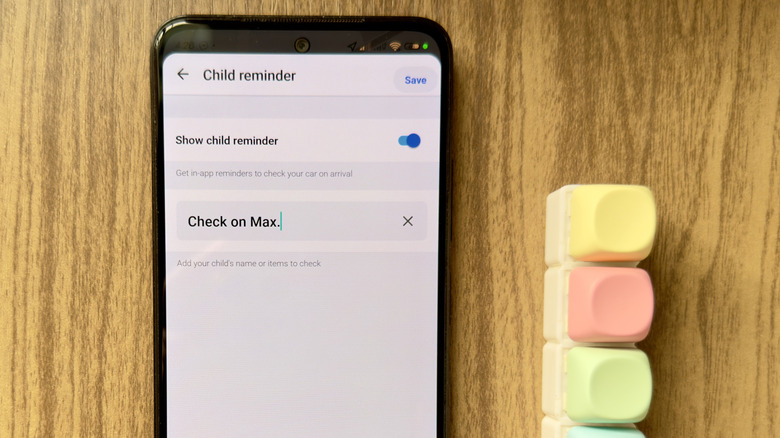
According to the National Highway Traffic Safety Administration, over half of the number of hot car deaths in kids involve a forgotten child. As a way of preventing this, Waze includes a child reminder alert for your Android and iOS devices. This hidden Waze feature sends a notification to your phone as soon as you get to your destination, prompting you to check on your kid before you leave the car. It's turned off by default, though, but it's quick and easy to enable. Here's how:
- On the Waze home screen, press the hamburger menu in the top-left corner.
- Open Settings.
- Under "Notifications," tap Reminders.
- Select Child reminder.
- Toggle on Show child reminder.
- Go to Custom message.
- Type your preferred message, such as "Check on [child's name]."
- Hit Done.
It's important to note that Child Reminder will only work if you're actively using Waze to navigate to a location. If you're not on Waze during your drive, you won't be notified at your arrival.
While Child Reminder is originally designed for parents, you can still use it even if you don't have kids. It's the perfect tool to make sure you don't leave behind your items in the car, like when you're on a road trip with your valuables. Just edit the custom message as needed.
Customize what overlays appear on the map
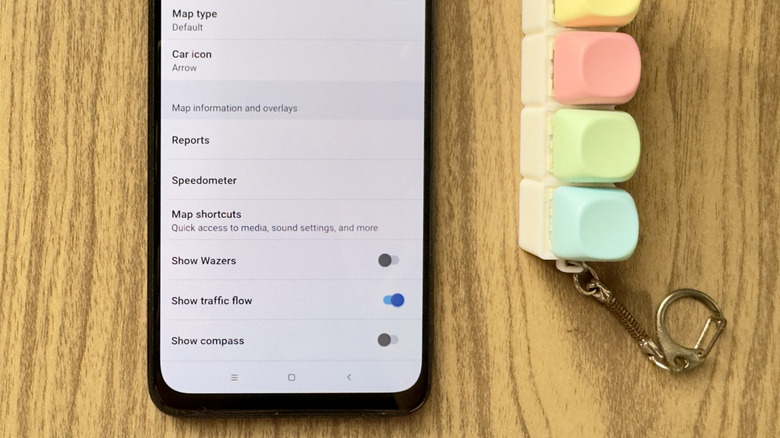
One of the biggest reasons why Waze is better than Google Maps is the wealth of information it gives drivers. Even while you aren't actively navigating, you'll see fellow Wazers, cameras, traffic lights, and all sorts of other overlays on the map. But the thing is, these different icons can easily clutter the screen. If you find them distracting, you can opt out of the icons you don't need or want to see. Follow this quick guide:
- Open the hamburger menu in the upper left corner.
- Choose Settings.
- Go to Map display.
- To remove the emojis of other Wazers on the map, toggle off Show Wazers.
- To select the types of reports (e.g. blocked lanes, police, cameras, crash) to remove, tap Reports, pick the report you want to disable, and turn off Show on map.
- To switch off the speedometer, head over to Speedometer, disable Show speedometer, and set Show speed limit to Don't show.
Other icons you can hide from your home screen are the audio player and navigation sound shortcuts. Both are accessible from the Waze Settings, so you can just open the Settings page if you need to set these features up. You can also opt to toggle off Show traffic flow and Show compass to make the home screen look more minimalistic.
Let other Wazers know you need roadside assistance
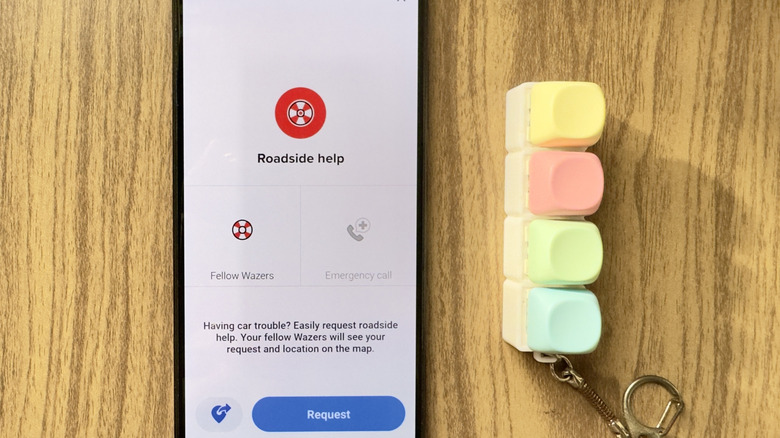
Running into car trouble in the middle of a trip is every driver's worst nightmare. Fortunately, thanks to Waze being built on community, you can use the app to notify nearby drivers that you need help. This underrated Waze feature is called Roadside Help. It makes your location visible on the map, essentially serving as a distress signal to your fellow Wazers.
The best part about Roadside Help is that you can access this feature even if you weren't navigating with Waze before you ran into car trouble. To request roadside assistance via Waze's Roadside Help, here's what you need to do:
- On the Waze home screen, press the yellow triangle icon.
- Expand the menu.
- Go to Roadside help.
- Tap Fellow Wazers.
- Select which car trouble you're experiencing. Options include Out of gas, Flat tire, Battery issue, Medical issue, and Others. For the Others option, you have to type what kind of assistance you need help with.
- Hit Request to proceed.
You should now see a lifebuoy icon marking your current location. It will show up on other Wazers' maps within a 30-minute timeframe. In case you want to cancel the request, tap the floating lifebuoy icon on the screen and press Cancel request.
Other than asking for help from your fellow Wazers, you can also use Roadside Help to send your location to family and friends, call professional roadside assistance, and reach out to emergency services. To share your location, simply head over to Roadside Help and press the share button next to "Request." To contact a professional roadside support or emergency service, select Roadside assistance or Emergency call instead of Fellow Wazers.