

What Do The Icons And Emojis On Waze Mean?
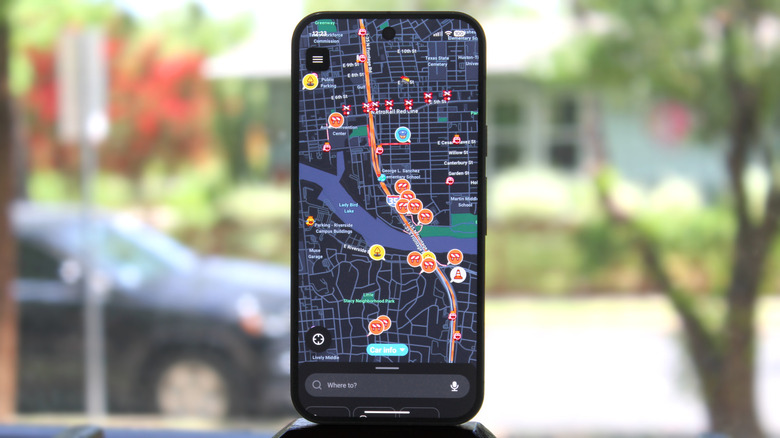
While both are owned by Google, Waze and Google Maps are different in a lot of ways. One of the most obvious differences (and one of the biggest reasons Waze is better than Google Maps) is the fun icons and emojis Waze has featured for years now. As soon as you launch the app, you'll immediately be greeted by a bunch of little cars driving alongside you. Some look chill with sunglasses on; others are sporting a cheery dog costume instead. Then, as you drive to your destination, other icons, like a traffic cone, police, and cameras, will pop up on the map at certain locations.
That isn't to say Google Maps isn't without icons, though. If anything, Maps is packed with all sorts of icons. But unlike on Waze, most of the icons you see on Maps are landmarks and establishments — a shopping cart for a grocery store, a spoon and a fork for a restaurant, and a gas pump for a gas station. They're pretty easy to identify just by looking at the icon and zooming in to see the name of that place.
Waze icons and emojis aren't as intuitive, so if you're planning on switching from Google Maps or any other navigation app to Waze, it's a good idea to learn what these icons and emojis mean. There are generally two types: Moods and traffic and road condition icons.
Understanding Waze Moods
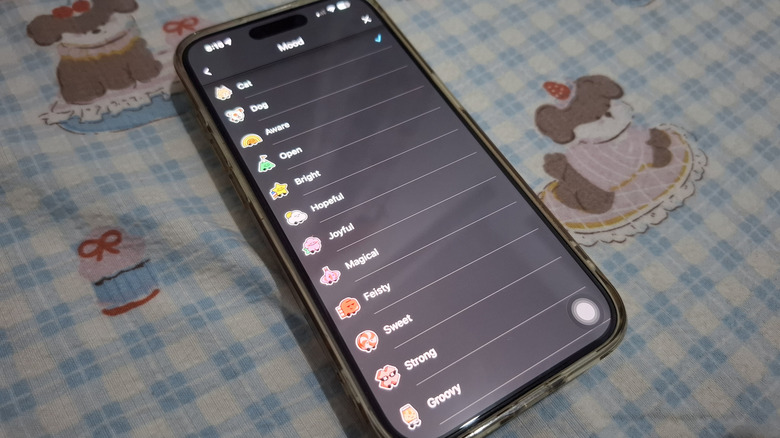
Waze Moods are the tiny car icons with faces you frequently see on the road. They're essentially the public avatar of Waze users (or Wazers, as they're called), which other Wazers like you can see on the app. For privacy reasons, though, these other drivers aren't shown on the map in real time. Yes, they've also been driving along the very route you're on now, but no, they're likely no longer in that same spot the moment their Moods show up on Waze.
By default, a Wazer's Mood is set to the pink happy car. However, you can easily change this to one of the 100-plus other Moods available in the app. Simply tap the hamburger icon in the upper-left corner and select View profile. Then, open Mood and pick your car icon of choice. You can select from everyday moods like a yellow shy car and a heart-eyed purple car, or from special moods, such as a candy car, a blue Pisces car, and a car painted in the colors of Argentina's flag. There are also three special Waze Moods that only map editors can use: T-rex, 8-bit, and Robotic. You can unlock them when you become a map editor. Just create an account in the Waze Map Editor and submit a certain number of map edits.
Waze Moods are normally visible to other Wazers, but if you prefer to keep yours private, you can opt to hide it. In your profile page, simply toggle on Go invisible.
Understanding Waze traffic and road condition icons
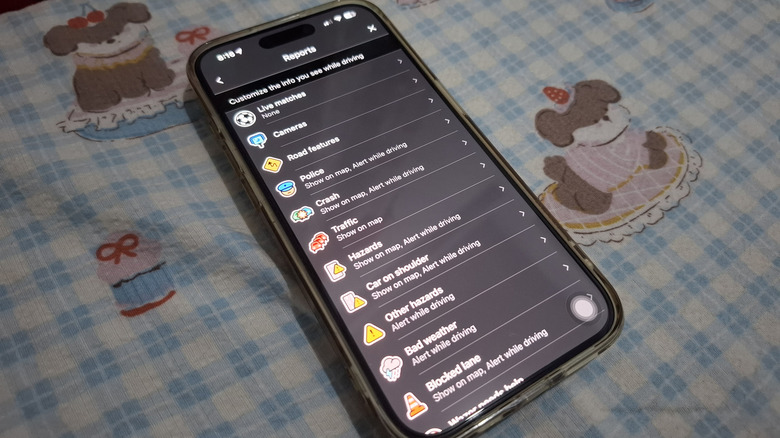
Part of what makes Waze a go-to navigation app for users is the active incident reporting by the Waze community. These incident reports show up as different icons on the map, so you can plan your journey more efficiently. Here's what some of them mean:
- Police: There's an officer patrolling that road.
- Construction worker: Ongoing construction is happening on that road.
- Traffic cone: A lane is blocked.
- Three red cars: There's traffic in that area.
- Red and white barricade: The road is closed (the entire road is usually marked with a candy cane strip).
- Green and blue car with an impact symbol: A crash happened.
- Lifebuoy: A Wazer needs help.
Other incident icons on Waze include bad weather, hazards, cameras, and road features. Then there are 12 different camera icons you'll see on the map, such as speed cameras (camera with speedometer), red light cameras (camera with a traffic light), and mobile police cameras (yellow camera on a tripod). Road features also come with different icons for different purposes, like a railroad crossing, school zone, and multi-lane merge. There's also the traffic light icon, which was a recently added Waze feature. These road feature icons should be pretty easy to recognize since they're usually the same road signs in real life.
Whenever you come across an incident icon on the map, you're free to tap on it to view more details about it. It will tell you where the incident is, how long ago it was reported, and who reported it. You can also like the incident report if you find it helpful.