

Why Does Google Chrome Use So Much Of Your CPU?

Chrome is feature-rich and easy to use, but it can also be a resource hog that some people find uses too much CPU when they check Task Manager on Windows or Activity Monitor on Mac. When it gets so bad, Chrome can use up to 90% CPU. The next thing you know, your computer slows to a halt, apps freeze and crash, fans start making noise, and the battery drains faster, signaling the computer is struggling to run.
One of the biggest causes of Chrome's CPU usage is opening too many tabs. Each tab is treated as a separate process that is given its own processing power. As you open more of them, they can put a heavy strain on the processor, especially when they're running demanding processes, such as streaming high-definition videos and games or using web apps like video editors, photo editors, or design tools. Chrome can also use too much CPU if it's loaded with heavy extensions. These are also their own separate processes, and each installed extension runs in the background.
An outdated Chrome can also lead to high CPU usage. That's because it won't have the latest performance enhancements and improvements that make it play well with your hardware. This can force the CPU to work hard to keep it running. Luckily, it can all be fixed before you think about ditching Chrome.
Quick fixes for Chrome using too much CPU

Lessening the load is a quick way for Chrome to release CPU resources. Close any tabs you're not using. If you have multiple Chrome windows open, which sometimes happens when writing something in one window while cross-checking or referencing information in the other, close one of them and use Chrome's view feature. While you're at it, uninstall or disable any extensions you aren't using to save on CPU resources. Ensure that you're left with only the essential extensions to minimize Chrome's CPU usage.
If you have to be more precise about which tabs to close, you can use Chrome's Task Manager. Here's how:
- Click the three-dot icon in the top-right corner.
- Select More Tools.
- Select Task Manager.
- Select the Tabs & extensions tab.
- Look for any process starting with "Tab," "Extension," or "Background page" with high numbers in the CPU column.
- Select it.
- Click End Task.
You should also keep Chrome updated. Normally, Chrome will download updates automatically, so you just need to do the following:
- Click Finish update in the top-right corner.
- Click Relaunch to Update.
- Chrome will close, finish installing the update, and restart.
If you've tried everything and the situation hasn't improved, you should reset Chrome to default settings. Maybe a clean start is what it needs. Here's how:
- Click the three-dot icon in the top-right corner.
- Select Settings.
- Select Reset Settings.
- Click Restore settings to their original defaults.
- Click Reset settings.
You can also use CPU-limiting apps
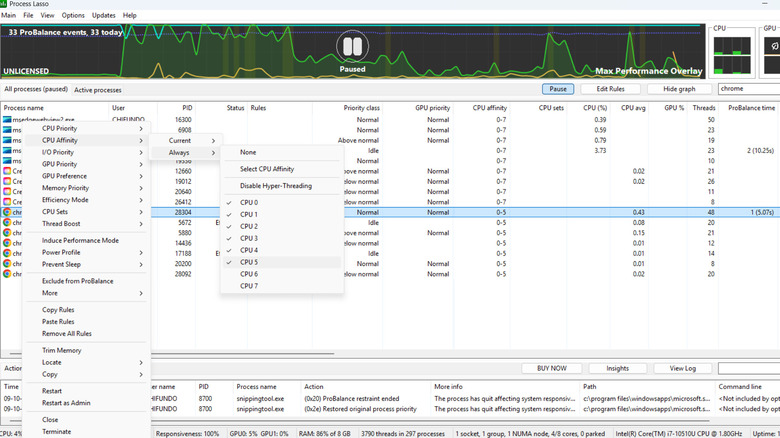
If nothing has worked or you need time to continue investigating the reason behind Chrome's high CPU usage without abandoning it, try a CPU-limiting app. When Chrome starts getting a little CPU hungry, these apps can throttle it so it behaves. You might notice Chrome gets a little slow, but it will at least not slow down your entire computer. It's a Band-Aid solution that helps in a pinch.
On Windows, you can use an app called Process Lasso. It's has a free limited version that you can use indefinitely, with the ability to set Chrome's affinity (how many CPU cores it can use). Here's how:
- In Process Lasso, click Pause so the processes stop updating constantly.
- Right-click Chrome.exe.
- Select CPU Affinity.
- Select Always.
- Untick the cores you don't want Chrome to use. Be sure to experiment and see how many cores you can untick before Chrome becomes too slow.
On Mac, you can use App Tamer, which can detect CPU hogs and alert you so you can take action. You can download it and try it for 15 days free of charge. Afterward, you'll have to pay a one-time fee of $14.95. Here's how to use App Tamer on Mac:
- In App Tamer, select Chrome in the list of processes.
- Tick Slow down this app if it uses more than.
- Adjust the slider to the percentage you want the app to throttle Chrome when its CPU usage exceeds it.