

You Can Use Your Old Mac Mini As A Home Server — Here's How
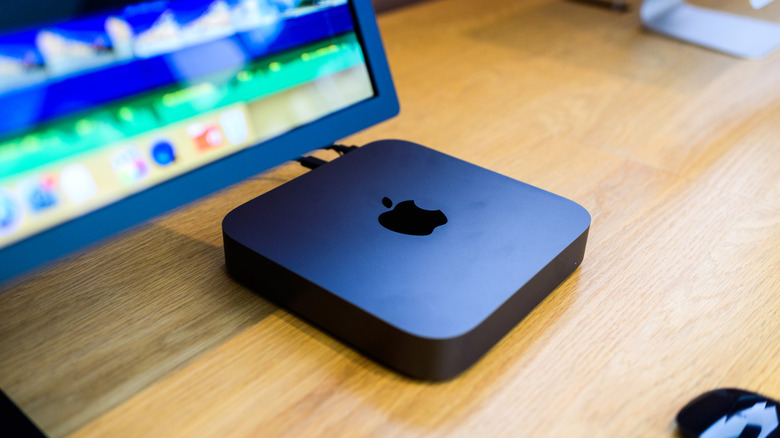
Turning your old Mac Mini into a media server is actually incredibly simple these days. Older Mac Minis come with Intel chips, which can easily support headless or server versions of Linux distributions without much extra elbow grease. From there, you can begin to dig into Docker or Podman, which are container programs that can be used to self-host your preferred media server platform and deliver it across your network.
The only real hurdle is if you're considering the original M1 Mac Mini from 2020 (or if you're loaded, the recently refreshed M4 version) as your server. Hosting Jellyfin or Plex (if you're still around after the massive price increase) on M-series devices is generally easier if you stick with macOS, as Asahi Linux support varies by model and still lacks hardware-accelerated video encoding. You'll also need something with a little juice behind it.
The original PowerPC versions of the Mac Mini are out of the question, and while earlier Intel models can work, you should still steer toward the 2018 edition. This packs 8 GB of RAM and an eighth-generation Intel chip, which is the bog-standard for playing back media with some transcoding. As it supports QuickSync, it should allow Plex and Jellyfin to change video formats on the fly if the device you're using doesn't support the format being streamed.
The 2018 Mac Mini with Linux is a perfect media server
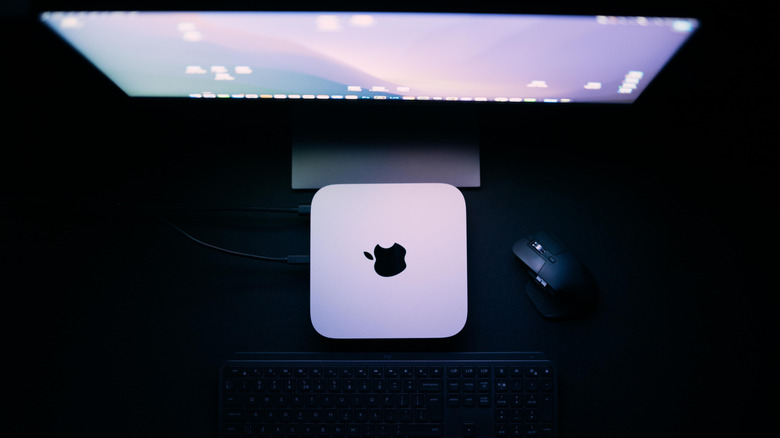
There might be some security issues when installing Linux, as the 2018 Mac Mini comes with the T2 chip. However, Debian has guides, and there are specific builds of Linux to work around the T2 chip. Once you've worked through that and gotten Linux onto your machine (for ease of use and stability, Debian or Ubuntu Server are the best options), you can then install Docker or Podman. Both are fairly similar in scope: "containerizing" software that is then accessed by a web browser on another device. The major difference is that if the overall Docker program goes down, so does everything else, while Podman is modular in that each program runs on its own.
Jellyfin, for example, primarily recommends Docker, as it's more universally accepted as the mainstream option. Follow either Plex's or Jellyfin's installation instructions for Docker (or native install) to get started there. Do note that Docker can be a little confusing at first, especially when setting things up via Docker Compose.
Remember, most of the defaults you can leave untouched — but when adding storage locations in Jellyfin, for example, "source" is where your stuff lives, and "target" is Docker's internal directory. Think of it as translation: You say it's in one place, and Docker simply relabels it for itself. However, if you're using macOS rather than Linux, it's recommended to use the native version of the program instead.