

5 Ways To Use Android Auto Without Touching Your Phone
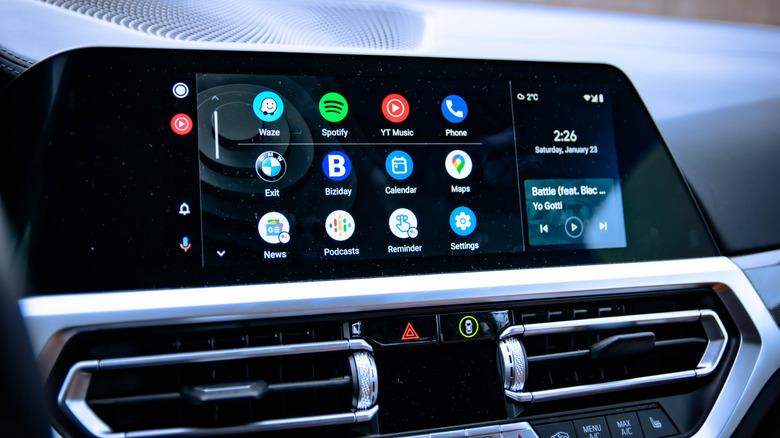
The digital screens in modern cars can be very helpful, but they can also be extremely distracting for drivers. Some integrated apps, such as Android Auto, give users a full hands-free experience by controlling device functions by voice, steering wheel buttons, or even with some automated settings. According to the National Highway Traffic Safety Administration (NHTSA), this is safer for drivers since it doesn't require them taking their eyes off the road to interact with Android Auto.
This experience has become even more complete since Gemini was added to the system. Gemini integration in Android Auto allows the user to use more natural commands to find destinations, play music, or even access other phone functions without needing to touch it. In many cases, a normal conversation with the assistant is enough to finish the task.
Besides voice commands, Android Auto also has other features that reduce the need for touch during the trip. You can even create some small automations, so you do not need to pick up the phone at any point. To make your car's infotainment experience easier, here are five ways to use Android Auto without touching the phone and enjoy the trip.
1. Use Gemini and Hey Google for hands-free control
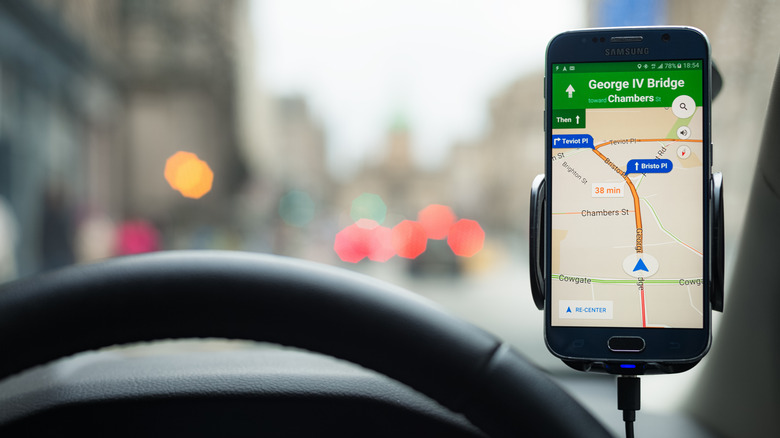
Since Gemini arrived on Android Auto, it has made voice commands much more flexible than the traditional Google Assistant commands. So, after connecting your phone to your car, just say "Hey Google" and ask for what you need. For example, among the ways to use Gemini on Android Auto are starting a route, making calls, or even sending messages without searching for these functions on the screen.
However, to use these Gemini functions, it needs to be set as your phone's digital assistant, and both the device and the vehicle need to be compatible with Android Auto. Voice command also depends on "Hey Google" and Voice Match being enabled. After everything is configured, the system can recognize requests made in a more natural way, without requiring you to memorize specific phrases for each action.
Another positive point of Gemini is that it can follow the conversation context and interpret more detailed requests. So, instead of asking only for an address, you can ask whether there is a charger near where you are going and start navigation from the result. You can even discuss ideas or ask questions during the route.
2. Use the steering wheel button for voice commands
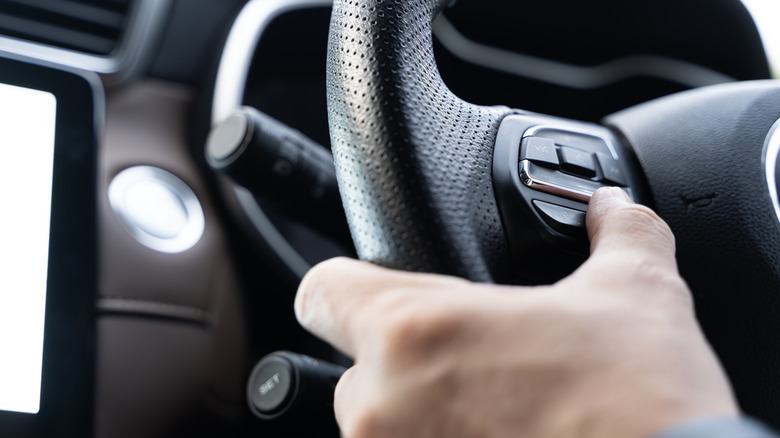
Depending on the car model you have, it may come with a button to give voice commands directly on the steering wheel. So, instead of saying "Hey Google" to activate your Android Auto, you just press it until Gemini makes the sound signal and then make your request. This allows you to focus even more on the road during trips.
Although not every car has a dedicated button for this, if yours does, it works as a physical shortcut for the same commands available by voice. After activating Gemini, you can ask for a route, call a contact, send messages, change the music, or ask questions. This way, practically all main functions stay accessible without needing to say "Hey Google" to activate them.
In fact, if Android Auto voice commands are not working, it is worth checking the volume, the car microphone, or how you use the button. Google itself tells the person to press and hold the voice command button, instead of only tapping it once.
3. Navigate entirely with voice commands
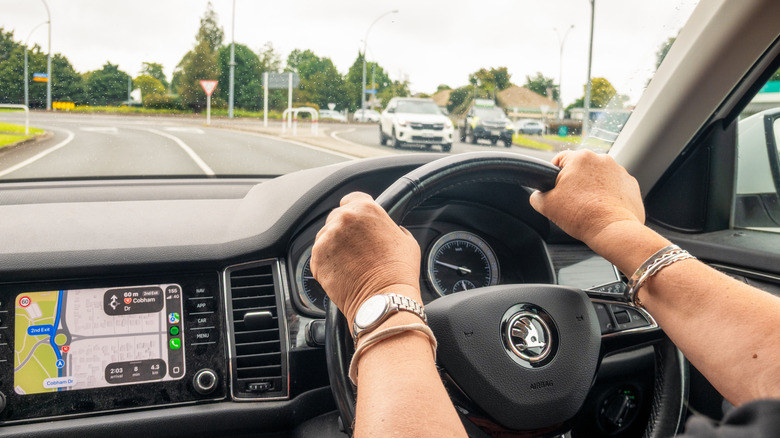
Navigation is one of the most useful functions to control only with your voice in Android Auto. Since Gemini was implemented on the phone, it has become easier to control Google Maps or another compatible navigation app. So, if before you needed to interact with the screen to search for or confirm routes, now you can ask Google's own AI to start a route to the address, business, or any place you want to go. You can even ask for traffic information, find nearby places, or other things during the route.
Once you're on the route, Gemini's voice commands are still useful. It is much easier these days to add a last-minute stop or search for an alternate route, for example. You can still voice report problems you come across on Google Maps along the way, like roadwork or stopped vehicles. This way you can adjust the trip while keeping both hands on the steering wheel.
4. It's possible to use voice controls to answer calls and messages

You can also control your calls and messages without touching the phone while you are on your journey. You can have Android Auto call contact from your list, or answer a call, or even start a new conversation with someone without leaving your hands off the steering wheel. Android Auto Call Screening, on compatible devices, actually helps you screen out unwanted calls before you pick up.
The same is true for messages received by SMS or other apps. Android Auto can read new messages to you and lets you reply without touching your phone. The system will even repeat the text before sending it, so you can correct any possible mistakes before sending it. It lets you have several short conversations without taking your eyes off the road. Gemini comes with some new functions. You can summarize longer messages, for example, but Android Auto itself can do most of these things without it.
5. Set Android Auto and your media to start automatically
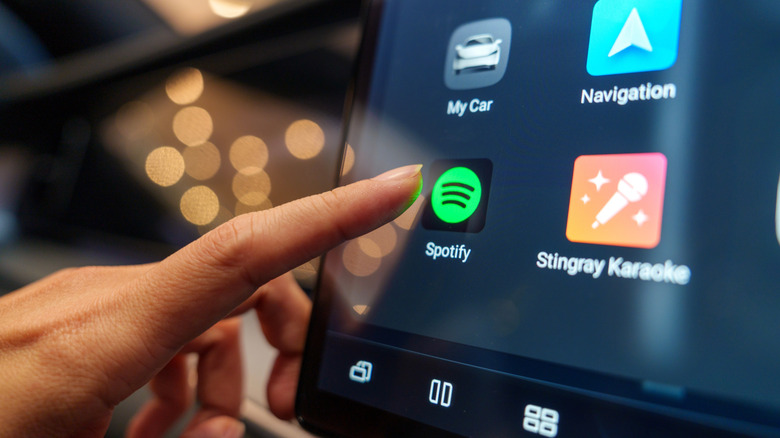
For anyone who wants to save time when starting the car and avoid as much contact as possible, you can create some automations with Android Auto. One of them is setting automatic startup, where the phone opens the system as soon as it connects to the vehicle, preventing you from needing to pick up the device before you start driving. In Android Auto settings, you can choose when the interface starts working.
The same goes for music and podcasts. Among the Android Auto settings that can improve your experience, there is one to start this media automatically. This way, if you were listening to something before entering the car, you can continue where you left off on Spotify or another app automatically, without needing to unlock the phone to press play and bring the audio back.
These automations work better when the phone is already paired correctly with the car and, in the case of wireless Android Auto, Bluetooth and Wi-Fi are available. After adjusting everything, you only need to start the car and leave the main functions ready to use.