

Change This Google Maps Setting To Always See The Fastest Route
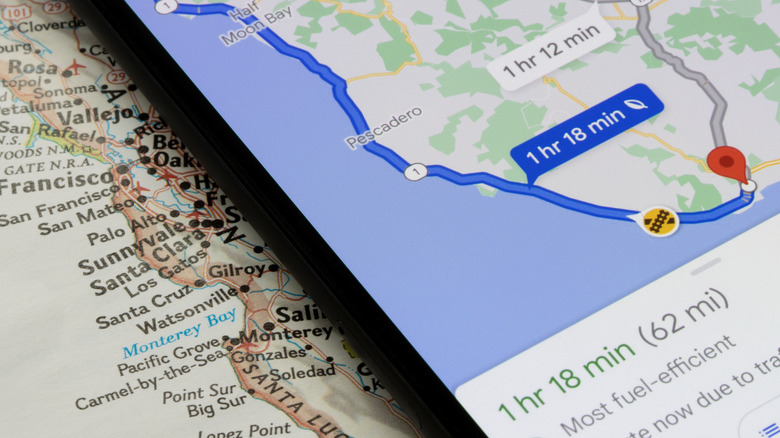
Input a destination in Google Maps, and the app will give you various routes to get there, including one that's faster than the others. You'll get directions for different means of travel, such as driving, biking, public transport, and walking, so you can choose your preferred way to get there. The fastest possible option will often involve driving, and that may be the default navigation mode for many users. However, the suggested driving directions you'll see in Google Maps will not necessarily be the quickest. The application doesn't have a "fastest route" setting to enable you to see the fastest possible option, but there is one setting you should disable to improve your ETA. The setting is called "Prefer fuel-efficient routes," and its purpose is to help save you money on your next trip, as well as reduce pollution. The drawback is that the app may show you slightly slower alternatives than the less fuel-efficient options.
To disable the fuel-efficient route option, you'll have to open Google Maps on your iPhone or Android device, tap your profile picture, go to Settings, and then Navigation. This menu has a "Route options" section where the Prefer fuel-efficient routes toggle is located. Importantly, the app notes that "Maps will suggest fuel-efficient routes by default when arrival times are similar." In other words, turning off the fuel-efficient routes option may not always speed up your upcoming journey.
It may be a good idea to test your destination before changing any settings to see what the shortest estimate is. After that, you can disable the fuel-efficient route option and see if Google Maps offers a quicker option. You may prefer a slightly longer drive if the time difference is negligible.
Other Google Maps settings to consider
You may want to check a few other settings that may result in longer routes. Specifically, the "Avoid highways," "Avoid tolls," and "Avoid ferries" toggles should all be disabled. You'll find them in the same Navigation menu as the "Prefer fuel-efficient routes" toggle. If any of them is enabled, you won't always get the fastest route.
Avoiding highways will force Google Maps to suggest potentially slower routes. If you want to save on tolls, like those found on certain bridges, tunnels, and highways, Google Maps will find alternatives, but the routes may take longer. Also, some trips may be faster if a ferry is used to cross a body of water, rather than going around it or looking for a bridge. Finally, you may want to turn on the "Prefer HOV" option for specific journeys, assuming you qualify for HOV driving in that area. Go to Google Maps on your Android device or iPhone, search for a destination, and tap Directions. Select the More menu, tap Options, and enable the Prefer HOV setting. This setting may further help you reduce the time it takes to complete certain parts of your journey.
It's also important to understand how Google calculates the ETAs for Google Maps. When you start a new navigation experience, the "Leave now" option will be selected, and Google will estimate the travel time based on the time of day and day of the week. Once you've customized the app's settings as described above, you will want to see what ETAs you receive for different departure times. If you only want to reduce the time you spend driving, you may choose to plan your trip for a time when highways are less crowded.
Internet and location settings to improve Google Maps routes
Google Maps' routing algorithms take into account historical traffic patterns, the current traffic, the road quality, the speed limits and restrictions, and live information. Crashes, temporary road closures, and other incidents can significantly impact ETAs. While Google Maps navigation works offline in areas without good cellular coverage once you download maps, a continuous internet connection will help the app get real-time traffic updates so it can reroute you to a faster option once incidents are detected. You should enable mobile data and disable Airplane mode on your handset.
Also, check that the app can access the phone's precise location. On Android, go to Settings > Location > App location permissions and look for Google Maps. Enable the Use precise location setting and make sure the app can access your location while in use. Users can also enable the Improve Location Accuracy option in Settings > Location > Location Services. On iPhone, go to the Settings app, tap Privacy & Security, ensure that Location Services is enabled, and then go to Google Maps to enable the Precise Location setting.
The blue dot on Google Maps represents your location. If you see a circle, the app might not be able to locate you precisely. The bigger the circle, the less certain Google Maps is about your location. Turning on cellular data and Wi-Fi and ensuring that Google Maps has access to your location may fix the issues. You can also try to calibrate your phone by holding the device in your hand and moving it in a figure-8 pattern until the blue dot shows a narrow beam pointing in your direction of movement. Areas with poor GPS coverage will impact your experience.