

3 Hidden Android Auto Settings You Might Not Know Existed
There are many pros and cons of Android Auto. While it definitely can help to make driving safer and more convenient, the default interface only scratches the surface of what the system can actually do. Most drivers connect their smartphone and accept the default layout, app limitations, and themes without realizing that a ton of hidden customization options are just a few taps away. But by accessing the hidden developer mode (a secret menu for software engineers), you can tailor a variety of powerful tools to make your Android Auto dashboard better suited to you and your car. It will give you deeper control over how the platform looks and behaves, which in turn can make your daily commute more enjoyable.
Unlocking this hidden vault of settings takes mere seconds and doesn't require you to have any special knowledge (or to be a software engineer yourself). To get started, open your phone's settings, go to Apps & notifications, then select the Android Auto app. Next, tap on Additional settings in the app, then scroll down and tap on the Version option. Finally, tap the Version and permission info option 10 times quickly in a row. A prompt will pop up asking you to confirm Allow development settings. Once you confirm, you're in.
You can now access a brand new menu simply by tapping the three-dot overflow icon in the top right-hand corner. While some of these options are highly technical and only really useful for app builders, several options offer simple, everyday upgrades for regular drivers who want a better dashboard experience. Here are four useful hidden settings you can adjust in Android Auto.
Force maximum display resolution for crisper views
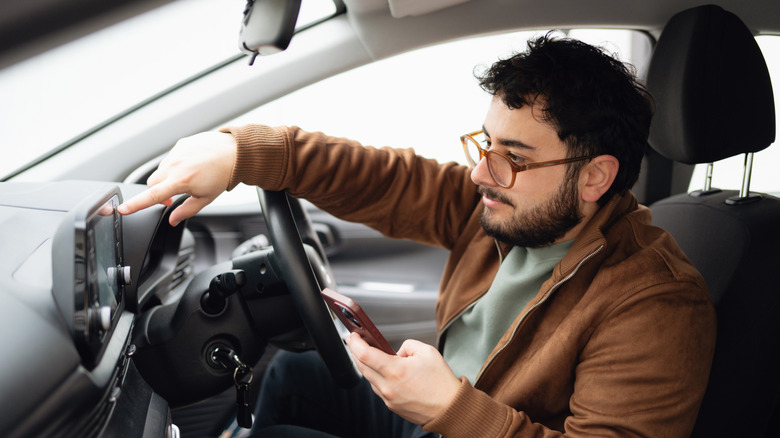
Today's car infotainment screens come in vastly different shapes and sizes, from ultra-wide panoramic screens to ones that look more like vertical tablets. Unfortunately, the software doesn't always accurately detect each screen's maximum resolution. This mismatch can lead to stretched icons, blurry maps, and a generally degraded visual experience all-around that kind of just wastes a premium dashboard display. Instead of settling for pixelated navigation routes, however, you can dive into the hidden developer options and force the system to push out a much higher-definition image.
To fix a blurry or poorly scaled interface, open those newly unlocked developer settings and locate the Video Resolution option. Tapping this setting drops down a menu with choices ranging from standard definition up to a crisp 4K. You can also select "Allow the car and phone to navigate." Choosing the highest resolution available forces your smartphone to render the dashboard interface at the maximum quality it can handle. The easiest way to make sure things look good is to start at the highest resolution, see how it looks, and work your way down in resolution until you find the one that works the best for you. This is a handy way to make sure that Spotify, Google Maps, or any other apps you sideload onto Android Auto look as clear and crisp as they can. Do note, however, that if your car isn't exactly new, choosing a higher resolution might make things look worse. Keeping the resolution as-is might be your best option in that case.
Kill the wireless connection option to save on battery
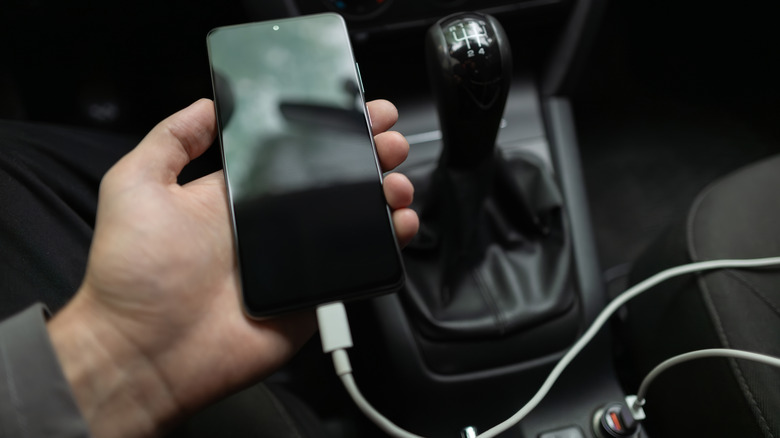
Whether you realize it or not, wireless Android Auto may be killing your phone battery. Even though this option is convenient, it can mercilessly drain the battery in your smartphone. Streaming high-fidelity music while also running your navigation app over a wireless connection can make your phone get super hot and chew through its battery at an alarming rate. On road trips, this heavy workload can easily leave your phone critically low on juice before you get to your destination, and that's not exactly what you want when you're driving through unfamiliar areas.
Fortunately, there is a dedicated toggle buried deep within the developer options that can override the wireless option. By scrolling down and unchecking the box labeled Wireless Android Auto toggle, your phone is forced to rely exclusively on a physical connection. This seemingly minor tweak ensures your phone actually charges efficiently without overheating during long highway commutes. And although ditching wireless capabilities might sound like a technological step backward, prioritizing a stable connection, along with a cool and fully charged device, is a win from any angle. Wired connections with a good USB cable also mean no more audio stutters and random dropouts. What's not to like about that?
Stop the dashboard from hoarding background logs
Behind the scenes, Android Auto is always analyzing each commute. To help software engineers debug app crashes and keep improving the platform, the app often gathers some diagnostic data during a drive. While this continuous background logging is a fantastic way to alert Google's devs to bugs and other useful data, it's totally unnecessary for the average driver. In fact, constantly pinging the GPS just for diagnostic purposes and saving audio or video error dumps can hog processing power and even chip away at your phone's storage.
Thankfully, the hidden developer menu provides a simple way to pull the plug on this excessive data collection. Once you've accessed the developer settings panel, scroll through the long list of toggles to locate and deselect three options: Collect GPS Data, Save Video, and Save Audio. This stops the app from wasting valuable system resources trying to record dense data that a regular user will never actually look at.
Disabling these developer-focused logging features is also a solid housekeeping tweak, especially for anyone using an older smartphone or a device constantly running low on storage space. It streamlines the entire application and forces the processor to focus entirely on just getting you where you need to go and playing your favorite music along the way. It's a quick set-it-and-forget-it adjustment that helps keep the app running efficiently.