

How To Reset Your Galaxy Tablet Without A Password
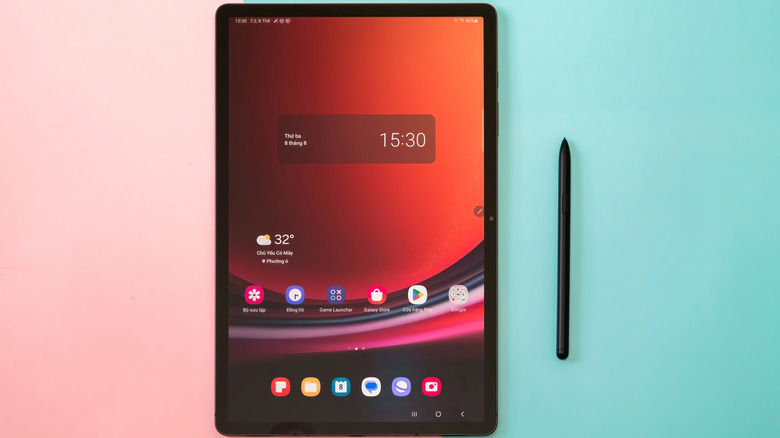
You're in a tricky spot: you want to log into your Samsung tablet to reset it, but you can't because you don't know the PIN. It's only natural to forget your passcode if you log into multiple Android tablets for various purposes every day. Maybe it's an older tablet you haven't touched in a while. Regardless, you don't want to give up on it because a clean backup and reset could be the key to renewing it. Depending on your situation, Samsung offers ways to access your locked tablet.
If you recently reset the PIN and don't remember it, the company provides a "Forgot PIN" option that can help you regain access to your device without losing data. It requires One UI 6.1 or newer, so only compatible tablets that have received it are eligible — tablets older than the Samsung Tab A7 Lite and Samsung Galaxy Tab S7 FE won't be able to. The "Forget PIN" option should appear as a link after five failed attempts to unlock the tablet. From there, it prompts you to enter your previous PIN, then enter a new one. After setting a new one, you're in as if nothing ever happened — then from here, you can perform a software reset.
Perform a factory reset if nothing else works
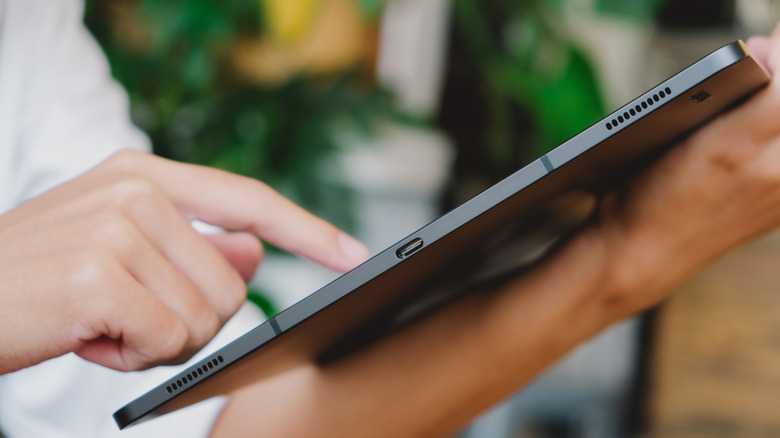
If you can't access your Samsung tablet through the Forget PIN method, you'll need to do a hard reset, which will erase your data (there is no way to back anything up while locked). For a locked Galaxy tablet, you can only do this in the Android recovery menu while connected to a computer through USB, which you can access by holding the power button and the volume up or down button (model dependent).
Once you see the Samsung logo on your screen, you can release the power button. The Android recovery menu should appear, and you can use the volume buttons to navigate through the menu. From there, select "Wipe data/factory reset" to start the hard reset process; use the power button to confirm the options. After the process completes, you must log into your Galaxy tablet with the same Google account it was connected to. Once you've unlocked your tablet, if your Google account is severely out of date or isn't yours, Google lays out steps to add a new account and remove the old one.
Consider other means to unlock your tablet
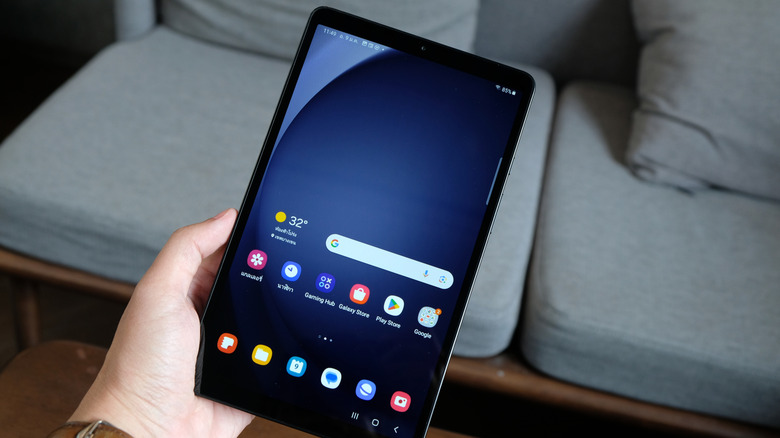
Besides choosing a PIN you're likely to remember, you can use the Extend Unlock feature, which lets you keep a device unlocked if it is in a set location, near other devices, or detected to be on you. This can affect your personal privacy, but if your tablet stays at home and no one else can snoop, setting this up can be handy since you won't have to worry about managing the PIN as often. To set Extend Unlock on your Galaxy tablet:
- Open Settings.
- Tap Lock screen and AOD.
- Choose Extend Unlock.
- At this point, it prompts you to enter your PIN.
From there, you can choose between "On-body detection," "Trusted places," and "Trusted devices." The easiest option is "Trusted places" since the condition is location. It will automatically lock if the device moves away from it; note that it also locks after four hours, which should be more than enough time to use the tablet leisurely, like while you're cooking a meal.