

Enable This AMD Setting To Get The Most Power Out Of Your RAM
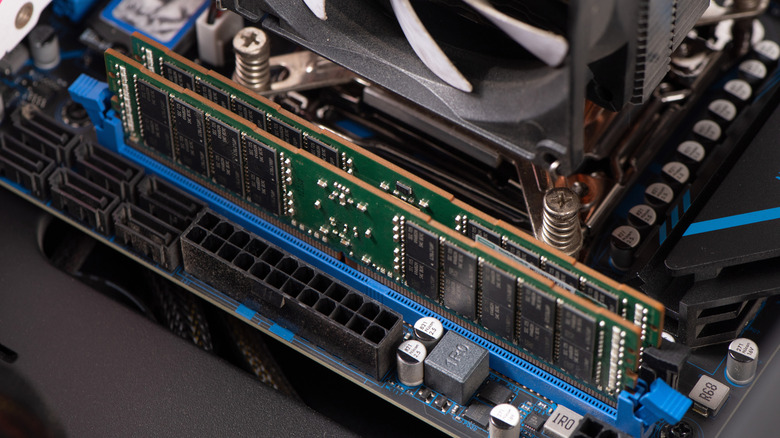
RAM is an often overlooked part of a computer, but it has more of an effect on performance than you'd think. With RAM prices through the roof due to component shortages, many people are stuck with their existing RAM sticks right now. To boost performance and keep your RAM running at its maximum potential, you can use features like AMD EXPO.
AMD EXPO is a setting found in your computer's BIOS. It'll basically overclock your RAM for you, letting your RAM reach its highest advertised speeds to ensure smooth performance. It's not typically enabled by default unless you purchase a newer prebuilt gaming PC, so you may have been running with subpar RAM performance all this time without even realizing.
It's not a one-size-fits-all solution to your PC problems, however. As is the case with many PC tweaks, you can encounter compatibility problems and other issues. Still, it's generally a good idea to enable AMD EXPO to make sure your RAM is running at full power. Here's how to turn it on.
How to enable AMD EXPO
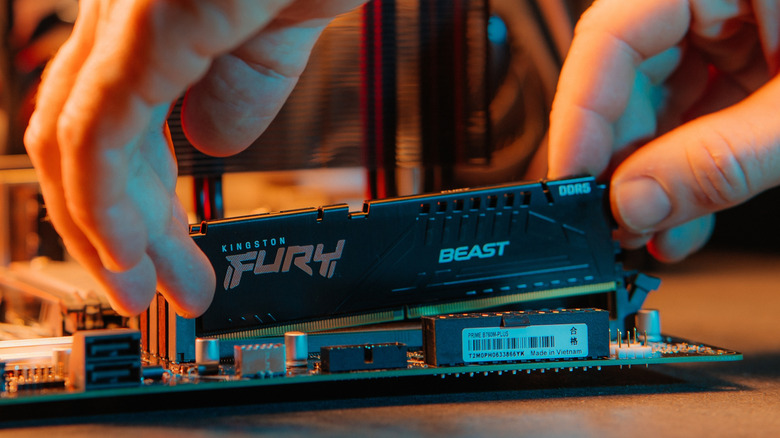
You can only enable AMD EXPO from your computer's BIOS. To access the BIOS, power down your PC and repeatedly press the BIOS key: This is usually something like Delete, F2, or F10, but it varies depending on your motherboard's manufacturer. It'll usually say which key to press when your computer boots up.
In the BIOS, you'll start in "EZ Mode." This is a simple version of the BIOS settings menu that lets you tweak the most important stuff. You'll see AMD EXPO on the left side of the screen. Click the dropdown menu and choose the profile that best suits your hardware configuration. If you're not sure which one to go with, then just choose Profile 1 for the best stability.
After selecting an AMD EXPO profile, you'll see your RAM speed listed next to the dropdown menu. If it all looks correct and matches what your RAM is capable of, then click the save and exit button in the bottom-right corner of the BIOS screen to reboot your rig.
How does RAM affect computer performance?

So why should you enable AMD EXPO? Well, RAM speed can have a surprisingly big effect on your system. You may think your RAM is running perfectly fine since Windows shows its full memory capacity, but your RAM's clock speed is just as important.
Gaming is the biggest reason why you'd want to enable AMD EXPO. Newer titles are requiring more and more RAM, and slower RAM just won't be able to handle rapid asset loading and other heavy tasks without stuttering. Faster RAM will improve your framerate and, more importantly, your 1% low FPS. This basically means that your absolute lowest baseline framerate won't be as bad, making everything feel a lot smoother.
Faster RAM speeds can have significant benefits outside of gaming as well. Video editing software, rendering software, and other heavy applications take a ton of horsepower to run. You won't notice a huge difference with lightweight tasks like web browsing and video streaming, but if you're using your computer for work or creativity, AMD EXPO will help you make the most of your hardware.