

5 Ways To Fix Alexa's Most Frustrating Problems
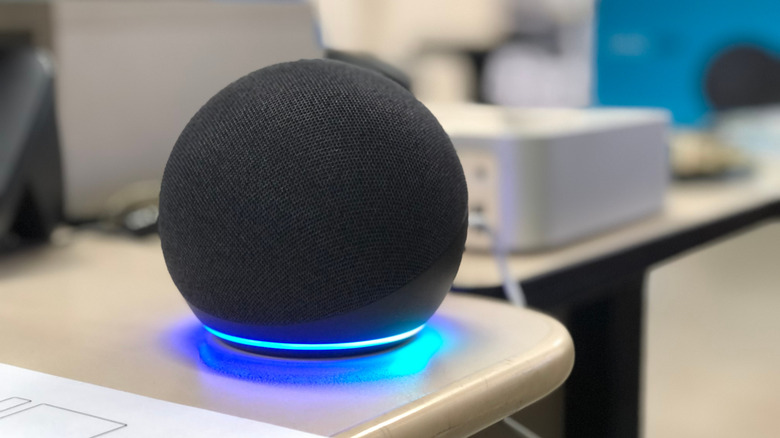
Alexa devices are supposed to be a key part of any user's smart home, acting as a bridge between IoT devices such as smart switches, lights, and appliances. When an Alexa-powered smart home is running, it's great, but it can misbehave and cause endless headaches for owners. There are plenty of situations where Alexa devices can stop users in their tracks, such as poor voice recognition, task limitations, audio quality, and device compatibility.
So yes, Amazon Echo speakers and other Alexa devices have their blips, but most of the friction with an Alexa-powered smart home can be fixed with a few simple steps that anyone can do. Don't think that a paid subscription will help either, as Alexa+ ($19.99 per month or free for Amazon Prime members) doesn't necessarily fix the basic frustrations. It has some great features, but it's not a cure-all for misbehaving smart speakers.
We've whittled down the list of common issues with Alexa and come up with the top five — alongside essential instructions on how to fix them. Think of this article as "Five things Alexa does that drive you up the wall," but with ways to work around each one. We've fixed enough of our friends' and family's Alexa tech to know a thing or two about pulling hair out trying to fix them, so hopefully, you'll learn how to keep your sanity intact by the end of this article.
Alexa doesn't recognize voices
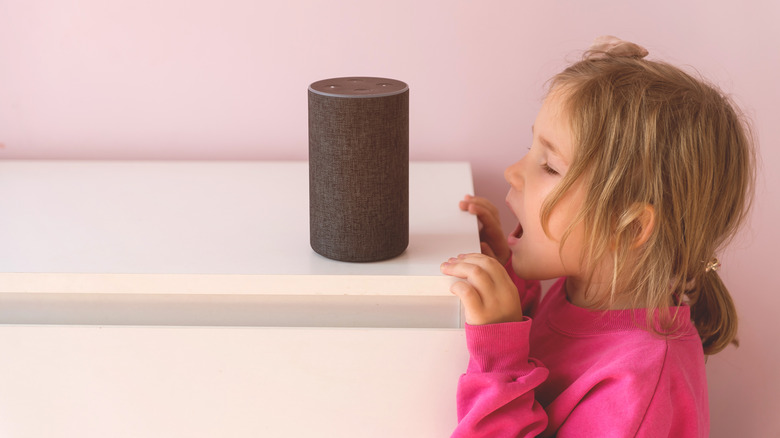
One of the most common problems we've encountered is Alexa misunderstanding or mishearing users. There are few first-world problems more annoying than a smart assistant that's been trained on a user's voice not understanding them. Accents and background noise play a part, but short of living in the middle of a construction site, Alexa should just work, right?
One thing you may want to do here is to set up or re-create a Voice ID, which is used to distinguish your own voice from other users in your household. Head over to the Alexa app on a smartphone and tap the three-line menu. From there, head to Settings > Account Management > Your Profile > Voice ID. If it's not set up yet, Voice ID will prompt you to set up a new one. If a Voice ID has already been configured, delete the old one and create a new one.
After agreeing to Amazon's terms, users are asked to repeat four different questions or commands. Simply speak each phrase as they come up, then tap Done. Test Alexa again to see if it's cleared its ears out this time. If this keeps happening and the Alexa is a legacy device, it might be a good idea to check when it stops receiving updates or have a chat with customer support for the best options. Most Alexa devices that came out before 2018 aren't compatible with Alexa+, and usual update support lasts for around four years after a product is discontinued, with third-generation devices and up getting support until 2029 and 2030.
Alexa talks too much (and won't stop selling)
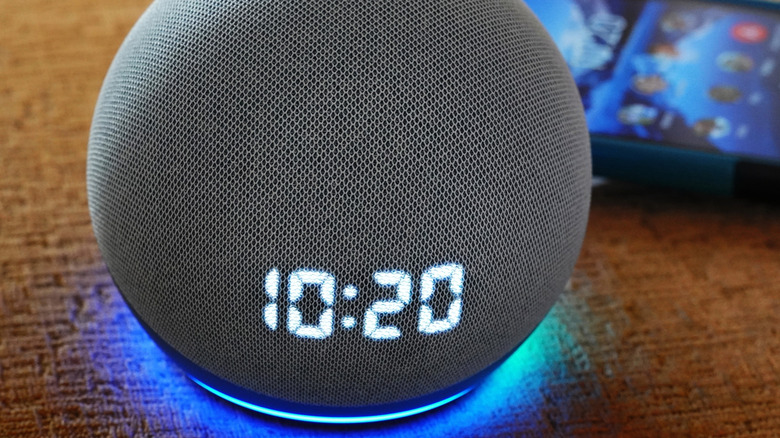
There's a special gear that grinds in our brains when Alexa says "By the way" and lists off a series of suggestions for skills, services, and products. For most users, if they want to pursue an improvement or product, they'd sooner go and find it themselves rather than suffering through a salesperson in their living room. It's a big complaint across the Alexa community, but thankfully, there are some solutions to try.
To make Alexa a bit less wordy, head to Settings > Voice Responses and turn on Brief Mode. This will cause Alexa to just play a quick ding in many cases (particularly those where simple actions have been requested) instead of rattling on about what's already been done.
Speaking of upselling, that can be cured too. Once again, go to Settings > Notifications > Things To Try and turn off Phone Notifications and Alexa Device Notifications. Once that's taken care of, go to Settings > Notifications > Amazon Shopping and turn off Deal Recommendations and Reorder Recommendations. Struggling to find it? It will be under "Shopping Recommendations." Another quick way to nip the salesperson behavior in the bud is to say "Alexa, turn off by the way," but we'd recommend making sure the above settings are sorted first.
Alexa won't take multiple commands in a row
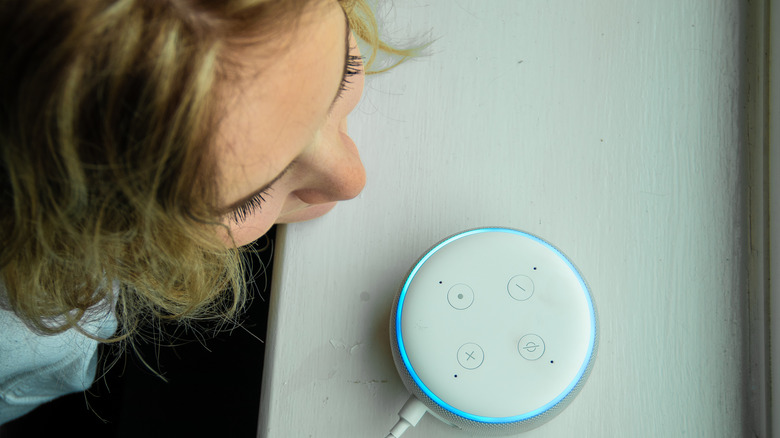
One problem many users have with Amazon's smart home speakers is having to say "Alexa" before every single request. If users keep talking, it ignores everything after the first command or question. Well, unless they have a look into Alexa settings to stop this from happening.
Enabling Follow-up Mode stops this from happening. Simply say "Alexa, enable Follow-up Mode." If you'd rather get visual confirmation that the setting has actually been changed, open up the Alexa app and head to Devices. From there, find the Echo in question and tap Settings > Follow-up mode, then turn it on.
Once Follow-up mode is active, keep an eye on the light ring. As long as the blue light is visible, users can fire off subsequent commands without saying "Alexa" 10 times in-between. After around five seconds, the light will turn off, meaning "Alexa" needs to be said again to grab an Echo's attention. Most of the time, only a single, well-thought-out command is needed for common smart home tasks — but in practice, when someone gets home, they'll likely just want to spout out a series of commands, like "Turn on the lights," then "Set the thermostat," then "Turn on the living room TV." Follow-up mode allows this to become a reality every time.
Alexa is too loud or too quiet
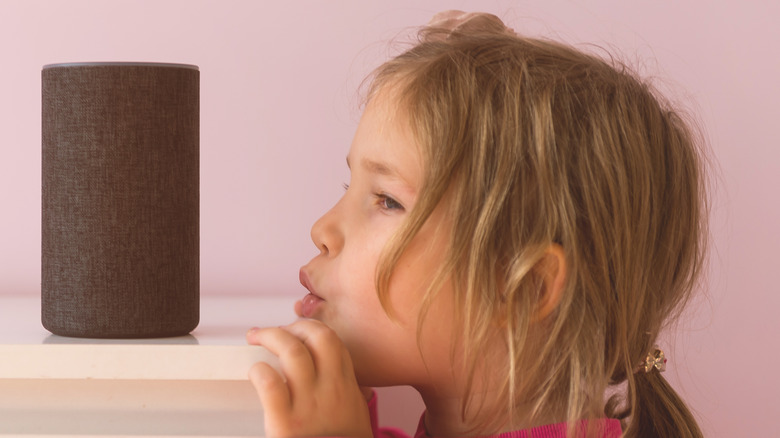
If you're running a smart home for your family, an Echo speaker might be quiet or loud depending on who's been near it. Everyone's different, but when users are in a rush to get the kids to school or getting ready to head out to work, loud and quiet speakers are just plain annoying.
Luckily, users have some automatic controls to make these moments easier. The first method is by simply saying "Alexa, louder" or "Alexa, quieter." But if a speaker is too loud or quiet, users are going to be standing in front of an Echo for a while saying this repeatedly. Users can pick a number between one and 10 and say "Alexa, volume three," for example. Volume one is the lowest and volume 10 is the loudest, with most people landing between three and four depending on preference and the kind of Echo speaker being used.
The second method can be done via the Alexa app. Go to Devices, select the relevant Echo, then drag the volume slider to the left or right. For those who wish to speak quietly — at night, for example — go to Settings > Voice Responses. Turn on Whisper Mode, which allows Alexa to reply by whispering if a user does the same. The Adaptive Volume option in this same menu is a good feature for busy households, too. Alexa will automatically raise the volume when it detects higher levels of ambient noise.
The wrong Echo responds to your prompts
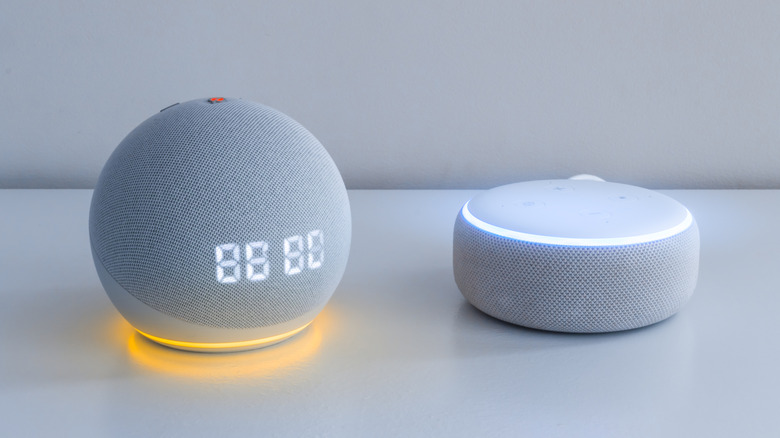
No matter which smart home system users run, everyone gets annoyed when addressing a smart speaker and the wrong one responds. Saying "Alexa" may often trigger the wrong device, even if it's in the other room — and don't get us started on family members called Alexa. It's a top complaint in the community, but there are ways around this irritating problem.
Users can change the wake word per device, which is very handy for households with multiple Echo speakers. In the Alexa app, go to Devices and select the Echo that needs to be changed. Then head to Settings > Wake Word and pick a different one for the more problematic devices, with the options being Amazon, Computer, Echo, or Ziggy.
For Echo speakers that are grouped nearby, just set different wake words on each — and don't group more than five devices near earshot of each other. Of course, it would be easier for Amazon to just allow Alexa to be called whatever the user felt like calling it, but on-device processing limits and privacy concerns are most likely among the reasons why there isn't more freedom for users in regard to this feature.