

Why Your Roku TV Isn't Showing Up For Screen Mirroring (And How To Fix It)
Beyond movie streaming and playing games, one of the best things you can do on your smart TV is mirroring your phone, tablet, or computer screen. Just like many other smart TV brands, Roku supports this feature too, and you can easily mirror your phone to a Roku TV in a few simple steps. All you have to do is look for the screen mirroring option in your Android's Quick Settings, Apple device's Control Center, or Windows PC's Display Settings page (called "Connect to wireless display"). Then, select your Roku TV from the list of available devices, and you should be good to go.
It sounds easy enough, but the thing is, you might encounter instances when your Roku TV isn't showing up for screen mirroring on your device. There are several reasons why your TV might not be discoverable — from minor misconfigured settings to incompatibility with the device you're mirroring from. We'll walk you through what you need to do to fix these issues.
Your devices aren't on the same network
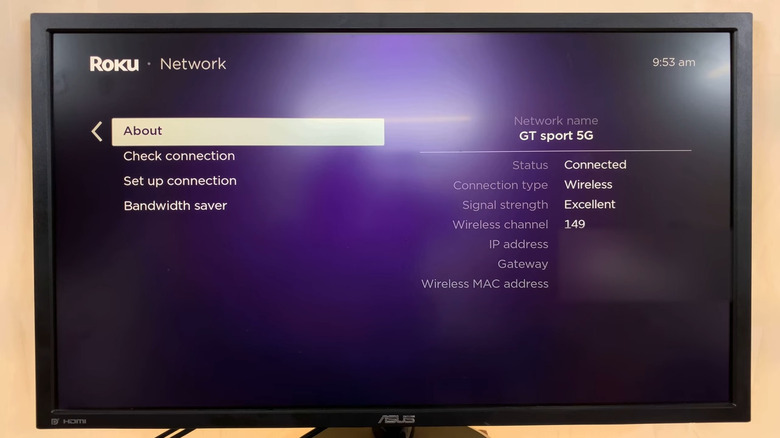
One of the most common mistakes users make when screen mirroring to the Roku TV (or any other smart TV brands, for that matter) is forgetting to put both devices on the same network. If they're on different Wi-Fi networks, they won't be able to find each other, and your Roku TV won't show up as a cast option.
To verify what Wi-Fi your Roku TV is on, here's what you need to do:
- Hit the home button on your Roku TV remote to go to the home screen.
- Navigate to Settings.
- Select Network.
- Press About.
The information of the network you're currently connected to will then appear on the left, with the network name at the very top. While you're here, make sure the signal strength also says "Excellent," which means your Roku TV has a stable connection with your router. Now that you know what Wi-Fi the TV is using, connect your phone, tablet, or computer to the same network and try mirroring your screen again. You should see your Roku TV on the list of available devices to cast to.
Your screen mirroring device isn't compatible with your Roku TV
With how interconnected consumer devices are these days, it's easy to assume that every device works with every other device you own. That isn't the case for Roku TV when it comes to screen mirroring, though. This Roku feature only supports two protocols: Miracast (for Android and Windows) and AirPlay 2 (for Apple devices). If your phone, tablet, or computer doesn't have either of these options, your Roku TV won't show up for screen mirroring at all when you try connecting.
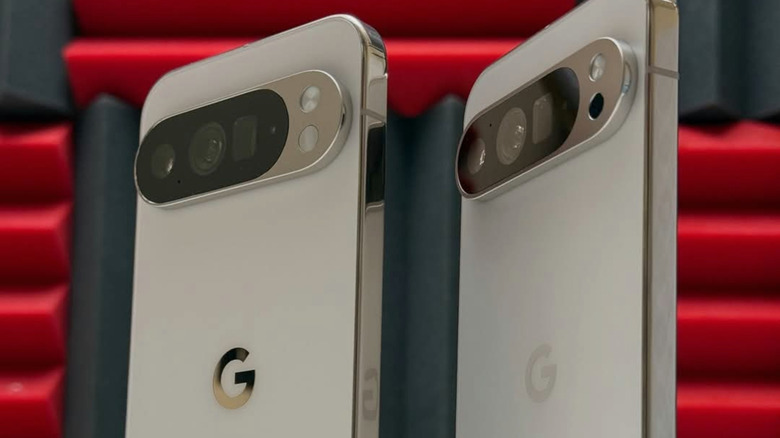
A popular Android brand that doesn't come with Miracast is Google Pixel. Pixel devices are compatible with Chromecast instead of Miracast. So unless you plug in a Chromecast streaming device to your Roku TV, screen mirroring your Pixel phone won't be possible.
Unfortunately, other than using an external device, there's nothing you can do if your device isn't compatible with Roku TV. You'll need to resort to using a different phone, tablet, or computer for screen mirroring to the Roku TV.
The device you're mirroring from might be blocked on Roku
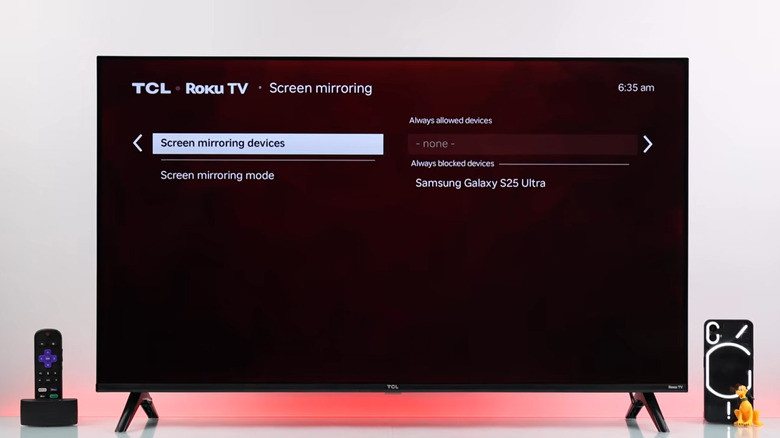
If your Roku TV's screen mirroring mode is set to Prompt, a notification will appear on your TV with options to always allow the connection, allow just for the current session, block for the current session, and always block. It's pretty easy to select the wrong button when you're in a hurry, so you might have accidentally blocked your device. Thankfully, you can always clear the device from the blocked list. Follow these steps to do so:
- From your Roku TV's home screen, navigate to Settings.
- Select System.
- Choose Screen mirroring.
- Open Screen mirroring devices.
- See if there are devices listed under "Always blocked devices."
If your phone, tablet, or computer is blocked, unblock it by selecting it and choosing Remove device from list. Now, check whether Roku TV shows up for screen mirroring on your device.
For AirPlay, there's no blocked list to clear, but you can try unpairing all the connected devices to refresh the connection. To do so, navigate to Settings > Apple AirPlay and HomeKit from the Roku TV's home screen. Then, open About AirPlay, select Reset Paired Devices, and confirm by pressing Unpair Devices. When you mirror your screen to the Roku TV, you might be prompted to type in the AirPlay code again before you can connect.
Your Roku isn't set to accept screen mirroring requests
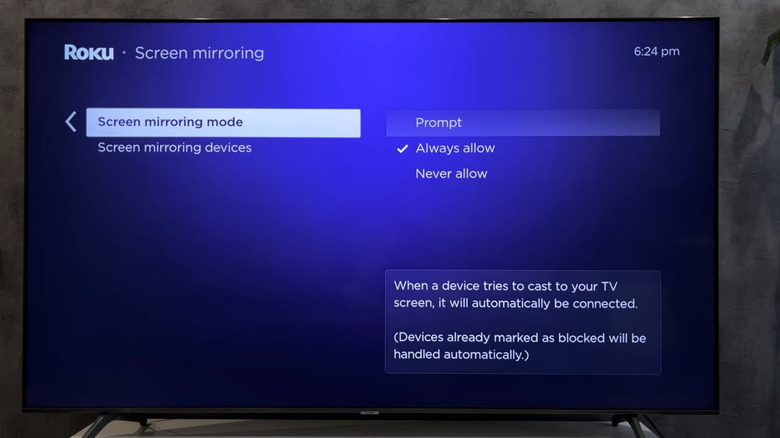
Your Roku TV's screen mirroring mode is already enabled out of the box, so even without touching any settings, you should be able to see the Roku TV on your phone, tablet, or computer whenever you try mirroring your screen. However, you might have unintentionally changed the configuration before, preventing the Roku TV from accepting screen mirroring requests. Here's how you can check if that's the case:
- From the Roku TV home screen, head over to Settings.
- Open System.
- Choose Screen mirroring.
- Click on Screen mirroring mode.
- Verify what the selected option is.
If it's set to "Never allow," choose Prompt or Always allow. "Prompt" means you'll see an alert on the TV every time a device wants to mirror its screen, and you'll need to allow or reject the connection. "Always allow" means any device on the same Wi-Fi network can automatically mirror its screen without asking for your permission.
If, on the other hand, your Roku TV has always been set to "Prompt" or "Always Allow," but it still won't show up for screen mirroring, YouTuber WorldofTech shared a workaround that fixed this common Roku problem for him. What you need to do is restart both your device and the Roku TV. Once they're turned on again, go to Settings > System > Screen mirroring mode from the TV's home screen again. Then, temporarily select Never allow before switching it back to your preferred mode ("Prompt" or "Always allow").
For AirPlay, you need to head to Settings > Apple AirPlay and HomeKit from the home screen instead. Then, simply select AirPlay and toggle it from "Off" to "On."
AirPlay is on, but you're not using an Apple device for screen mirroring
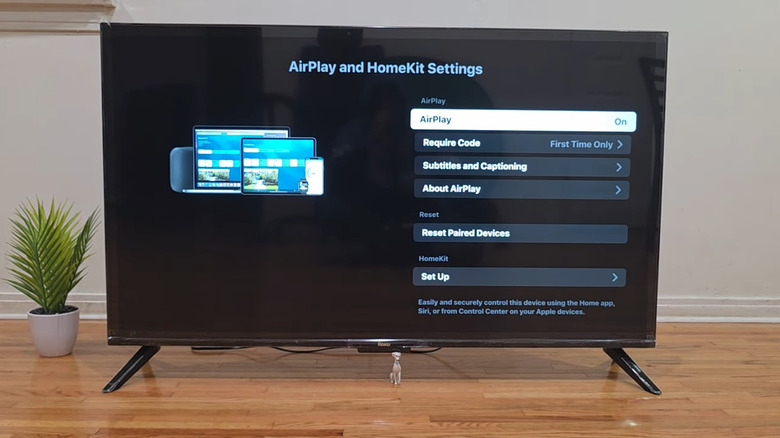
Some Roku users have reported that their Roku TV won't show up for screen mirroring if AirPlay is on while they're using a Miracast-compatible Android or Windows device. If you're also trying to mirror a non-Apple device but your Roku TV won't cooperate, it's a good idea to try switching off AirPlay to see whether that's causing the connection interruption. Here's a quick guide on how to do so:
- Go to the home screen on your Roku TV.
- In the side panel, select Settings.
- Click on Apple AirPlay and HomeKit.
- Check if AirPlay is set to "On."
- Press AirPlay to disable the feature.
From here, power cycle the TV by removing it from the wall outlet and waiting for a few seconds before powering it back on. Then, see if the Roku TV now shows up for screen mirroring on your Android or Windows device.