

Why Google Maps Gives Two Phones Different Routes For The Same Trip
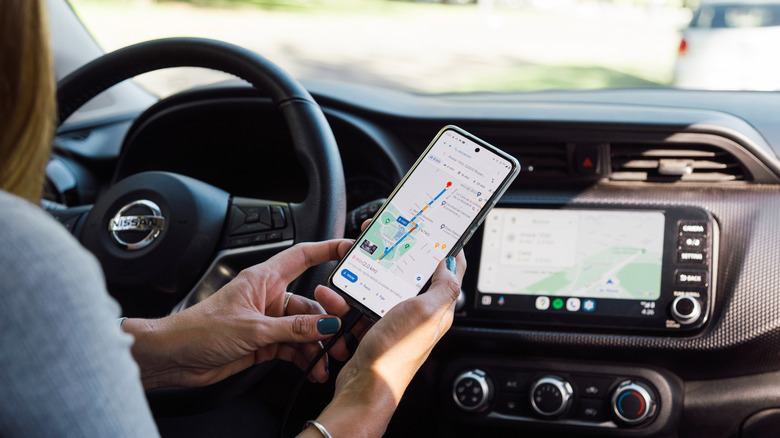
Have you ever been prepped to head out somewhere for a walk or drive, typed a destination into Google Maps, and noticed that the directions you get are different from what your spouse, colleague, or friend sees on their device? It is possible for Google Maps to show different routes for the same trip on different phones, which might have you completely confused.
It can happen for a few reasons, including what route preferences you have set in the app, what the traffic conditions are at the exact time you're leaving versus someone else, and even your device or account settings. Thankfully, Google Maps usually provides multiple route options. So, if you want to take the same one, like if you and a friend are planning to meet for lunch at the halfway point en route to a cottage or campsite, you can coordinate by switching to one of those alternate routes that matches. But don't assume that if you're using the same app, you'll always get the same route.
Your app settings impact Google Maps routes
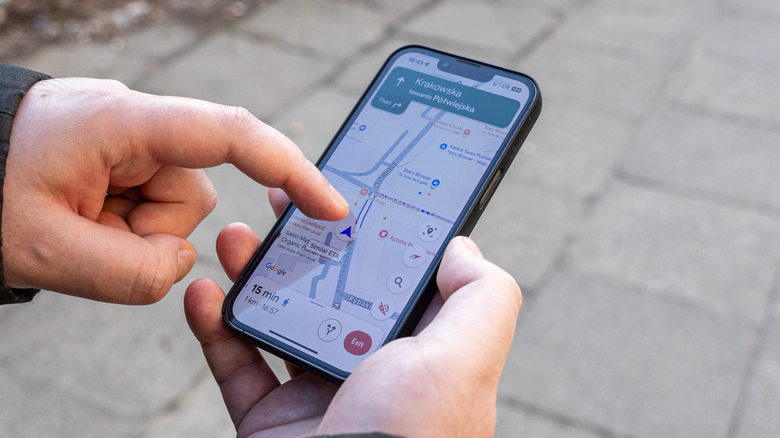
When you enter a destination into Google Maps, you can choose to travel by driving, walking, public transportation, cycling, and more. Usually, you'll get multiple route options unless there's only one possible way to get where you need to go. The best option Google Maps chooses will be highlighted in blue. Others appear in grey, but you can click on them if you want to switch. You can also preview each route before you start the navigation.
What route is chosen depends not only on your mode of travel but also on the app settings. If you have set it to avoid toll roads and/or highways, your route will reflect this. If you have selected a later departure or arrival time, the route will adjust based on traffic and the best option to get you there on time. You may have also changed the Google Maps setting to prefer fuel-efficient routes, which could avoid stop-and-go traffic or include back roads at slower speeds. It goes without saying, but if you want to always be suggested the fastest route, you should change this setting. Moreover, if you have enabled the Google Maps setting for vehicle type and chosen a hybrid or electric car profile, Maps might also take charging stations along your way into consideration. To view route settings, tap your profile icon in the top-right > Settings > Navigation, and scroll down to Route Options. Or once you select a destination and route, swipe up on the navigation screen to customize trip options like avoiding tolls or ferries.
Your phone settings can play a role, too
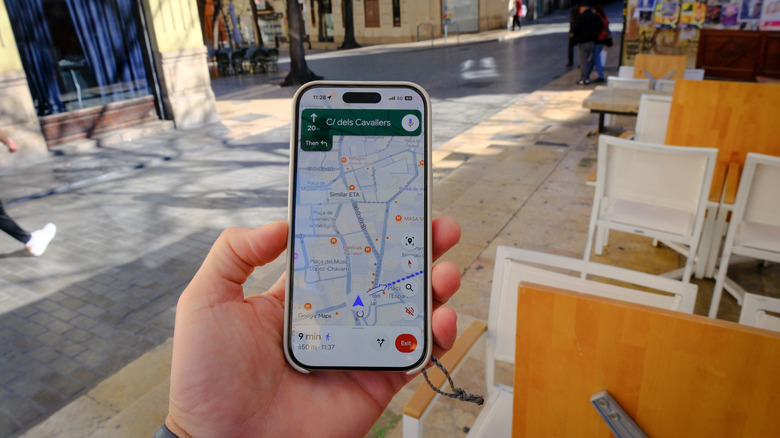
If a phone's location reading is slightly different, two people leaving from the same places may see different routes. A less-known Google Maps feature allows you to use your phone's camera to calibrate your location. Using the feature should help Google Maps locate you better and show the optimal route too. If it's a destination you travel to often and you're signed into your Google account, Google Maps may take historical data like previously preferred routes into consideration, resulting in a mismatch. This can also happen if you're using an older version of Google Maps while another phone has an updated version. Update the app and see if there's a change.
If it's an older device that doesn't have as many GPS antennas or doesn't receive as many GPS signals, some users have suggested that you may see different route options since your initial location isn't as precise. You likely won't run into this issue often. I tried with a few destinations from an iPhone 17 Pro and Google Pixel 11 Pro, and both provided identical directions each time. But if you ever do notice a difference, a quick settings check, app update, and cache clear should result in synergy.