

This Hidden iPhone Feature Will Keep Your Location More Private
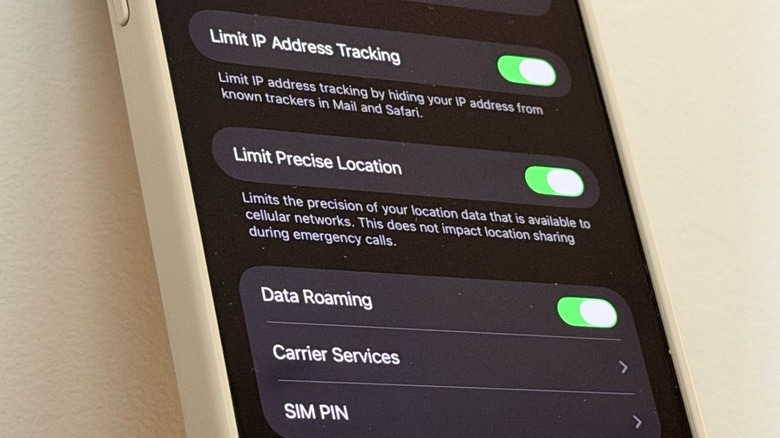
The iPhone has several features to keep your experience more private and prevent third-party companies from tracking you and your data. Over the years, Apple has added App Tracking Transparency, Lockdown Mode for journalists, politicians, and activists that could face hacker attacks, and measures to only share specific information with an app instead of full access. One of the latest functions to ensure your data remains private is Limit Precise Location, which masks your location from mobile carriers, and was Introduced with iOS 26.3.
This feature is available on the iPhone 16e, 17e, and Air, and the iPad Pro M5 with 5G support, assuming the latest version of iOS. While no U.S. carrier currently offers this feature, it's turned on by default with Austria's A2, Denmark's YouSee, Germany's Telekom, Ireland's Sky, Thailand's AIS and True, and EE, BT, and Sky in the United Kingdom. Apple also says that with a SIM from a carrier in the European Union or the United Kingdom, Limit Precise Location can be activated. This is also a setting you should setup on your iPhone 18, if privacy is important to you.
Limiting your precise location from cellular networks
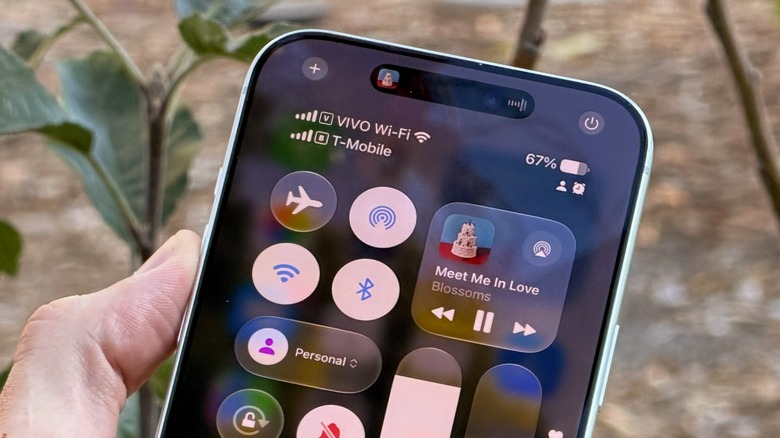
Cellular networks determine a user's location based on which cell tower their phone connects to. This can be as precise as your street address, and could be used to determine whether you're shopping, spend a lot of time at home, and so on. With the Limit Precise Location feature, mobile carriers only have a general idea of where you are. Importantly, Apple says that turning this feature on doesn't impact signal quality or user experience, and doesn't interfere with emergency responders during an emergency call.
You can also continue to share your location with friends via Find My and apps like WhatsApp. To use this feature, make sure you have a supported iPhone model and at least IOS 26.3 installed. Open Settings > Cellular > Cellular Data Options and, if you have multiple phone numbers, choose the preferred line. Then toggle the Limit Precise Location setting on. You might be required to restart your device for activation. With this feature on, your carrier has less specifics on your location, while you can still use local services without issue.
Another way to help keep your data private is to prevent apps from accessing your location. Under Settings > Privacy & Security > Location Services, turn the feature off for apps you don't want keeping tabs on you. Though you might not want to do so with apps like Uber and Google Maps to avoid the annoyance of having to switch it back on whenever you need this location information made available.
Signs someone might be tracking your iPhone
While Apple's newest feature has no major drawbacks, it also doesn't completely shield you against being tracked. If you want to make sure no one is tracking your phone without permission, there are a few signs to be be aware of. For example, if your iPhone has suddenly slowed down, the battery life has degraded considerably, or unknown apps have appeared, someone could be spying on you.
Even though iOS is fairly secure, there have been actively exploited iPhone flaws in the past. If you notice any unusual factors, there are steps you can take. Start by opening the battery settings to see if any apps are using more battery life than usual, and consider removing those that are, or that you don't recognize.
The same approach applies if you notice your iPhone starting to overheat on a regular basis. You should also watch for weird pop-ups, as this could be a sign that attackers have infiltrated your iPhone. In this case, go into Settings > General > VPN & Device Management, and see if there's any profile that you don't recognize. Be aware that sometimes companies setup VPNs for their employees, so don't go deleting these before verifying why they're there.