

4 New Google Photos Features Added To Your Android Phone In September 2026
Google Photos is now smarter than ever, especially with all the nifty tools it received in the past year. For its ten-year anniversary alone, Google Photos was upgraded with a bunch of AI features. For one, you now get suggested edits in the editor mode. All you have to do is tap your subject or the part of the image you want to change, and a set of suggestions like blur the background, sharpen, or move will pop up on the screen. If you're not sure what tools you need to use to achieve a desired edit, you can just type a prompt in the chatbox to let AI handle it for you. Google Photos also includes a photo-to-video generation feature using text prompts and all new ways to search for specific photos, share albums, and customize what appears in your library.
But, the recent additions don't stop there. The app continues to receive regular software updates up until now, and the Google Photos September rollout is particularly exciting, thanks to a couple of useful new features.
Build an inventory of your clothes in-app
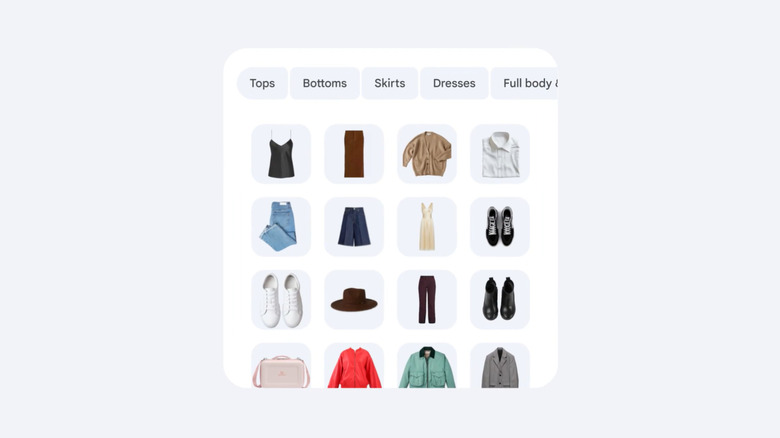
Closet apps are all the rage among users with a packed wardrobe. Instead of rummaging through their closet, they can just browse their clothes in the app and pick an outfit from there. The catch with closet apps, though, is that you'll usually go through the hassle of uploading photos of each item to build your digital closet. If you're looking for a closet app that's much easier to set up, try Google Photos instead.
With the September 2026 update, Google Photos now has a built-in closet feature called Wardrobe, available for all eligible users. This AI-powered tool goes through your library, picks the images with your face on it from the past four years, and extracts the clothes you were wearing in those photos. You don't have to import individual images of your clothes at all. After extracting the pieces, Wardrobe then sorts them into categories like dresses, bottoms, outerwear, and even accessories like jewelry, hats, and bags. Some categories have subcategories for further organization. For instance, footwear is split into heels, sneakers, and flats.
If you're in the U.S., Brazil, or India and have over 1,000 photos of yourself in Google Photos, you can access this feature on your Android or iOS device. Follow this guide:
- With Google Photos open, press Collections at the bottom.
- Select Wardrobe.
- Tap on Build my wardrobe.
Wait for Google Photos to finish curating your wardrobe. It will send you an alert once it's done. When you receive the notification, you can find your Wardrobe album in the Collections tab. If you want to try out a combination of pieces, hit Create, choose your items, and tap on Try it on. Google Photos will generate a photo of you wearing the clothes you selected.
Apply a blur effect on personal information in photos

When you want to hide sensitive information from your images in Google Photos, you normally just draw over it with the pen markup tool. It isn't as clean-looking as you might like, but it gets the job done. If you prefer something less distracting, though, you're in luck. Google Photos now comes with a Redact pen tool.
Instead of using a solid color like the standard Pen option, Redact adds a pixelated effect of your choice to anything you draw on. This effectively hides any information while still blending in more naturally with the rest of the picture. Here's how you can find and use the Redact pen in Google Photos:
- Open the photo you want to edit in Google Photos.
- Tap Edit.
- Go to Markup.
- Select the Redact pen.
- Choose the redaction style you want to use.
- Adjust the thickness of the pen with the slider.
- Draw over the area you'd like to hide.
- To undo the most recent marking, tap the undo arrow at the bottom.
- To clear all the markings, hit Reset.
- To save the edited photo, press the checkmark and hit Save as copy in the upper right of the screen.
If you don't have the Redact tool in the Markup section, you're either using an iPhone, or the Google Photos feature hasn't reached your region yet. As of this writing, Redact is exclusive to Android devices, with a gradual rollout to users worldwide.
Give photos their own custom look with unique filters
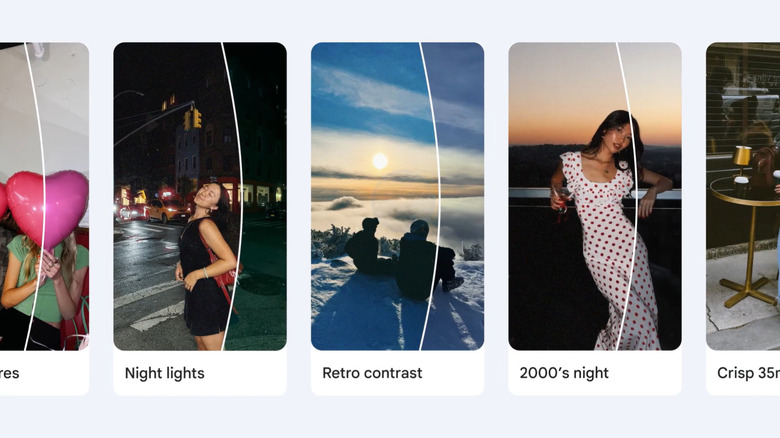
If you want to revamp your images, Google Photos already includes a range of filters in the editor panel. However, when you apply them to every single one of your photos, the filters become too monotonous and boring. Google Photos solves that with its new Moods feature in the September update.
Moods also offers a set of filters for your images. The only difference is that they're powered by generative AI, which automatically optimizes the filters to suit your photos and give them unique looks. The filters are mostly designed around vintage camera aesthetics, unlike the preset filters which cover a wider range of styles.
To access Moods in the app, follow these steps:
- In Google Photos, go to the Create tab.
- Select Moods from the options at the top.
- Find the photo you want to apply the filter on.
- Tap on your preferred mood. Options include Rich textures, Night lights, Retro contrast, 2000's night, and Crisp 35mm, among others.
- Adjust the effect to your liking.
- Once you're happy with the result, hit Save.
It's important to note that Moods is only out for Android users at the moment.
Batch edit photos with Gemini Spark integration
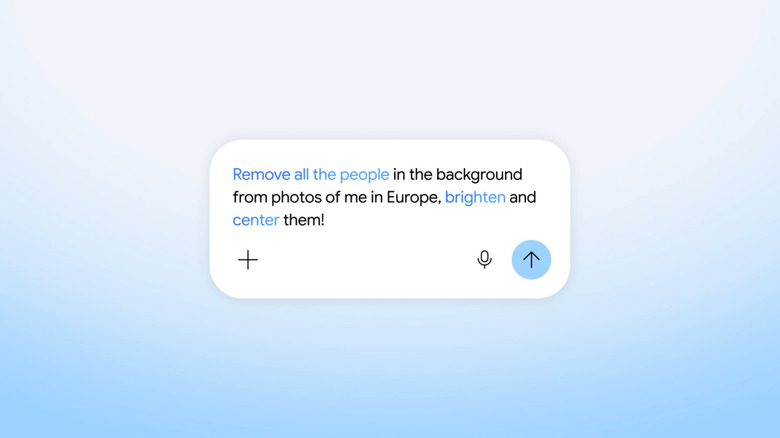
Google Photos is one of the best Android apps for quick photo editing, but even with its straightforward editor, modifying multiple pictures is still too tedious and time-consuming. Thankfully, the September 2026 update to Google Photos makes this task a lot quicker and easier. This update integrates Google Photos with Gemini Spark, an AI agent that helps you with complex tasks like batch editing photos. Here's what you need to do to use Gemini Spark with Google Photos:
- Launch the Gemini app.
- Tap the two lines in the top-left.
- Go to the gear icon.
- Select Personal Intelligence.
- Open Connected Apps.
- Toggle on Google Photos.
- Hit Connect to proceed.
From here, you can start batch editing your Google Photos images in Spark:
- In the Gemini app, head over to the two lines again.
- Choose Spark.
- Type your prompt. Just use natural language, like "Make my photos from yesterday look brighter," or "Crop the best ten photos from my Europe trip to a 4:3 aspect ratio." You might need to add @Google Photos in the prompt if it doesn't automatically use your Photos account.
- Hit the arrow to submit.
- Wait for Gemini to finish batch editing your pictures.
You should then find both your original and edited photos in Google Photos. Other than batch editing photos, Gemini Spark supports other requests. This includes searching for photos based on the event, date, location, or content of the photo; identifying best-looking images; adding photos to albums; sharing albums; copying text from photos; and scheduling Google Photos-related tasks (e.g. sorting images). You can even add multiple requests in one prompt for convenience.
Keep in mind that Google Photos' Gemini Spark integration is currently offered only for users in the U.S. with a Google AI Pro or Ultra account.