

4 Waze Settings That Can Improve Your Privacy
It's genuinely no wonder that Waze is one of the most popular navigation apps out there, beloved for its community-driven approach to getting around. The platform does a great job of finding the fastest routes and giving you a heads up about speed traps, accidents, and other problems while you drive. However, in order to provide that convenience, user data needs to be analyzed. As a crowdsourced app owned by Google, the software thrives on applied data, from your route preferences to the places you visit most, in order to optimize every commute. For people who are particularly privacy-conscious, this type of data might not be something they want to contribute to Waze.
You should know going into this that there is some data Waze simply must collect in order to work properly. The app relies entirely on real-time traffic updates and GPS positioning to give you turn-by-turn directions, so you can't hide your live location from the software — otherwise, it becomes useless. Short of turning off Waze on your phone and not using any navigation app, there's no getting around this requirement.
Aside from that, though, you still have plenty of control over what extra information gets shared. Digging into the configuration menus reveals some powerful options designed specifically to lock down your personal data. From hiding your public profile to stopping targeted marketing, tweaking these four privacy settings in Waze will make your daily commute more secure.
Going invisible on the map
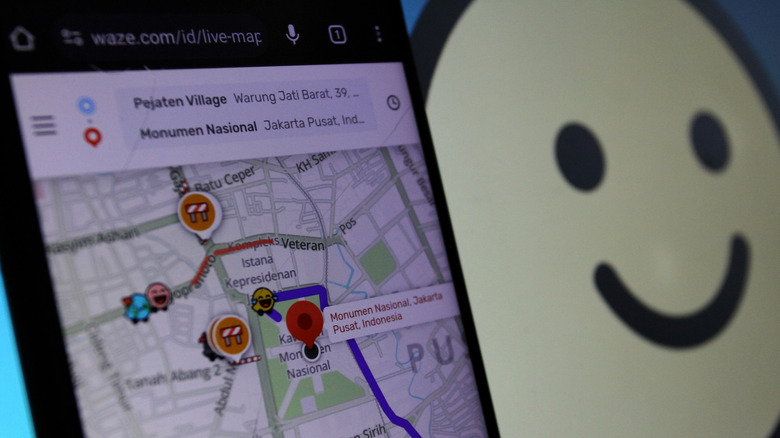
One of the most recognizable features of Waze's platform is the ability to see other active Waze users driving on your map in real time. These colorful avatars on your screen represent other actual people sharing the road with you, bringing a unique kind of gamified and social layer to the daily commuting grind. It makes being stuck in traffic a little more fun, and is one of the reasons Waze is better than Google Maps. However, not everyone wants their presence or other profile information broadcasted to total strangers.
Activating Invisible Mode instantly fixes this problem and puts you snugly back under the radar. Once you flip on this setting, your avatar vanishes soon after from the public map and hides your digital presence from all other drivers. And don't worry: Waze still gives you driving directions and traffic alerts if you toggle this on; Invisible Mode doesn't affect that.
To enable this feature, tap the three horizontal lines from the app's main menu, select View profile (it will be just beneath your name), then enable the Go invisible toggle. Just note that running in stealth mode has one minor drawback: while invisible, Waze blocks users from reporting any on-road issues, like accidents. So, you'll have to choose between enjoying your privacy and being able to message or report issues for your fellow drivers.
Opting out of personalized ads
Waze depends on ad revenue to keep the virtual lights on since it's a free app. Anyone using it regularly has likely noticed branded pins on the map and those pop-up banners that show up when you're stopped at a red light. To make these ads more useful to you, Waze tracks your navigation habits, the places you visit frequently, and the times of day when you're typically driving. This behavioral data lets it display ads that are more likely to align pretty well with each driver's routines and interests.
While some folks might appreciate snagging a coffee shop discount on their morning commute, others may find this hyper-targeted marketing invasive. The idea that an app is constantly analyzing you and your travel patterns to help push a sale can feel like a rude overreach. Luckily, Waze sports a dedicated toggle just for turning this off. Disabling personalized ads stops Waze from using your historical location data and searches to serve you those targeted ads.
To disable these, tap the three horizontal lines on the app's main menu, then select Settings. From there, head to the Privacy section, then disable the toggle next to Personalize your ads. Know that flipping this switch off doesn't magically eliminate all ads. Waze will still show ads, but they'll be generic ones at that point, totally uninfluenced by your personal info.
Clearing your navigation history
Apps like Waze are designed to remember each place you go, all in the name of convenience. The app automatically logs your recent searches and trips, along with saved addresses, to make starting your next journey potentially a little quicker. The problem is that, over time, a wildly detailed log of your life gets created, mapping out your home, job, doctors' offices, favorite restaurants, and even weekend hangout spots.
Taking a moment every so often to clear out your navigation history is a great way to maintain this privacy. It makes sure no one else can open the app later and see a full list of where you've been. Waze lets users wipe this data completely, clearing out any places you've recently searched or individual trips you took.
To manage this information, tap the three horizontal lines from Waze's home screen, then select Settings. Scroll down and choose Privacy on the next screen, then select Navigation history. From there, you can delete whichever entries you want. Just note that doing this means the app will no longer automatically suggest these locations — you'll need to type them in again manually next time you need them.
Limiting your background location access
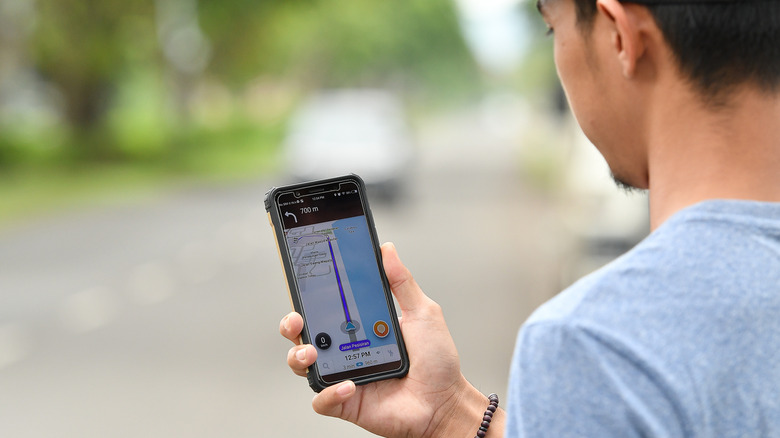
A critical privacy setting for any navigation app is background location access. This is often a default setting for phones, and it essentially means these apps can track your movements even when they're closed. Waze regularly makes use of this permission so it can remind you about any upcoming trips or send alerts for unusual traffic before you head out. This can be helpful, but an app always tracking your location in the background isn't totally necessary, even for everyday driving. It's also a pretty major data vulnerability and one of the reasons why Waze drains so much battery.
Limiting Waze's location access strictly to when you're actively using it is a good way to protect your privacy. By tweaking a system-level permission, the app is blocked from accessing your phone's location data when you're going for a quick walk around your neighborhood, for example. Waze will then only know your device's location once you launch it to fetch you directions.
Disabling this setting requires you to step outside the app and dive into your phone's main operating system menus. On Android or iOS, navigating to the system-wide Location or Location Services menu in Settings will show a list of apps requesting GPS access. Find Waze on this list, then change its permission to Allow only while using the app (Android) or While Using the App (iOS). You don't have to worry about this breaking your navigation — both Android and iOS treat a navigation session as you actively using an app, so there's no need to keep Waze in the foreground just to make sure it can give you accurate turn-by-turn directions. Once the navigation session ends and you close the Waze app, however, it won't be able to access your location anymore.