

How To Turn Off Waze On iPhone And Android
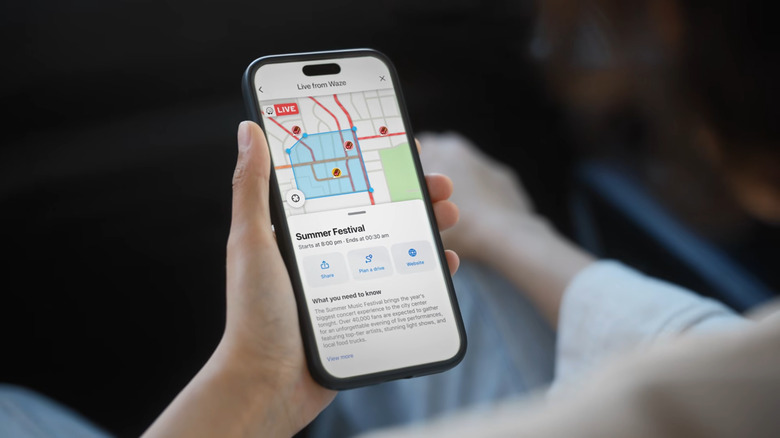
There are two ways to turn off Waze on your iPhone or Android device. First, you can stop an active navigation route. This is probably what you want to do as soon as you reach your destination. It also makes sense when you need to change where you're going, if you no longer need directions, or you simply want to use a different navigation app.
The second way to turn off Waze is to fully close the app. This is usually the way to go (pun intended) when you won't use Waze for the rest of the day and don't want it running in the background, potentially collecting location data and draining your battery. When you're having issues with Waze, that's also a good excuse to turn off Waze by closing the app.
The problem is, doing either isn't exactly intuitive on Waze. It's pretty confusing how to exit the navigation screen or close the app without the hassle of going into your recent apps menu. If you're stuck, here's how to turn off Waze on iPhone and Android.
Step-by-step guide to turn off Waze on iPhone and Android
If, by turning off Waze, you mean exiting its navigation screen, it's only easy to do so on Android Auto and Android Automotive. That's because there's an obvious X button in the upper-right corner of the map. Just press it, and that's it — the navigation will stop, and you'll be redirected to the Waze home screen immediately after. On Android and iPhone, though, the option to turn off Waze navigation isn't as prominent. You first need to tap or swipe up on the bottom panel with the current time shown on the bottom of the screen. Once it expands, hit the Stop button.
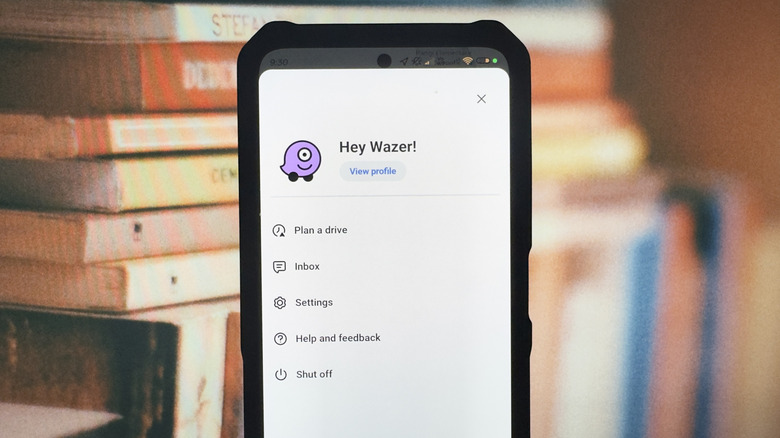
Meanwhile, if you're done using Waze for the day and want to completely disable it, you can access one of Waze's hidden features: Sleep mode (on iOS) or Shut off (on Android). This setting essentially turns off Waze and makes sure it no longer uses your phone's resources or earns Waze points.
There's a difference between the iOS Sleep mode and the Android Shut off, though. Sleep mode doesn't automatically remove Waze from your phone's recent apps screen. The app is still there when you go to your phone's recent apps menu, but it's actually inactive. Shut off is the opposite. As soon as you turn off Waze via Shut off, the app will close and get automatically cleared from the recent apps menu. If you want to be sure Waze isn't running in the background on your iPhone, you can always remove Waze from the recent apps.
To access Sleep mode or Shut off on Waze, press the hamburger icon in the top left of the home screen. The option should be on the bottom of the menu.