

5 Common Issues With Waze (And How To Fix Them)
Waze has long been a viable Google Maps alternative, offering a cleaner interface and effective real-time reporting. Many users now rely solely on Waze, whether it's on their smartphone, Android Auto, or Apple CarPlay. The app generally does a good job of helping you avoid traffic jams, road closures, speed traps, and toll roads. But like Google Maps and Apple Maps, Waze isn't perfect, and users report issues with it. For some users, these issues may only be occasional, but the experience isn't necessarily flawless.
Common issues with Waze include the app failing to open, freezing, not registering inputs, crashing frequently, suggesting incorrect routes, and not updating your location. However, the good news is that, more often than not, the problem comes down to missing permissions, outdated app versions, or misconfigured app settings — and these issues are all easy to fix. Another common problem and one that has become a reason some users are starting to dislike Waze is that it sends too many alerts and notifications. This can be distracting while driving, and there are numerous posts on forums like Reddit highlighting user concerns.
Waze doesn't open, remains unresponsive, or crashes
One of the most frustrating issues with Waze is when the app becomes unusable. This includes Waze not launching, freezing while loading, becoming unresponsive while navigating, or crashing repeatedly. Since the problem directly impacts the app's core functionality, which is navigation, you'll want to fix it as soon as possible. In most cases, the issue is simple and easy to resolve. It could be caused by a bug in Waze, corrupted app cache, or insufficient free storage on the device. When your phone is low on storage, it impacts the smartphone's overall responsiveness and may cause apps to crash.
To fix the problem, start by clearing the app cache. To do that on Android, go to Settings > Apps > Waze > Storage, then hit Clear cache. To do the same on iOS, go to Settings > General > iPhone Storage > Waze > Offload App, then head to the App Store and reinstall Waze. Once done, restart your phone and check whether Waze now works. If it doesn't, look for any pending Waze update and install it. In case the problem persists, you can try outright uninstalling Waze, then reinstalling it from the dedicated app store.
While unlikely, if Waze still has issues loading or running, consider clearing some storage space on your smartphone. You can do so by uninstalling unused apps and deleting files you no longer need. If you don't want to delete anything, use your phone's charging port to connect a storage drive and move files you no longer need to it.
Waze can't fetch routes
Another common issue with Waze is when the app fails to fetch a route after entering a destination. Sometimes, the app keeps loading, while in other instances, it throws the "Something went wrong" error. This usually happens when you pick a distant location. Upon picking something close by, Waze fetches the route normally. The issue is often linked to a server timeout or connectivity issues, which happen when Waze tries to calculate longer distances for navigation.
There are a couple of things you can do to fix the problem. The first thing you need to do is check the internet connection and make sure you are getting fast internet speeds on your phone. You can also try enabling and disabling airplane mode to fix temporary connectivity glitches. Additionally, you can sometimes fix the issue by clearing the app's cache and stored data or reinstalling Waze altogether. These fixes work on both Android and iOS, though clearing cache on an iPhone is a bit more complicated.
If none of that does the trick, a simple workaround is to break your route into two or more parts. For instance, you can search for a location that's midway between the starting and ending points, navigate to it, and once you reach there, enter the final destination. This way, Waze won't throw the "Something went wrong" error most of the time. Problems like these also highlight that Waze has many disadvantages over Google Maps and Apple Maps, the other major players dominating the space.
Waze suggests inaccurate or random routes
One of the reasons many users switch to Waze from Google Maps and Apple Maps is its accuracy and reliability when it comes to real-time navigation. So, when Waze starts suggesting inaccurate or random routes that don't typically align with the ones you frequently take, it naturally becomes a problem. In this case, the issue can be a result of misconfigured Waze settings.
To fix it, tap the menu icon (three horizontal lines) on Waze's main screen, then go to Settings > Navigation. Here, you will see an Avoid toll roads option. If you frequently travel on toll roads and prefer them over local ones, consider disabling the option, assuming it's turned on. Similarly, if Waze routes you frequently through toll roads and you wish to avoid them, enable the option. It's a personal preference, but if set incorrectly, the suggested routes may seem inaccurate or, at times, completely random. Also, under "Toll and HOV passes," you can add any subscriptions or transponder passes you have for improved navigation.
Lastly, under "Navigation settings," go to Personalization > Personalized navigation and turn on both Get personalized ETAs and Get personalized routes. With these settings enabled, Waze will provide routes and estimated time of arrival based on your past drives, which tends to be more accurate. For example, if you always avoid a certain street or area while driving, Waze will factor that in when suggesting the best route.
Waze won't update your location
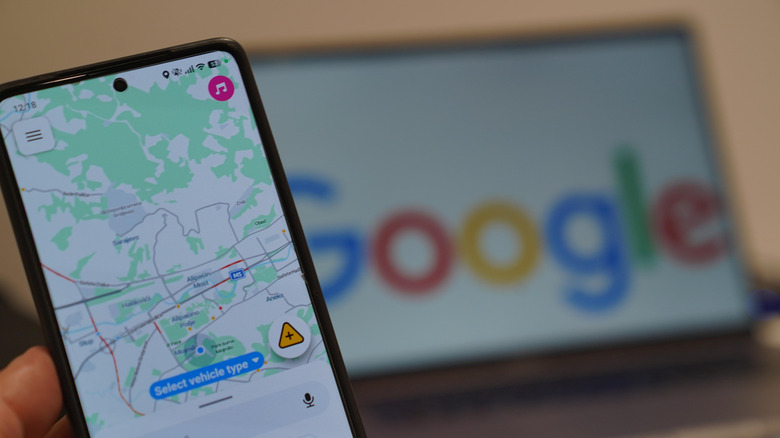
Several users have also reported that Waze is not updating their location, whether they are stationary or driving. It either points to a different location on the map or throws a "No GPS – showing your approximate location" error. When this happens, Waze may not be able to provide accurate directions, which can lead to missed turns and incorrect ETAs.
In most cases, the problem arises when Waze doesn't have access to your phone's location or is unable to access the GPS. To fix that on Android, go to Settings > Apps > Waze > Permissions > Location and pick Allow all the time or Allow only while using the app. Also make sure to enable the Use precise location toggle underneath. Similarly, you can allow Waze access to your iPhone's location by heading to Settings > Privacy & Security > Location Services > Waze and choosing Always or While Using the App. Again, make sure Precise Location is enabled in the same menu.
If this doesn't fix it, you can try rebooting the phone. On Android, hold the power button (or the power button and one of the volume buttons) for 15 to 20 seconds to perform a hard reboot. The process may vary depending on your phone, so it's best to check the manufacturer's website for the exact steps. To force reboot an iPhone, press the volume up button followed by the volume down button, and then hold the power button until the Apple logo appears. Lastly, use a third-party app to test your phone's GPS. This will help you find out if there's a problem with GPS itself.
Waze sends too many notifications and alerts
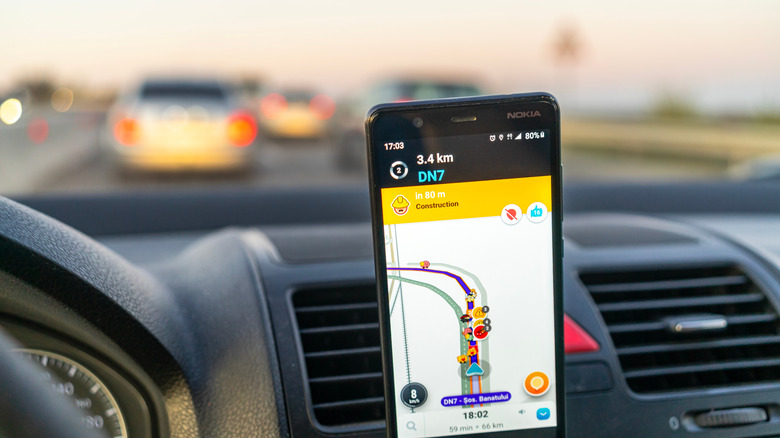
One of the main reasons Waze became popular in the first place was because it provided alerts about traffic, accidents, police presence, speed cameras, and more. But we are also seeing increasing reports from users who find many of these alerts and notifications largely unnecessary, and at times, distracting. This is because Waze, by default, has most of these alerts turned on. However, it's easy to disable any you feel are not as useful. This will reduce the number of times Waze alerts you while driving.
To configure alerts on Waze, tap the menu icon (three horizontal lines) on the app's main screen, then go to Settings > Alerts and reports > Reports. Here, select individual categories and choose whether you want an alert for them. You can disable as many as you want. Similarly, you can disable speed limit beep alerts under the "Speedometer" section. Also, under "Voice and sound," you can set the Sounds option to "Alerts only" or "Off" to minimize audio alerts. Keep in mind that you should only disable alerts that you don't find useful, while leaving the critical ones turned on for the best Waze experience.
As you can see, all it takes is a few minutes to fix the most common Waze issues. And configuring these settings can make Waze much less intrusive and distracting, while providing better, more personalized directions.