

Enable This Toggle On iOS 27 For Better Audio Quality When Recording Videos
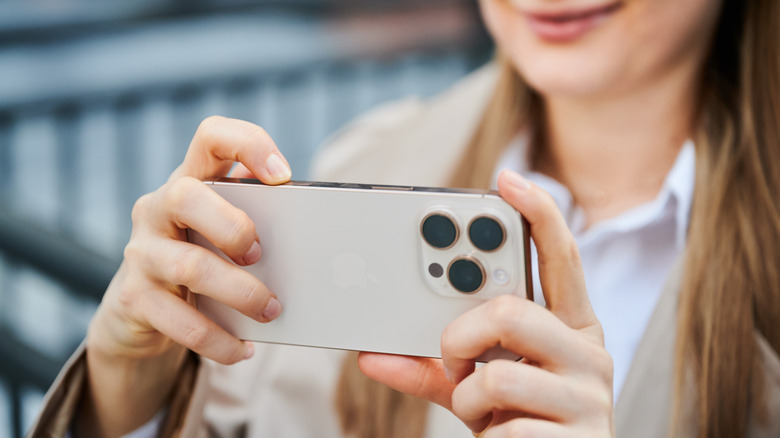
The iPhone 18 Pro models are the first Apple handsets to offer a camera with a variable aperture, a feature most rivals can't match. Apple has also added several camera software novelties in iOS 27 that are exclusive to the new iPhones, such as manual controls for shooting and several video features: smart subject focus tracking, 4K 60 fps Cinematic Mode, 4K Dolby Vision Time-Lapse, and improved Audio Mix. But you don't have to buy one of them to shoot improved videos with your existing iPhone, especially when it comes to recording audio. iOS 27 includes an Audio Zoom toggle you should enable in many scenarios. Apple released the switch earlier this year with the iOS 26.4 update.
Audio Zoom is even older, with Apple launching the feature in iOS 13, which debuted with the iPhone 11 series in 2019. Most iPhones released since then have supported Audio Zoom. However, it didn't include a toggle for manual control. All supported models now let users turn it on or off, including iPhone 11 models, which can be updated to iOS 27. Being able to turn off Audio Zoom matters for certain video experiences. In some cases, iPhone owners may want to disable Audio Zoom to record a richer audio landscape.
How Audio Zoom works and how to enable it
Unlike the telephoto camera, which allows iPhone users to get closer to their subject by zooming in, Audio Zoom won't let you place the handset's microphones near the subject. Instead, the software will match the sound field to the camera's field of view. iOS will try to reduce the volume of surrounding sounds to improve the audio originating from the framed area. Audio Zoom will adjust accordingly as you zoom in and out. The software captures more background sound when you zoom out and suppresses some of that noise when you zoom in.
The feature can come in handy when filming a distant subject. Maybe you want to zoom in on a speaker at a public event, or a group of singers at a concert. Similarly, you may want to capture the sounds associated with an athlete during a sporting event. Or you may be shooting professional video, but the subject isn't close by. Audio Zoom can improve audio quality in these scenarios. That said, professional productions may also use dedicated microphones placed near the subject, which will be even more effective at amplifying sound.
In some cases, you may want to turn off Audio Zoom briefly. For example, if you're attending BTS's Arirang concerts, you'll want to disable Audio Zoom to capture the entire stadium experience. You can then enable it when zooming in on the band's members. However, you won't find the Audio Zoom toggle in the Camera app. In iOS 26.4 or later, including iOS 27, go to Settings > Camera > Record Sound to find it. You can't use Audio Zoom when the audio is set to Mono in the Record Sound menu.
Other iOS 27 settings to improve sound in videos
Spatial Audio (Settings > Camera > Record Sound) is another audio-related iPhone setting that can improve videos. Available on iPhone 16 or later, Spatial Audio "captures more realistic and immersive audio recordings," according to Apple. This richer sound capture lets users edit the audio experience with Audio Mix (as shown above), a feature Apple improved in iOS 27 for the new iPhones. When Spatial Audio is turned on, Wind Noise Reduction is also enabled on iPhone 16 models and later. For videos that need the actual sound of wind, you'll need to disable this setting.
Creators can also turn select AirPods into microphones. This can be useful when recording scenes for a movie or using the iPhone to capture selfie-style videos for social media. Start a video session in the Camera app, then open Control Center and tap Camera Controls to change the sound input to the AirPods you want to use as a microphone. The subject should be wearing the connected earphones before you set up the video session.
Finally, the iPhone 18 Pro models introduce a new Smart Focus Tracking option that lets the user keep the subject in focus regardless of distance changes. This can be useful when recording video of an athlete moving on the field. It also works with the BTS example above, as it allows you to track a specific band member while shooting video. This feature doesn't improve audio on its own, but it works well with Audio Zoom. Smart Focus Tracking keeps the subject in focus as you follow it with the handset, while Audio Zoom reduces ambient noise and prioritizes sound from the framed area.