

What Does The Star Symbol On Your Roku Remote Mean?
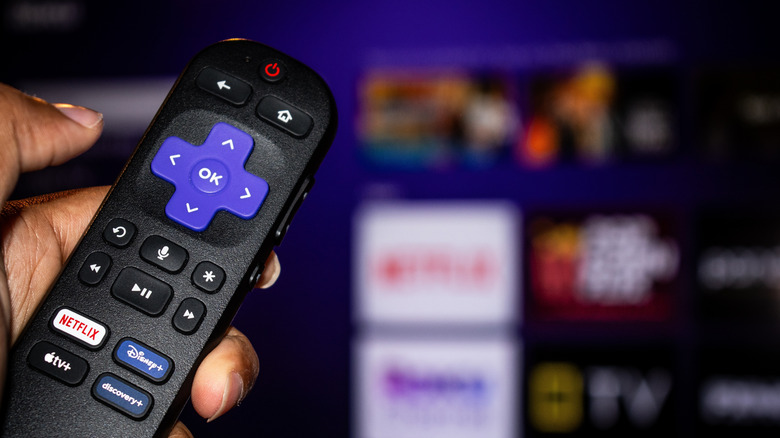
Roku streaming devices are incredibly popular for their ease of use and access to a wide range of platforms, from major streaming services to more niche apps. One major convenience of these smart TVs and add-on devices is that it's incredibly easy to replace your Roku remote or control the TV interface with your smartphone. Unlike those big remotes that came packed with old TVs and DVD players that had a surplus of buttons that you never needed to use, the Roku remote is quite simple. That being said, there is one button whose purpose isn't immediately obvious: the star symbol.
Located below the D-pad and right above the fast-forward button, the star symbol (or asterisk) functions as an options button for apps on the home screen and while watching video content. Highlighting an app and hitting the star button will bring up a pop-up with information about that app, while using it with a show or movie on will often open up a settings menu on the left-hand side of the screen.
What can you do with the star button on your Roku remote?
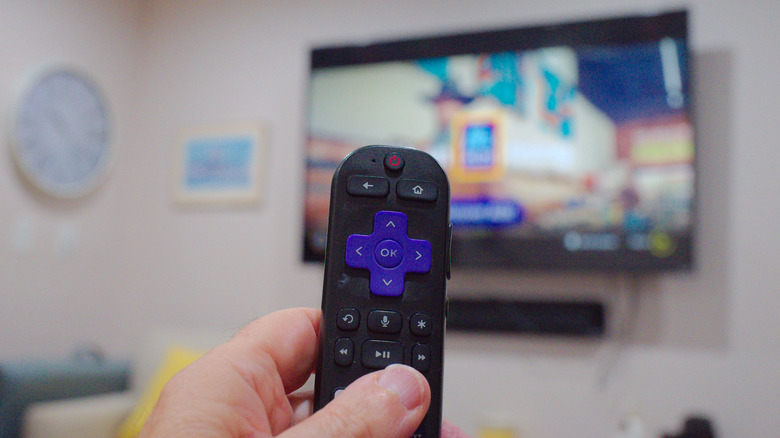
As for specifics, using the star button on most apps on your home screen brings up app information, including the version and build numbers. There are also options to move where the app is placed on your screen (either manually, automatically moving it to the top, or pinning it to Quick Access), check for updates, and delete the app.
There are a couple exceptions to this, such as video game consoles or Blu-ray players you have plugged in via AV or HDMI cable — these can be renamed by hitting the star button. There's also Roku's Live TV Guide, where the star button can do things like scan for channels, but does not provide the option to remove the app. It's worth mentioning that pressing the star button while highlighting an app in the Quick Access menu will only give you the option to remove it from Quick Access, so you'll need to scroll to the "Your Apps" section if you want to check for updates or remove the app.
If you've got an app open, hitting the star button generally won't give you anything other than a clicking noise unless you have something playing or are using an add-on like a console. If that's the case, it'll open up a settings menu with a sleep timer, picture and sound settings, accessibility and language options, and a button to turn off the display while keeping your content running. As with the different shortcut buttons on Roku remotes, there's no option to remap the star button to serve other functions.