

Why Is There A Lock Symbol Next To Your Text Messages?
Spotting a random unfamiliar lock symbol right next to your private text messages might feel like something to be alarmed about, especially with scam texts on the rise. But really, there's no reason to panic. Your phone hasn't been hacked, and your carrier hasn't all of a sudden locked your account down or anything like that. This little lock symbol actually means that your chats are secure. Think of it basically as a real-time status indicator that provides evidence that end-to-end encryption is actively protecting that text message thread from unwanted snooping.
Think of end-to-end encryption as a digital safe that carries your texts across the internet. When you send a text, this encryption essentially scrambles the words into an unreadable tangle of code. The message travels across cellular networks and server farms while staying in this locked form, and the only device with the ability to easily unlock and read that message is your recipient's phone. Because of this strict lock-and-key setup, even if someone intercepts your message, they won't be able to read it (at least not easily). Generally speaking, cellular providers can't read the messages, and even the tech companies that host the platform can't read anything. The padlock symbol simply lets you know that your private jokes, photos, and any other content you send in there are shielded from prying eyes.
Managing encryption on an Android device
For anyone using an Android smartphone, Google Messages is usually the default texting app. If you're texting a friend who also uses Google Messages (and with a solid Wi-Fi connection), the app automatically upgrades your chat to Rich Communication Services, more commonly called RCS. This upgrade is what brings that padlock symbol into play. A tiny lock symbol pops up on the send button and next to message timestamps, confirming that the end-to-end encryption protocol is hard at work.
Keep in mind that this seamless privacy shield only works when both devices play by the same rules. If a text goes out to an older phone or a device with a bad data connection, the system tries to deliver the message using RCS, then downgrades to old-school SMS messaging if that fails. The lock icon goes away, warning you that any future messages won't be secure against outside interception until you're back on RCS.
While keeping this encryption active is a smart move for digital safety, some users prefer standard texts for network reliability in rural areas, despite there being reasons you shouldn't use SMS messages. Disabling this security feature requires shutting off RCS completely. To do so, just open Google Messages, tap your profile picture at the top right, and dive into the settings menu. Tap on the RCS chats option and flip the toggle switch off. The lock icon will vanish from all future chats.
How Apple handles secure messaging
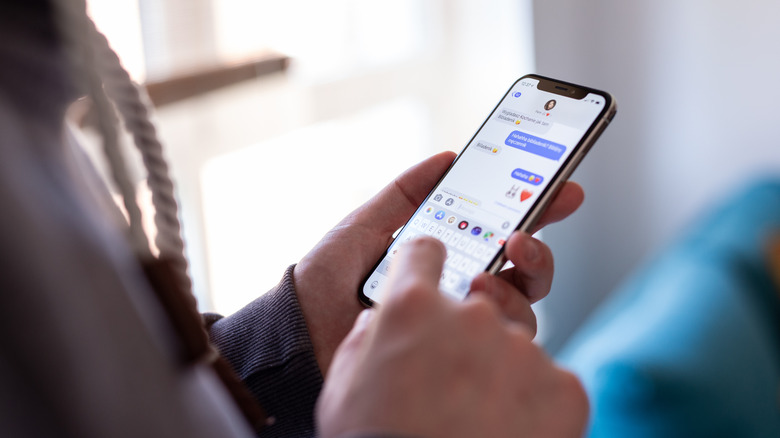
Apple handles digital security differently, keeping everything tightly integrated into its own software. Instead of sticking a padlock next to every single text, iOS uses a color system to show text security status. When there's a conversation between two Apple devices using iMessage, the text bubbles are blue; these blue bubbles are Apple's indicators that your chat is locked down with its own system-level end-to-end encryption.
In 2024, Apple finally decided to adopt the modern RCS standard for texting people outside its ecosystem, and it made a deliberate choice: it kept the green bubbles. For Apple, green simply means the message is traveling outside of its walled garden. For a long time, texting a green bubble meant those messages were unencrypted. Apple refused to use Google's proprietary RCS standard, waiting instead for a universal industry standard to be finalized. Now that one exists, Apple and Google are finally rolling out end-to-end encryption for those cross-platform chats. Despite Apple keeping green bubbles, they're now just as secure as its well-known blue bubbles, especially for iPhones chatting with select Android users.
The iPhone still operates within strict boundaries, though, just like Android. If a text gets sent to an older smartphone, or a device struggling with a bad data connection, the phone automatically ditches the advanced network and falls back to a standard SMS message once an RCS message send fails. To turn off RCS on your iPhone, head to Settings, then Apps, and then tap Messages. From there, click into the Text Messaging section, then tap RCS Messaging, and toggle that switch off.