

Why The Location Icon Appears On Your Samsung Phone When Maps Is Closed

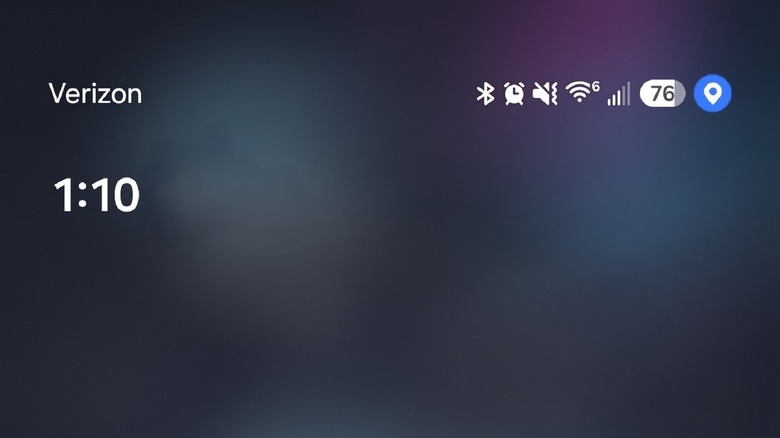
When an app accesses or pulls location data from your phone, you'll see a small icon in the top tray that resembles a small map pin. In the latest version of One UI 9.0, and on newer Samsung Galaxy devices, that icon appears next to your battery icon. If you're using an app like Google Maps, the Find My Hub, or a ridesharing service, it probably won't alarm you, but every so often that icon might show up when you don't have anything open or active.
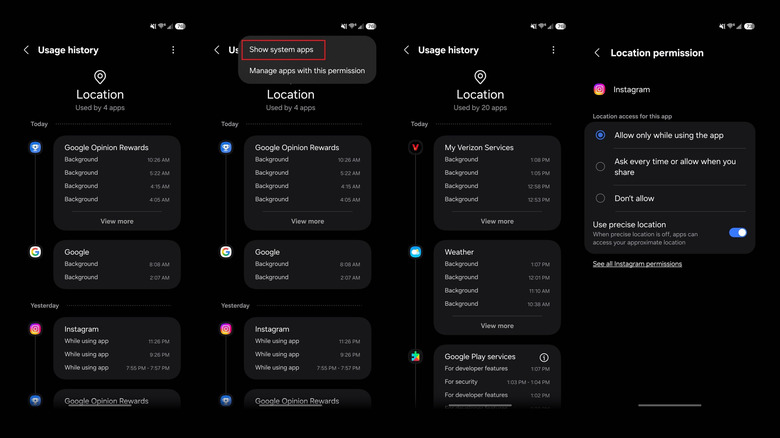
That's because something is using that data. You can figure out which app it is by visiting the permissions manager, which shows you which apps accessed the functionality recently. You can also manage access there to turn it all off. To check:
- Open Settings
- Tap on Security & Privacy
- Under the Privacy section, tap Permissions Used In the Last 24 Hours
It will show you a list of everything that's been used on your phone within the last day or so, separated into two tabs, one for the individual permissions requested and the other showing actual app names. Stay on the Permissions tab and tap on the Location option. Here, you'll see a complete list of all the apps that have accessed location data along with a brief description of how and why. By default, system apps aren't revealed here, but you can see those by tapping on More (three vertical dots) in the top right and then selecting Show System Apps. That will reveal apps like weather, Google Play services, Google Location history, and more.
How to stop apps from using your location data
The fastest way to turn off location sharing is through the quick access tray and tapping the location pin icon, turning it from bright blue to shaded gray. You can also go to Settings > Location and disable the toggle at the very top. The permissions manager comes into play if you have system-wide location access enabled, but want to manage individual access for apps, preventing certain apps from using your location while preserving it for others.
For example, you can leave it active for Google Maps but turn it off for Facebook or Instagram. Return to the permissions manager via Settings > Security and Privacy > Permissions and either find the app you want to adjust in the Permissions tab and tap it for more options, or go to the Apps tab, find the app in question, select it, and tap More in the top right > Manage Permissions for This App. If you use the latter method, you'll also need to select the Location option.
From here, you'll have a few options. You can allow location access only when the app is in use, ensure the app has to ask for permission every time it wants to use the data, or disallow and block access altogether. You can also turn off precise location separately, allowing apps access to more detailed information when enabled. Now, it's crucial to understand that Google, and likely Samsung as well, still knows where you are even with location and GPS off. Approximate positions are achieved thanks to your IP address, network and Wi-Fi connections, and more.
Why would you want to turn off location data and location history?
There are a handful of risks that come with keeping your location sharing active, including your location history, which Google uses to build an accurate representation of your movements and whereabouts. If you give an undisclosed app access when the permissions prompt appears, just to quickly dismiss it, you may be unwittingly giving access to an app or service you cannot trust. Your location history in the wrong hands could be used to impersonate you and scam others, or more aptly, used to track where you are and scam, stalk, or threaten you.
Additionally, system apps and official apps like Google Maps track a whole lot more than your current location data. Collectively, this information is used to build a personal profile of some sensitive and not-so-sensitive information, which you may want to limit as much as possible to preserve your own privacy. And there's nothing wrong with that at all. It's a bit creepy that these organizations and data collectors can gather so much about our daily lives. There are some valid reasons for wanting to turn off location services on your Samsung and, additionally, Google's Location History feature through your Google Account.