

Asus Googlebook 14 Review: For Android, By Android
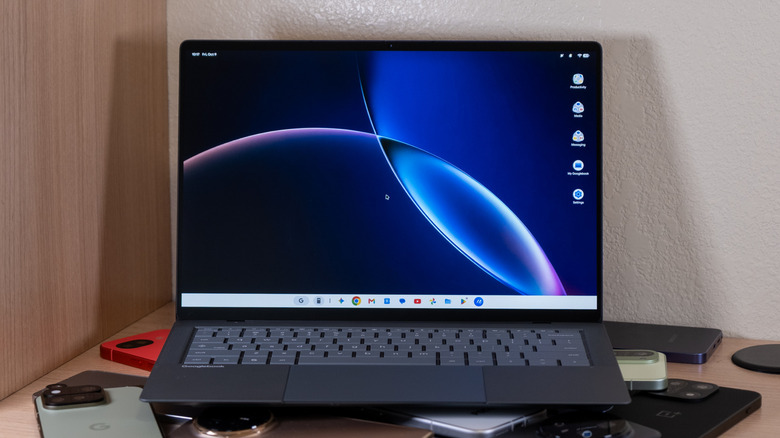
Google has been building laptops for a long time now, both through its own hardware and through the incredibly popular ChromeOS operating system that has found success, particularly in education. Now, however, the company seemingly wants to move on from ChromeOS. Recently, it took the wraps off Googlebook OS, a new operating system that's designed to essentially be Android on a laptop, much more so than ChromeOS ever was. There are a number of new machines running the new operating system, ranging from relatively low-priced to premium in a way that suggests Google wants to finally compete with the likes of Windows and macOS. One of the first of those is the new Asus Googlebook 14, which Asus says is designed for Gemini intelligence.
The laptop comes with 12 months of Google AI Pro and 5TB of cloud storage bundled in. It also costs $1,300, so you would hope you'd get some extras. At that price, the laptop has to compete with the Dell XPSes and MacBook Airs of the world, laptops that have been well loved for many years now thanks to their high quality and great performance.
At least on the paper, it's positioned to compete decently well. It has a 14-inch OLED touchscreen, an Intel Core Ultra chip, and a better port selection than you would expect for a laptop that basically runs Android. But, of course, it's not just the laptop that has to prove itself. The new operating system does too. Typically, when I review something like a new MacBook, I gloss over the operating system — it's a known element after all. It's more interesting to focus on the new hardware, but this will be a combined review of the laptop and the OS itself. Does the Asus Googlebook 14 prove itself? And does Google's new operating system finally serve as a desktop-class OS for those willing to move away from Windows or macOS? I've been testing it to find out.
Design
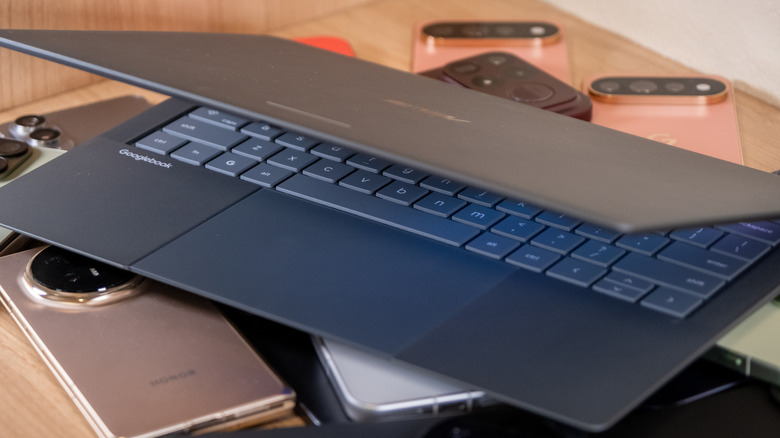
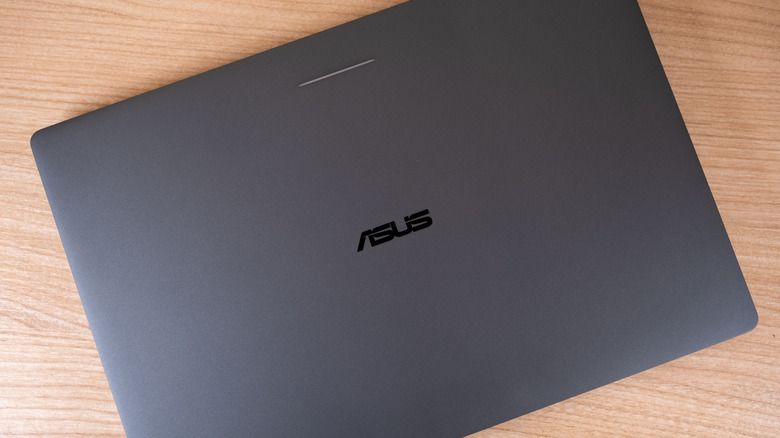
The Googlebook 14 is a mostly generic-looking laptop, but there are still some interesting design decisions. For starters, it's very light. At 2.18 pounds, it's a fair bit lighter than a 13-inch MacBook Air, and in a backpack, you'll hardly notice it. It's 12.24 inches wide and 8.38 inches deep, with the thickness reaching 0.65 inches at its thickest point. It has a compact footprint that will easily fit in most bags or backpacks.
It only comes in one color, which is called Dusk Ash. I don't mind the color, but it's not necessarily the most exciting. I've been happy to see the trend of colorful tech over the past few years, and I hope it comes to more product categories like this one.
Asus did make some trade-offs to hit that lightweight build, but I was still happy to see that the laptop didn't feel overly cheap or flimsy. The chassis is built from CNC-machined magnesium-aluminum alloy, finished with what Asus calls a Nano Ceramic surface treatment — meant to resist scratches, stains, and general abrasion. You could argue that it feels a little plasticky, but overall, it felt well built, even if there was some flex in the keyboard bed and lid. The lid especially had some flex to it, but Asus says that the Googlebook 14 has been tested to MIL-STD-810H standards, along with its own durability benchmarks. Take that however you want, but either way, treat it like you would any other laptop, and it should hold up well.
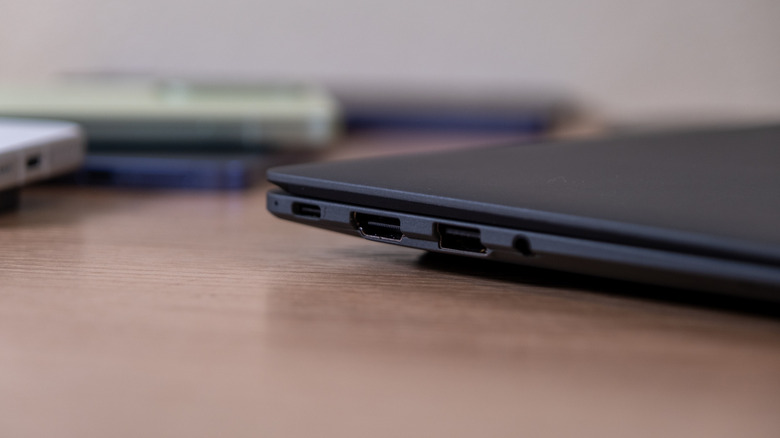
The port selection on the laptop isn't bad, though some might find it to be slightly dated. You get two Thunderbolt 4 USB-C ports for charging and DisplayPort 1.4 output, two USB-A 3.2 Gen 2 ports, HDMI 2.1b, and a 3.5mm headphone jack. I have very few USB-A accessories these days, so I might have preferred for one of the USB-A ports to be USB-C instead. That said, having one on either side is nice for those who do still use older accessories.
Open the laptop up, and you're greeted with a relatively modern look. The touchpad spans from the edge of the bottom of the laptop all the way up to the keyboard, and it's pretty large. The screen isn't quite edge to edge like some other laptops, but the bezels aren't huge or in any way distracting. On the top bezel, there's a small webcam with a physical cover.
Opening up the lid is rather easy and can be done with only one finger. The hinge isn't necessarily the strongest, and it's pretty easy for the lid to wobble if the desk moves, but the ability to open the lid without having to use two hands is worth the tradeoff.
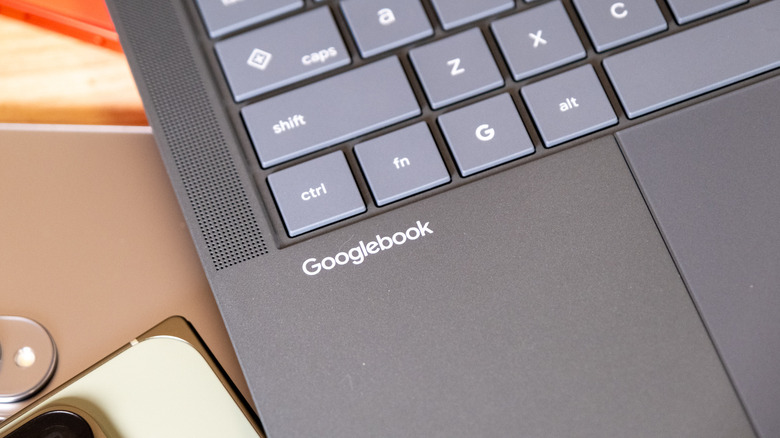
Like other Googlebooks, the lid also features the signature Glowbar, which is a light bar that's designed to give you indications about your laptop status. It's kind of neat, but I didn't feel the need to use it a single time over the course of preparing for this review. As a whole, I like the design of the Asus Googlebook 14. Sure, a MacBook Air still feels more premium, thanks largely to its unibody build, but I certainly didn't find that the Googlebook 14 felt overly cheap.
Keyboard and touchpad
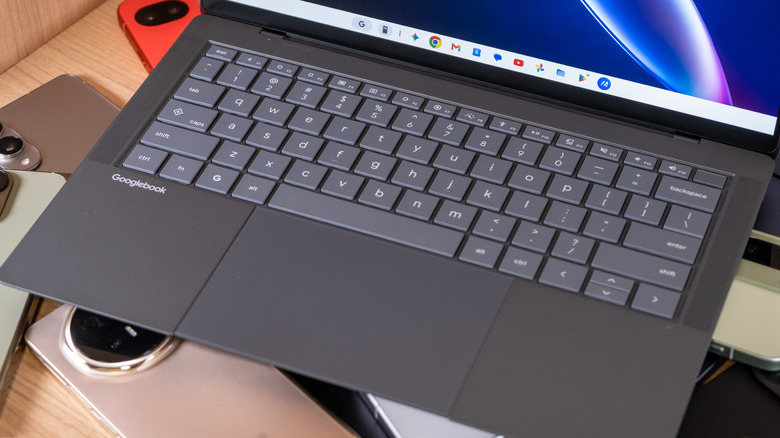
I'm not the biggest stickler for keyboards, but I know when one feels overly mushy or difficult to type on. The keyboard on the Googlebook 14 felt solid. The keys weren't quite as clicky as a MacBook Pro and had a mushy feel to them, yet not to the point of being difficult to type on. Spacing is decent, and there's enough travel to make the keyboard feel tactile.
I did quite like the touchpad. It's large and felt very responsive for the most part. Some of the corners and edges can lose some of their responsiveness, but I didn't really notice that beyond testing for the purpose of writing this review. In day-to-day use, it wasn't an issue at all. That's not to mention the smooth feel and the reasonable feeling click when you push it in. I found it to be one of the better non-Apple touchpads I've used, though, to be clear, it's still not on the same level as a MacBook.
Beyond the keyboard and touchpad, there's a fingerprint reader in the power button. The fingerprint reader was fine, but somewhat slow and sometimes inaccurate. It wasn't overly inaccurate, but it was definitely slow compared to many of the fingerprint sensors that you'll find on modern smartphones.
Speakers
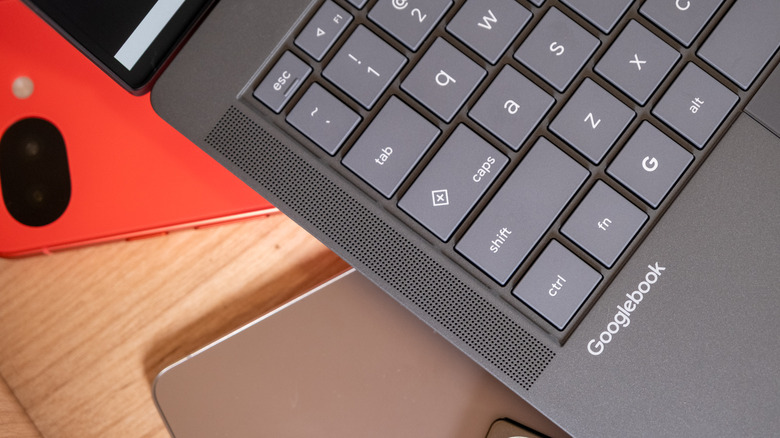
The output from the speakers wasn't bad, especially for a laptop this thin. I found the high-frequency response to be better than I expected it to be, but as is commonly the case on laptops, the bass was pretty lacking. Kick drums have a little oomph to them, but you won't get much in the way of deep bass response, and the speakers certainly don't approach those you can find on a modern MacBook. They'll easily do the trick for video calls and other casual use, but if you're listening to music, you'll probably want to use the headphone jack or a pair of Bluetooth headphones.
Display and webcam
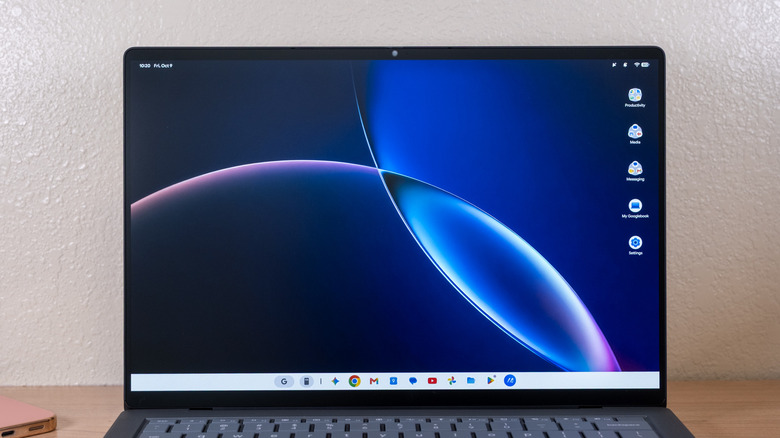
The display on the Googlebook 14 is one of its best qualities. It's a 14-inch, 16:10 OLED touchscreen running at 2,880 × 1,800 resolution — marketed as 3K — with a 120Hz refresh rate. For brightness, you'll get up to 1,000 nits in HDR content and 450 nits for standard use. That 1,000-nit figure is peak HDR brightness, not sustained full-screen output.
In use, it looks excellent. OLED contrast delivers true blacks and punchy colors, 120Hz makes scrolling and UI animations feel fluid, and the 3K resolution is sharp enough that individual pixels disappear at normal viewing distances. Compared to the MacBook Air's Liquid Retina IPS panel, the Googlebook 14's OLED offers notably deeper blacks and more vibrancy in HDR content.
What helps set this panel apart is the matte finish. The panel uses Corning Gorilla Glass Victus with a Gorilla Matte anti-glare coating, which cuts reflections and resists fingerprints far better than a standard glossy screen. Even if it wasn't a bright panel, the matte finish helps ensure that reflections don't take away from the brightness that you do get, and it definitely helps. If you've ever struggled to see a laptop display near a sunny window, you'll appreciate the difference. Some people prefer the punchier look of a glossy panel, and that's a fair trade — the matte treatment does soften the image slightly. But I definitely prefer the matte panels we've been seeing more often recently.
The webcam is a standard FHD camera with a physical privacy shutter. It's fine for video calls. It's sharp enough, though its dynamic range isn't great. It'll do the trick in 99% of situations; you won't use it for much beyond video calls, so I think it's good enough.
Performance
In the U.S., the Asus Googlebook 14 comes with an Intel Core Ultra 5 325 paired with 16GB of LPDDR5X memory and integrated Intel graphics — though Core Ultra 7 variants are available outside of the U.S. The chip includes an AI Boost NPU that Asus rates at up to 47 TOPS (Trillion Operations Per Second). Storage is either 256GB or 512GB on a PCIe 4.0 SSD, depending on where you buy.
For everyday tasks, the Googlebook 14 felt quite quick. Apps opened fast, while multitasking between browser tabs and Android apps is smooth. I rarely heard the fan spin up during typical workloads, and the chassis stayed cool to the touch through extended sessions. Whether working with tons of browser tabs open or switching between apps frequently, I found that for productivity-focused tasks, the laptop was impressively performant.
But it's not quite on the same level of performance as some other machines at this price point. In particular, an M5 MacBook Air dramatically outperforms the Core Ultra 5 325 in both single-core and multi-core scores — it's a much more powerful media creation tool than the Googlebook 14 is. That's not to mention the fact that the M-series chips are ARM-based, and while Intel has dramatically improved power efficiency for x86 chips over the past few years, it still can't compete with the likes of Qualcomm and Apple.
I've only had a chance to test out an Intel-equipped machine so far, but based on reports from other publications, it seems like Qualcomm-based Googlebooks are performing quite a bit better than their Intel counterparts. I can see why Google wants to keep its options open for this new operating system, but I wouldn't be surprised if it became less common to see Googlebooks with Intel chips in the years to come.
Regardless, though, I found the Googlebook 14 to perform very well for most tasks that you would buy it for. This is, after all, a thin and light laptop, and it's designed for productivity rather than editing graphically intense videos.
The real performance bottleneck isn't the silicon alone. Googlebook OS runs Android apps, and many of those apps were designed for phones, not desktops — phones running ARM-based chips. At launch, most apps will work perfectly on Snapdragon-equipped Googlebooks, but plenty of apps won't work as well on models that come with Intel chips.
Battery
The Googlebook 14 offers a 70Wh battery. Asus claims up to 18 hours of life, though that number comes from controlled conditions, and, frankly, most real-world use cases won't come close. I found the battery life on this machine to be little more than adequate. It should last through most of a typical workday, but heavier workloads with a bunch of apps and the brightness turned up a reasonable amount will require a charge before the eight-hour day is done. The battery life is nowhere near at the same level of a MacBook Air, which has a smaller battery in it but lasts much longer.
That said, I wasn't overly disappointed with the battery. As mentioned, Intel just hasn't nailed efficiency like its ARM-based competitors have, and that shows on this machine.
Thankfully, when it comes time to charge, it's relatively easy. You can charge using a USB-C cable through either of the two Thunderbolt 4 ports, and the laptop supports USB-PD at up to 65W. That should be fast enough for most, though don't expect to charge at the same speed as laptops that have 120W charging, for example.
Software
So, the hardware of the Googlebook 14 is relatively nice, even if it's not perfect. Software is where things start to get a little complicated.
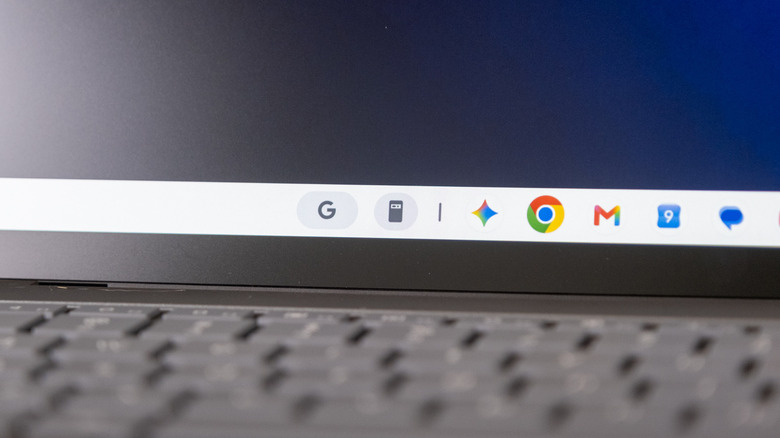
Let's start with the basics. Googlebook OS is Android on a laptop at its core — built on the Android technology stack, with desktop foundations carried over from ChromeOS. If you've used Android phones, you'll feel right at home on a Googlebook. That's to the point of home screens looking the same, having the ability to swipe down to see quick settings, and being able to swipe up to see your apps. UI elements look the same as many Android implementations, down to app folders on the home screen. Even the settings panel has the same UI.
That, of course, is the point. Google is unifying its operating systems more than it has in the past, and for many, that will be a good thing. The unification makes the platforms easier to use for those that use both — not to mention the fact that first-time Googlebook users won't have any issues getting adjusted if they own an Android device.
There is, of course, also deep integration with Android phones straight from a Googlebook laptop. The integrations actually run a fair bit deeper than simply being able to see your phone screen on your laptop, and that integration can be seriously helpful. For example, you can see your phone's apps right in the app drawer of your Googlebook, and in the Google Files app, you can access all of the files on your phone. You can also receive the notifications from your phone on your laptop.
The integration is pretty intelligent, too. There's a feature called Continue On, which pins an app that you're using on your phone in the taskbar, so you can quickly continue where you left off on your phone without having to dig through menus.
The biggest gap is app depth. Googlebook OS doesn't support conventional Windows or macOS desktop software, and the Android apps available through Google Play are often mobile-first. Photoshop, for example, is the Android version, not the full desktop application. Google has acknowledged that some apps may have compatibility issues requiring developer updates, but the deeper problem is structural. If your workflow relies on desktop-class creative tools or specialized business software, the Googlebook 14 can't replace a Windows or macOS machine right now, unless you can access those tools on the web.
The good news is that Google knows that there's work to do here. The labels in the Play Store tell you whether or not an app has been optimized to work well. The labels are a little confusing, but if you understand what they mean, it might make finding compatible apps easier. There are five labels in total, stacked in a clear hierarchy: "Made for desktop" at the top, then "Optimized for desktop," then "Compatible with desktop," with "Better on the website" and "Built for mobile" below those. "Made for desktop" and "Optimized for desktop" are the two worth hunting for, since those are the apps most likely to support keyboard shortcuts, mouse clicks, and proper window resizing.
Then there are the Gemini features, which are front and center. Magic Pointer lets you wiggle your cursor to invoke Gemini for contextual actions, like asking about on-screen elements or turning a visible date into a calendar entry. Proactive Suggestions surfaces relevant actions based on what you're looking at. Rambler converts natural speech into polished text, alongside a standard dictation mode. I found these features to work well, though they're not part of my daily workflow.
Essentially, Googlebook OS is a starting point, not an ending point. There's clearly work to do when it comes to app compatibility and desktop interfaces. The unfortunate reality is that Google has long struggled with these issues, especially when it comes to developer support. Android tablets have suffered through many years of smartphone-optimized interfaces, and while they have gotten better in recent years, it took quite some time to get there. Hopefully, Google will be much more proactive in encouraging developers to make their apps work well on Googlebook OS.
Conclusions
There's a lot to like about the Asus Googlebook 14. It has a stunning display, performs pretty well, and feels reasonably sturdy. It's also not cheap. At this price point, you could get a MacBook Air or a premium Windows laptop. The reason not to would come down to software, and the software isn't quite as built out as it could be just yet.
I expect Google will improve on Googlebook OS relatively quickly, but whether or not other developers jump on board is another question. In the meantime, if you're worried about software compatibility, it's probably worth looking at a Qualcomm-based Googlebook rather than one with an Intel chip. For now, Dell and HP offer Snapdragon-based Googlebooks, while other models run on Intel chips.
That said, again, the operating system isn't bad, and if you mostly rely on web apps or apps that you know have well-designed mobile versions, dedicated Android users will love the integration. That integration is likely to get better over time, too. If you're a Google fan who wants something that works well within the Google ecosystem and don't mind some bugs and bumps, you'll love what's on offer here. Again, though, you should consider a Qualcomm-based Googlebook if you want the best software compatibility, battery life, and performance.