

9 Perks Of Switching To A Chromebook
We may receive a commission on purchases made from links.
Many people think Chromebooks to be glorified browser launchers or Android phones in a different form factor. This certainly was true for the first generation of laptops running Google's ChromeOS, but the reality today is quite different. In 2026, Chromebooks have gone from being devices only really used by students to being complete laptops that can compete with Windows and macOS devices. There are certain caveats, such as a lack of support for many commonly used programs, but Google has made Chromebooks competitive. ChromeOS is now one of the most efficient operating systems out there, and Chromebook Plus notebooks don't lag behind others in hardware either.
If you're thinking about getting a new laptop and wondering if a Chromebook is the right choice, there are some big advantages they have over other kinds of laptops. They're highly specialized devices that cannot do certain things, such as gaming — though most Chromebooks support cloud gaming with GeForce NOW. However, for what they can do — web-surfing, streaming movies, and other daily tasks — Chromebooks provide better value than most other devices.
Generally, if all you want to do on a computer is use web apps, take notes, and stream videos, a Chromebook that costs less than $500 can provide the same experience as a $1,000 Apple MacBook. Here's why else you might want to switch to a Chromebook.
Cheaper Chromebooks still perform well

Chromebooks are often some of the most budget-friendly laptops on the market, and there's a big reason for that. If you look at any Chromebook's specs, you'll notice that they're quite lackluster on paper. Chromebooks come with limited storage options and RAM, and many even use the same ARM-based chip architecture as Android phones. This might make it seem like they'll be too slow to function properly — and they certainly do struggle with some tasks. However, so long as you're getting one with 8 GB or at least 4 GB of RAM, you won't struggle with everyday tasks.
Chromebooks are just heavily optimized to be budget-friendly and don't face a lot of the same challenges that Windows and macOS devices do. First is storage, as Chromebooks can get by with significantly less than devices running other operating systems. Take Windows 11, which takes up around 28 GB of your device's storage, while the latest versions of macOS take nearly 25 GB. This isn't a problem at higher prices, but storage is very limited when you're on a budget. ChromeOS differs here, with system files taking anywhere from 4 to 10 GB, and updates typically ranging from a couple hundred megabytes to 3 GB.
Similarly, ChromeOS is optimized to run on cheaper hardware. Most of the experience is streamlined into the browser, and Chrome runs efficiently on Chromebooks. ChromeOS also has no licensing fees for regular users, unlike Windows. These factors combine to make Chromebooks incredibly cheap without sacrificing performance.
ChromeOS is simple and straightforward

Windows makes many things unnecessarily complicated. Take driver management, for instance. The system downloads and updates some drivers automatically, but you also need to manually install certain drivers to run specific apps, and these may cause issues with other apps. Drivers also have deep system privileges, which means driver conflicts can result in a complete system crash. ChromeOS manages these automatically at the OS level, getting rid of these annoyances.
Another subtle advantage is in shortcut keys. Users often struggle to understand what standard function keys do, and holding down the Function (Fn) key for the secondary action adds an unnecessary step — and even then, they're mostly used for media controls. You can also accidentally disable function keys entirely via keyboard combinations. ChromeOS takes a different approach, where the function keys are replaced by straightforward shortcuts that aid you in daily life. These include shortcuts to navigate back and forward in the browser, refresh websites, and toggle on full-screen mode.
Chromebooks are optimized for the web
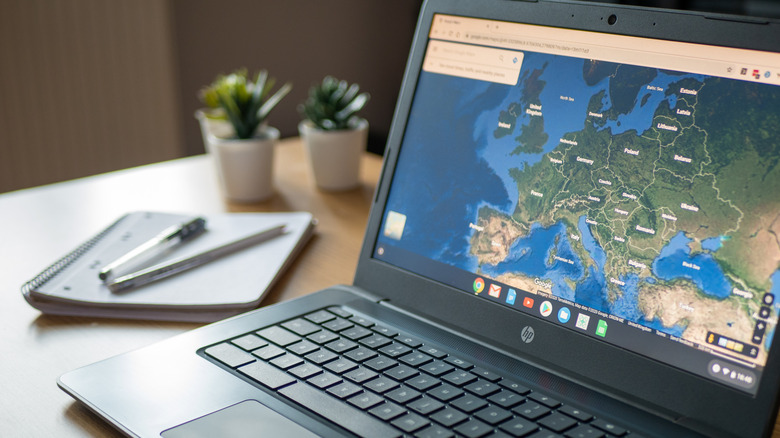
Windows users running Chrome often complain about how painful the experience can be, as having multiple tabs open can eat up a majority of your system memory. This isn't a huge problem if you have 16 GB of RAM or more, but for those using budget devices with 4 GB or 8 GB, having a large number of tabs open makes for a very frustrating experience. On macOS, Safari works smoothly but Chrome provides a similar experience as it does on Windows, with multiple tabs open exhausting your RAM.
With Chrome being so RAM-heavy, those unfamiliar with Chromebooks might think that this limited RAM bottlenecks browser experience. However, Chromebooks and ChromeOS have "Chrome" in their naming schemes for a reason: the OS is essentially built around Google Chrome, which makes running the browser much more efficient on ChromeOS than on other operating systems.
For an experiment, we opened the same tabs via Chrome on a modern Windows PC and a cheap Chromebook with 4 GB of RAM. On Windows, Chrome was eating up about 2.5 GB of memory, while the same tabs consumed approximately 1.8 GB on the Chromebook.
Chromebooks have great battery life
One of the biggest reasons people ditch Windows laptops is their abysmal unplugged performance. Many perform significantly worse when not connected to a charger and have batteries that often don't last an entire day. For cheaper laptops, the average battery life is anywhere from 4 to 8 hours. This isn't an issue on more premium notebooks, as there are some Windows laptops that last longer than a MacBook Pro. However, the combination of a heavy operating system, tons of bloatware, and unoptimized third-party apps results in relatively poor battery performance for the average Windows laptop.
In stark contrast, Chromebooks provide some of the longest-lasting batteries due to how efficient and resource-light ChromeOS is. Even the cheapest Chromebook can last upwards of 10 hours, and more expensive models may even reach 20 hours in certain conditions with the brightness turned down. This makes Chromebooks excellent travel devices, easily lasting a full day without the need to carry a charger.
On the Apple side of things, MacBooks outperform Chromebooks in battery life, with certain models using the latest M-series chips putting out 18 to 24 hours of performance on a single charge. These, again, exist in another price tier entirely.
The lightweight OS makes for lightning-fast boot times
One aspect of performance that often gets overlooked is how quickly you can get to work. This includes how fast apps open, but also how fast your device boots up for use. Windows laptops have improved significantly over the years, but their boot times are still some of the slowest of the bunch. Even a premium 2026 Microsoft Surface Laptop running Windows 11 can take up to 30 seconds to start up. Part of this is due to heavy apps — Spotify, Discord, Slack — automatically launching in the background.
Apple computers with M-series chips fare a little better here, with the MacBook Air and MacBook Pro booting up just a little faster than Windows computers. However, these cost almost thrice as much as a Chromebook. Apple's cheapest laptop, the MacBook Neo, takes much longer, requiring up to 50 seconds to fully load from startup — and it's still more expensive than your average Chromebook.
The boot times of either operating system pale in comparison to Chromebooks running ChromeOS, as even an ultra-budget device running ChromeOS, such as the Dell Chromebook 3100 from 2019 can boot up in under 10 seconds.
The OS integrates Google services and your Android phone
One of the biggest issues users have when switching to a Chromebook is the lack of compatibility with many apps. You can't use creative tools like Premiere Pro, for example. Instead, most of your work is done in the Google suite — though Chromebooks support Microsoft 365 programs in the browser.
Google apps like Drive are integrated directly into Chromebooks. You can view your cloud files directly in your local library, and you can back up your entire system to the cloud without issue. Most of your data is stored online in these services — your emails in Gmail, documents in Google Docs, pictures in Google Photos, and general files in Google Drive. While a Chromebook works best when connected to the internet, this deep integration also allows you to access and edit some files backed up on Drive locally in your file explorer, even without an internet connection.
Additionally, Chromebooks work seamlessly with Android phones that also rely on Google services. There are dedicated features like Phone Hub, which lets you see notifications from your phone on your Chromebook, view the remaining battery, and control certain actions like turning the hotspot on or off. With certain Pixel phones, including the new Google Pixel 11, you can even stream apps and control them directly on a Chromebook. If you want the same multi-device ecosystem as Apple products without switching to an unfamiliar OS or paying a premium, Chromebooks are an excellent choice.
Security is built into ChromeOS
Good performance and quality-of-life features are only as important as your device's security. A faster processor or a better battery life doesn't matter if you lose important data and your machine gets compromised after just a few months of use. Windows, macOS, and ChromeOS all have their own ways of managing security, but there are certain things that make ChromeOS one of the safest operating systems around.
ChromeOS uses sandboxing for apps and processes. This means that each app or process exists in its own isolated bubble independent of others, and each bubble has restricted system privileges. If an app contains malware, it'll only affect that specific bubble and not the overall system. Similarly, ChromeOS restricts user interference with system files by putting them on a read-only partition. This makes it significantly harder to accidentally corrupt the system or for malware to infect it. If something does happen, the operating system also has Verified Boot, which checks the system for tampering and malware whenever you boot your Chromebook.
Furthermore, ChromeOS uses A/B partitioning to essentially keep two copies of the OS on your device at all times. In the event of system corruption, a Chromebook can simply revert to the unaffected copy. This is only possible because of how lightweight ChromeOS is. Keeping multiple copies of Windows or macOS system files would eat up most of your storage.
System updates don't take hours

Neglecting system updates is one of many factors that damage your laptop's longevity. However, keeping your system updated is often inconvenient, especially with how large certain updates can be. A typical monthly update on Windows 11 can be anywhere from 5 to 10 GB, while a minor macOS update can reach 5 GB. On macOS, upgrading to a new version also requires a huge annual update that can be up to 15 GB in size. You can still use your Windows laptop or Apple MacBook while the update downloads in the background, but it may affect your internet bandwidth if you're on a cheaper plan.
This by itself isn't usually a deal breaker; the bigger issue comes afterward, when you need to restart your computer to install the update locally. This process can take anywhere from just 20 minutes to over an hour on both Windows and macOS — with large Windows updates occasionally taking multiple hours. Since you're unable to use your computer during this, you're essentially locked out of doing anything due to a poorly timed update.
ChromeOS updates are small, with the absolute maximum reaching 2 to 3 GB — though this is rare. Most updates are below 500 MB, which means they download quickly, and the following restart takes less than a minute to finalize.
Using a Chromebook can make you more productive

Apple computers are the go-to devices for users who value productivity. However, for certain people, a Chromebook might be the better option even if you're on a more comfortable budget.
Chromebooks are productive by design. There are numerous small factors that all aid you in staying focused while on the device. They start up instantly, stopping you from picking up your phone while you wait. Once started, all of your needs are in the same environment — in Google Chrome and the Google suite of apps. The longer-lasting battery makes breaks less frequent, shortcut keys make navigating the browser quicker, and the lack of lag due to ChromeOS's high optimization makes it less likely for you to lose focus.
Features like Phone Hub and the deep integration with cloud services also let you do everything on the Chromebook itself, saving you the risk of getting distracted on your phone while sending a file to your laptop. If you get met with a sudden update, you don't need to pause work for hours — you can dive right back in after just a minute or so. There's also no bloatware or random information distracting you, and its limited gaming capabilities and lack of third-party app support also help make your workflow more intentional and focused. There's a reason Chromebooks are known as devices for students, and if you want to be more productive, they're an amazing choice.