

What Does 'Breezing' Mean On Anker Smart Accessories?
We may receive a commission on purchases made from links.
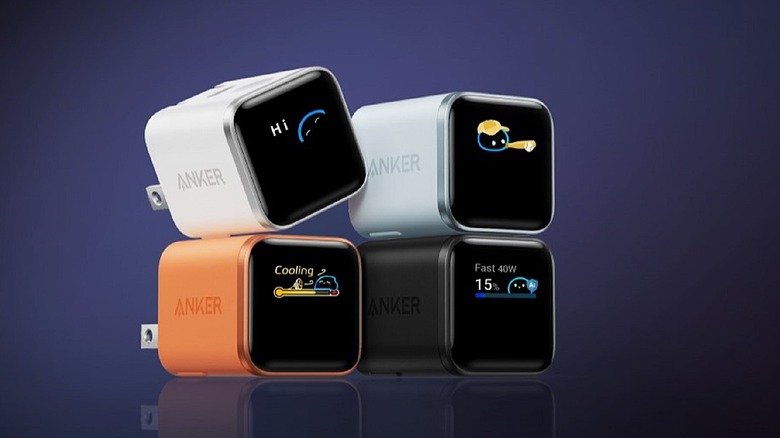
Most modern devices, from smartphones to power stations and smart chargers, have distinct visual cues to help you identify important processes or status levels. Anker's mobile accessories are a solid example of this. The lights on an Anker power bank can tell you a variety of things, like how much battery charge is left, whether the device is actively charging when plugged in, and even if there's an error or failure of some kind. Taking that a step further is Anker's line of power adapters with smart displays. The Anker Nano 45-watt charger has a small display to reveal all kinds of information during use: It will tell you real-time power usage, active charging modes, charge status, and operating temperatures. Most notably with operating temps, it shows quippy, fun alerts like "Breezing," "Floating," or "Gentle."
The "Breezing" indicator is usually accompanied by a small cartoonish blob and some cold and snowy animations. It's simply telling you the charger is operating under the appropriate conditions, with temps under 131 degrees Fahrenheit (55 degrees Celsius). The next stage is "Floating," and the charger displays this message when it's actively monitoring temperatures while ensuring they don't go beyond 205 degrees Fahrenheit (96 degrees Celsius). The final stage is "Cooling," which kicks in when the charger is detecting high temperatures and is currently limiting charging speeds and power delivery in order to cool itself off. These intelligent modes and the related indicators are meant to help you understand what the charger is doing, and they're also a sign that everything is working as intended.
What other modes or indicators do Anker smart accessories use?
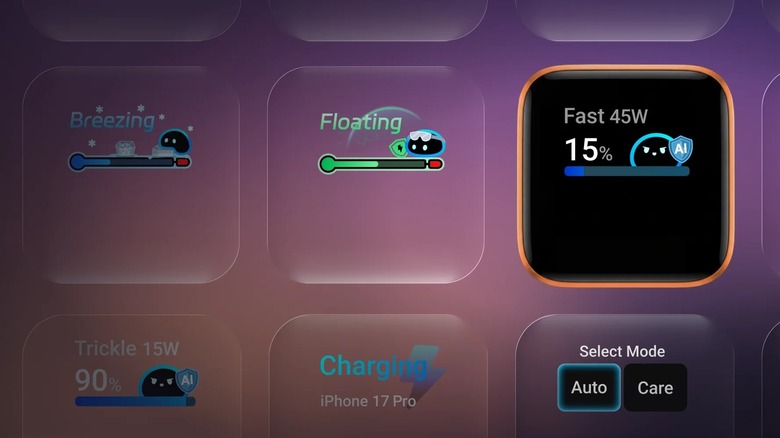
The Breezing, Floating, and Cooling indicators are meant to help you understand what's happening with the device temperatures. However, Anker's smart display accessories, like the Anker Nano Charger, also show other important indicators you might want to keep an eye on. Just as useful as the temperature monitoring, the display will also reveal how far along in the charging process your device is, and what that means in regard to power delivery.
Starting with "Fast" for fast charging, you'll also see "Steady" or "Charging" and "Trickle" or "Gentle" — the latter of which mean slower, lower power delivery modes. Trickle charging will activate as your device approaches a full charge, which helps prolong your battery and prevents overcharging or added stress on the internal power cells. When you see that, it's a good time to unplug your device unless you want to take advantage of the passthrough charging. It can also indicate that you're using a low-power cable if you see it right away. Becoming familiar with the different indicators will help you understand exactly what's going on with your devices when they're plugged in.
For most smart accessories, the display will even help you identify "bad" or ineffective charging cables. If you try to plug in a cable that isn't rated for higher power delivery, it will tell you — it reveals the charging wattage in real time. That's a big help when you want to make sure you're fast-charging your devices or when something needs more power, like the Nintendo Switch or Steam Deck.
How to reduce charging temperatures when Cooling is active
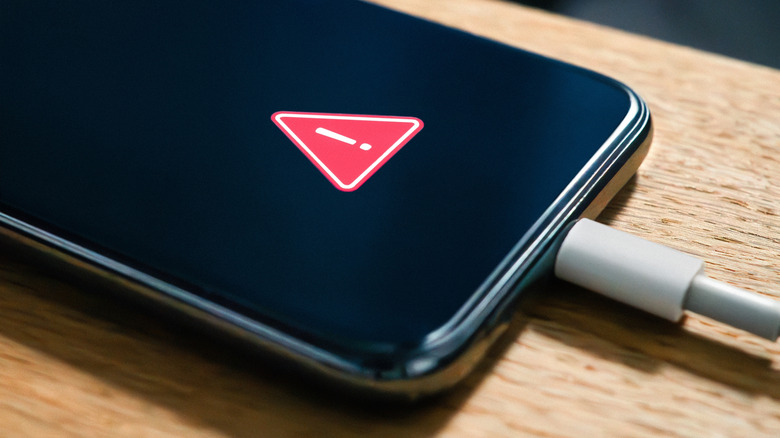
Anker's smart accessories are designed to automatically reduce power consumption to help cool off the charger, ports, and the connected device. It's useful, and it takes a lot of the added stress of managing charging temperatures off your shoulders. But it's still a good idea to be informed about how you can better respond if and when you see Cooling mode has activated.
If you notice excessive overheating, you'll want to unplug your device right away. If your battery still hasn't fully charged, leave it off the charger until it cools before plugging it back in. You might also try removing your protective case to allow for better heat dissipation, moving your phone into a cooler place (like out of direct sunlight), and possibly introducing a cooling fan. If you're charging your device on a soft surface, like a bed, on top of blankets, or a couch, you should move it to a hard surface like a tabletop or counter instead. Charging on a soft surface is a fire hazard.
On your phone, make sure no resource-intensive apps or games are running in the background — close all apps and try putting the device into airplane mode to mitigate wireless connections. Either way, leaving your phone on the charger all the time is the worst thing you can do for battery longevity. Nothing is going to be more instrumental in cooling your device and charging gear than unplugging it all. However, if overheating is a recurring problem despite your best effort, you can also swap outlets or try disconnecting from a surge protector or power strip and plugging directly into an outlet.