

The Biggest Problem With Ultrawide Monitors Is Right At Your Desk
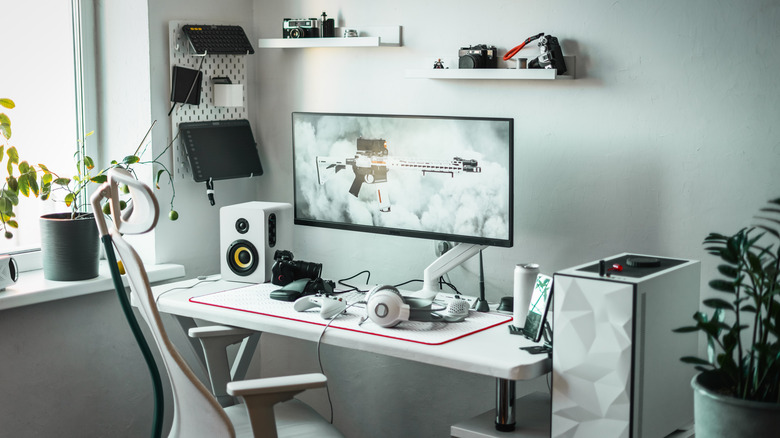
If you've been considering a monitor upgrade, you might have been tempted to spring for an ultrawide. It's understandable: they're sleek, boast unparalleled immersion when gaming, and deliver more on-screen real estate without the need for multiple monitors. However, ultrawide displays take up a lot of space, and larger panels are often curved, so they have a bigger footprint not just in width but also in depth.
With that in mind, these monitors may not suit every setup. You can reclaim some desk space by mounting the panel on an arm instead of using the attached stand, but since the display can weigh 20 lbs or more, compatible monitor arms tend to be pretty bulky as well. You can also mount the monitor directly to a wall, but that might not be an option if you're renting or worried about your expensive panel crashing to the ground unexpectedly.
Ultrawide displays have other shortcomings too. For instance, the higher the resolution, the more strain it places on your GPU. Additionally, games or videos intended for a 16:9 aspect ratio may be pillarboxed, with black bars on the left and right of the content. Resolving this problem usually requires zooming in, cropping the screen or adjusting your GPU's scaling settings, though third-party browser extensions can help, too.
That said, ultrawide monitors can be extremely versatile
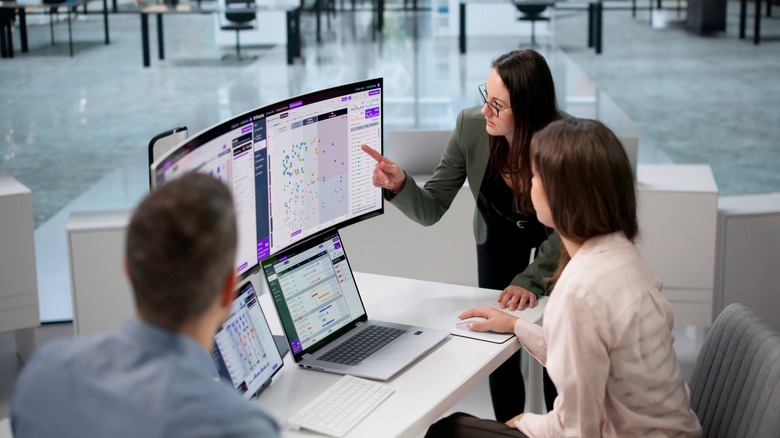
One of the biggest perks of switching to an ultrawide monitor is that you can place multiple full-sized windows side by side with no bezel between them. Using two monitors also means more cables around your desk, potential display issues in multi-orientation setups, and lost time when you switch your attention between them.
For the best results, you still need some setup. You can use the FancyZones Window Manager to instantly snap apps to different areas of the screen or hover over the maximize button to see various preset layouts. Alternatively, consider installing an essential desktop app for ultrawide monitors, like WindowTop or RegionToShare, for easier use.
Higher-end displays may even include a built-in Keyboard, Mouse, and Video (KVM) switch. This lets you control multiple devices with the same peripherals, further reducing desktop clutter. If you use both a PC and a laptop, look for a monitor with a USB-C port that supports power delivery. This lets you use the display as a larger laptop screen and charge the device at the same time.
Ultrawide monitors aren't for everyone. Still, as long as you measure your desk beforehand to make sure the monitor will fit and are aware of the aspect-ratio issues you might face, there's really nothing to worry about.