

6 Perks Of Switching To An Ultrawide Monitor
We may receive a commission on purchases made from links.
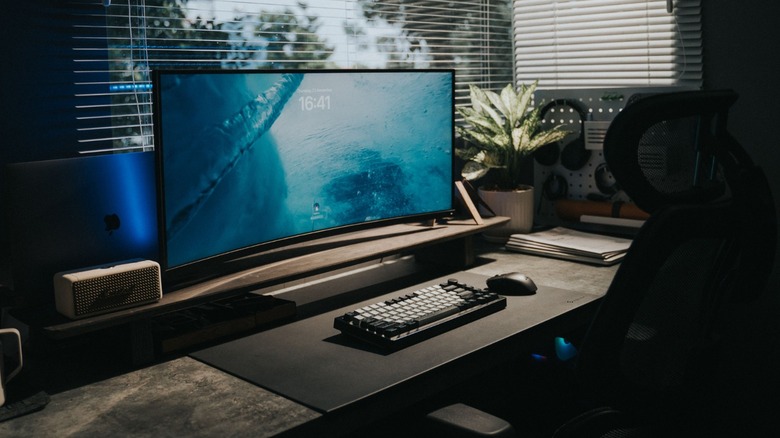
Most computer users would be satisfied with the built-in display on their laptop or the basic widescreen monitor that many desktop computers have. While these are indeed good enough to get things done, ultrawide monitors have several advantages that you'll only understand once you get to use them. Although I first started with a 24-inch widescreen model with a 16:9 aspect ratio, I was always curious about the ultrawide option. So, when I had a bit of extra cash, I bought a 29-inch LG ultrawide monitor to supplement my external monitor, and I've never looked back.
I loved the ultrawide display so much that I bought another one when I had the chance, giving me enough desktop real estate to avoid using Alt+Tab when I'm working. Because of this, I'll share some of the perks that I began to enjoy when I switched to an ultrawide. These advantages enhanced my productivity, improved the ergonomics of my workstation, and even made entertainment much more immersive. Of course, buying an ultrawide monitor also comes with a few tradeoffs, so even though these advantages worked well for me, you still have to consider your own situation when deciding how (and if) an ultrawide display would fit in your workflow.
Comfortably display two or more apps on your screen
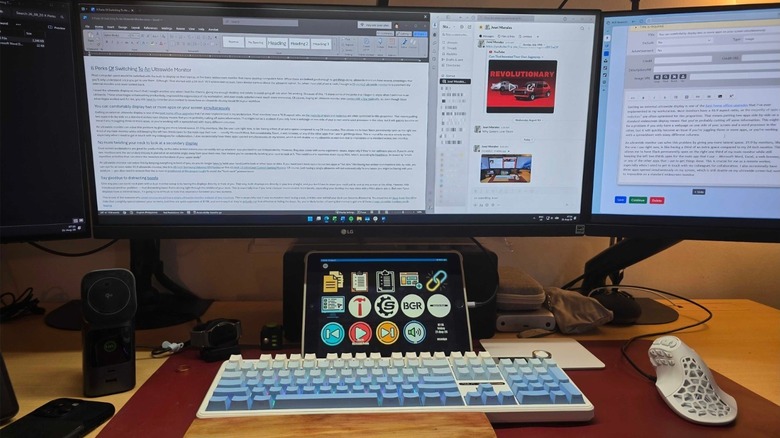
Getting an external ultrawide display is one of the best home office upgrades that I've ever implemented in my workstation. Most monitors have a 16:9 aspect ratio, so the majority of apps and websites are often optimized for this proportion. That means putting two apps side-by-side on a standard widescreen display often cuts off some information. This might not be a problem if you only have a webpage on one side of your screen and a word processor on the other, but it will quickly become an issue if you're juggling three or more apps, or if you're working with a spreadsheet with many different columns.
An ultrawide monitor can solve this problem by giving you more lateral space. Using a 21:9 monitor is like having an extra half-monitor worth of space compared to a standard 24-inch monitor. This allows me, for example, to have Slack permanently open on the right one-third of the main monitor while still keeping the left two-thirds open for the main app I'm working in — Microsoft Word, Excel, a web browser, or any of the other apps that I use to get things done. This is crucial for me as a remote worker, especially when I need to get in touch with my colleagues for collaboration. I also occasionally have three apps open simultaneously on my screen, which is still doable on my ultrawide screen but next to impossible on a standard widescreen monitor.
No more craning your neck to see a secondary display
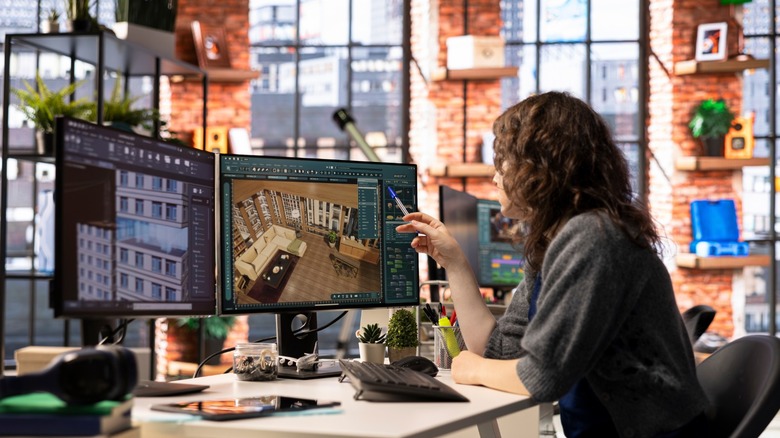
Dual-screen workstations are great for productivity, as the extra monitor means you can easily set up whatever apps you need to use independently of each other. However, that setup also comes with some ergonomic issues, especially if the displays are not optimally placed. If you're using two monitors and the secondary display is placed at an extreme angle away from your main one, that means you're constantly twisting your neck to look at it. This could lead to repetitive strain injury (RSI), which is a type of muscle or tendon strain caused by repeating the same small movements over and over — you know, like craning your neck to see a spreadsheet or web page.
An ultrawide monitor can solve this by keeping everything in front of you, so you no longer have to twist your head just to look at other apps or data. If you need even more space to run two apps at full size, like having two widescreen monitors side-by-side, you can opt for an even wider 32:9 ultrawide monitor, like this 49-inch Samsung Odyssey G9 Monitor or this 45-inch LG UltraGear Curved Gaming Monitor. Of course, just having a single ultrawide will not automatically fix any issues you might be having with your posture — you also need to ensure that the screen is positioned at the proper height to avoid the dreaded "tech neck" posture.
Say goodbye to distracting bezels
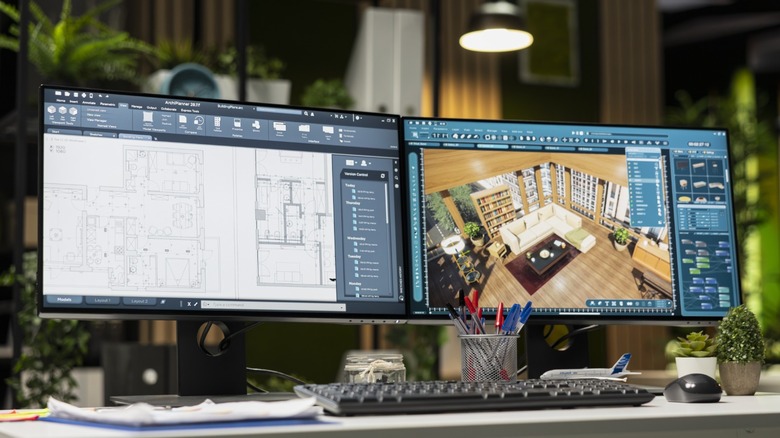
One way you can avoid neck pain with a dual-monitor setup is by positioning the displays directly in front of you. With both monitors in your line of sight, you won't have to move your neck just to look at one screen or the other. However, this introduces another problem — that distracting bezel (the frame that surrounds the screens) that's slicing right through the middle of your desk. This is especially true if you have cheaper monitors with thick bezels, separating your desktop into two sides with chunky plastic pieces. But even if your displays have a minimal bezel, it's going to be difficult to hide that separation between your two screens.
This is one of the reasons why smart money would buy a single ultrawide monitor instead of two monitors. This is especially true if your workstation isn't facing a wall since the view behind your desk can become distracting. You could buy an Asus bezel-free kit to hide that unsightly space between your screens, but they are quite expensive at $109, and not everyone will find them all that effective at hiding the bezel. You may be better off saving that money to snag one of these cheap ultrawide monitors worth buying.
A more cinematic and immersive viewing experience
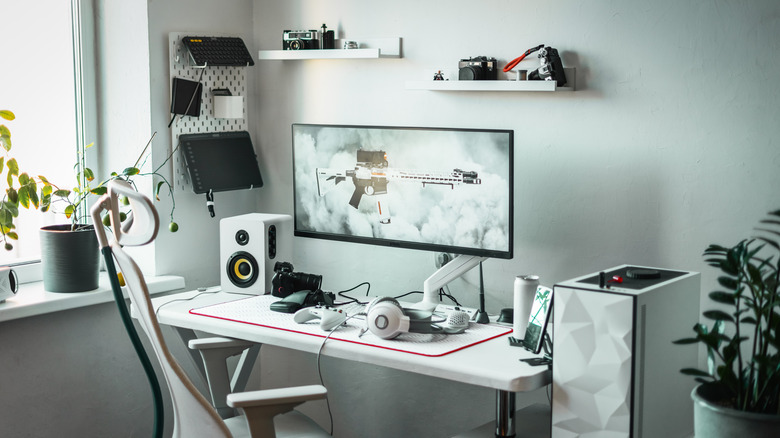
Aside from helping you be more productive, ultrawide monitors can also help you enjoy gaming and movies more than you already do. Unfortunately, not all games support an ultrawide screen, particularly older ones that were made before that type of monitor was available. Nevertheless, many popular modern titles, like Red Dead Redemption 2, Microsoft Flight Simulator, No Man's Sky, Forza Horizon 6, and others, do support ultrawide play. If you're playing a game that won't go wide, you can temporarily change your monitor to a supported resolution (typically 1920 x 1080) to avoid running into issues.
Many TV shows and older films are shot with a 16:9 aspect ratio, so you'll have to deal with black bars on either side of the screen if you have a 21:9 ultrawide monitor. However, if you're into the latest films, you'll appreciate the aspect ratio given by these displays. That's because many directors shoot the films at a wider aspect ratio, like 2.35:1 or 2.40:1. This makes 21:9 ultrawide monitors perfect, since their 2.33:1 aspect ratio is often close enough that the black bars that fill out the rest of the screen are either minimal or unnoticeable.
An ultrawide monitor can cost less than two screens
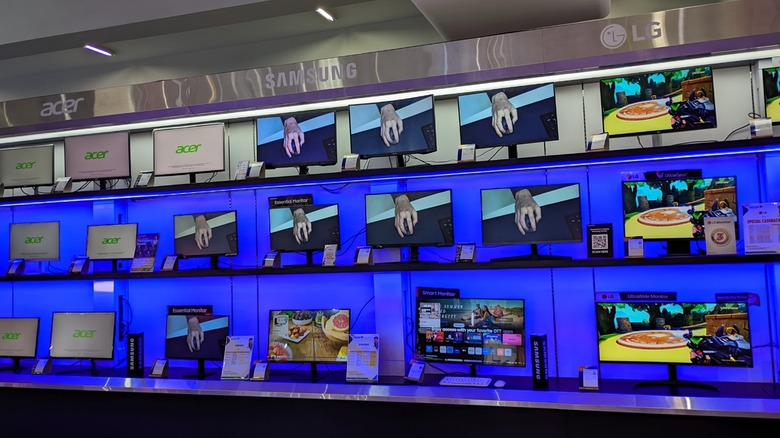
While one ultrawide monitor will usually be more expensive than a single standard-width display with a similar height, the upgraded model is often still cheaper than buying two of those smaller screens of a similar caliber. For example, this 24-inch LG monitor with a 100-hertz (Hz) refresh rate and 99% sRGB (excellent color coverage) costs $169, but the 29-inch ultrawide LG monitor I shared above only costs $282.45. So if you buy just one of the latter instead of two 24-inch LG monitors, you come out about $55 ahead. The only major difference between the two is that the ultrawide option does not have AMD FreeSync, but that shouldn't really matter if you're only buying an ultrawide monitor for productivity or watching movies.
Samsung monitors offer a similar value proposition. The 24-inch Odyssey G3 (G30D) costs $199.99, meaning you'll have to spend nearly $400 if you want to get two of them. By comparison, the 34-inch ViewFinity S50GC, which isn't just physically larger than the G30D but also comes with a much higher 1440p wide resolution, is just $329.99. That means you're saving more than $70 if you pick one of the latter instead of two of the former monitors. You'll be making a couple of compromises if you pick the ultrawide Samsung monitor, though, like a slower refresh rate (100 Hz vs. 180 Hz) and higher response time (five milliseconds versus one millisecond gray-to-gray). These would rarely matter for productivity purposes, but they could be important if you're also into competitive gaming or simply want the smoothest possible experience when you're playing games.
Having just one monitor makes for a cleaner desk
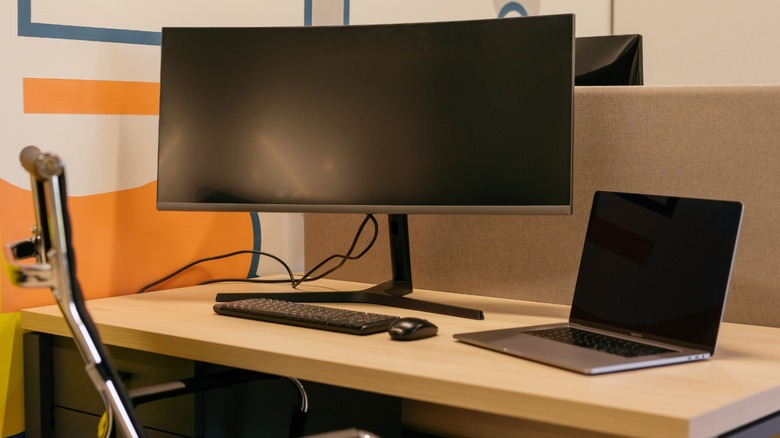
If you have two monitors on your desk, that means you're running twice the number of power and data connections over a one-monitor solution. While these cable accessories that just work could help clean up the wires coming out of your displays and into your desktop or laptop, having just one set of HDMI and power cables (or a single USB-C cable) will make it that much easier to organize your desk and reduce the clutter on your desk.
Aside from that, a dual-monitor solution takes up more desk space than a single ultrawide display. This won't be an issue if you have a large office table, like this amazing standing desk from Corsair, but you might have trouble fitting in two screens on your desk if you only have a small workspace. For example, two monitors will have two bases, meaning you'll have less space to place your other desk gadgets. On the other hand, a single ultrawide screen will only have one base, freeing up a lot of desktop real estate while also reducing clutter. And, of course, it will also improve your overall workstation experience.