

Please Stop Using Nvidia's 'Optimized' Settings - Try This Instead
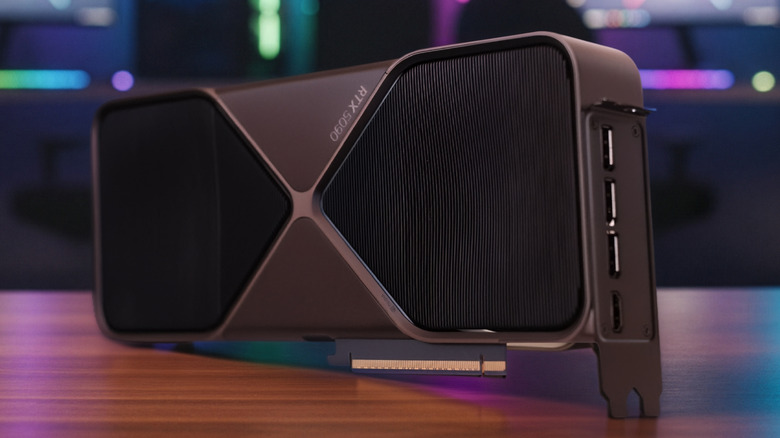
Optimizing a new graphics card isn't just about hitting the "Optimize now" button and cracking on. The main issue here is that it's optimizing based on arbitrary metrics instead of frame-time consistency, which is why gamers might be experiencing blurry "Ultra Performance" DLSS ratios and unstable resolutions.
Instead of dealing with a sub-par automatic algorithm, it's a good idea to set a decent baseline by using specific global Driver Settings inside the Nvidia app instead. Some basic settings that every RTX series user should lock in are leaving power management on "Normal", turning image scaling "Off", and setting Low Latency Mode to "Off" globally. This is so games can manage their own workloads, especially since demanding titles have their own settings and optimizations.
Shader Cache is also worth giving some SSD space to, as more saved shaders mean smoother performance and less stuttering when loading in visual assets in-game. There are plenty of Nvidia GPU settings to change that can improve performance without just overclocking a graphics card, but increasing its shader cache to 100GB is going to make a big difference. Let's go into the Nvidia App Global Settings in more detail, including how I have my own RTX 5090 dialed in.
The best settings for Competitive FPS vs. High-Quality RPGs
Good GPU settings depend on what games are usually being played. For fast competitive play, prioritizing latency over fidelity is the best move to make gameplay as responsive as possible. Turning Nvidia Reflex to the "On + Boost" setting helps lock in responsiveness, and V-Sync can add latency too, so disable this. Low Latency Mode should also be set to "Ultra" if a certain game doesn't support Nvidia Reflex. Finally, keep frame rates unlocked to prioritize getting the absolute lowest input lag.
When it comes to story-driven experiences and top-tier RPGs, we want to prioritize visuals and tear-free smooth frame delivery. Texture Filtering should be set to "High Quality," while having DLDSR enabled for those with the GPU headroom to improve texture quality as much as possible.
Locking in frame pacing is also important for a smooth gameplay experience. Enable G-Sync when using a compatible monitor alongside turning on V-Sync, and cap frame rates just below the maximum refresh rate for the monitor. For example, my 1440p monitor is 240Hz, so I'd be capping frame rates at around 230 FPS.
How to force the best DLSS models
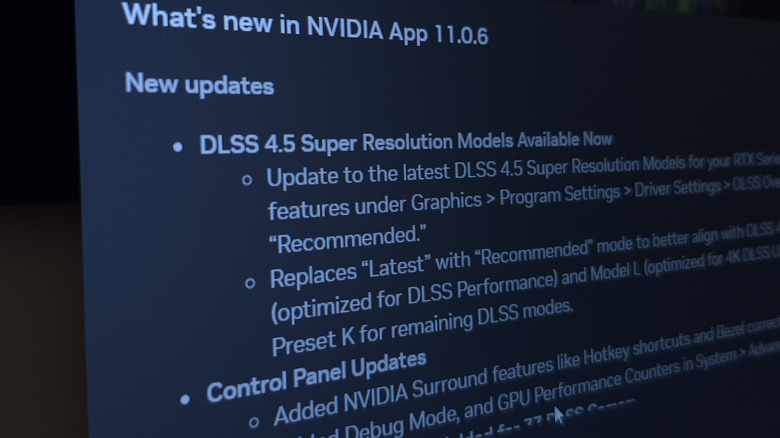
Not all DLSS models are created equal, and some work better for different RTX GPU generations. There's also the option to force DLSS inside the override menu. For RTX 20 and 30 series GPUs, forcing Super Resolution Model K will give users the best results. These GPUs lack the native FP8 Tensor Core acceleration needed for newer DLSS models.
For those running an RTX 40 or 50 series card, there are different DLSS models to take advantage of newer architecture. The "Recommended" preset correctly uses DLSS Model M for Performance mode and Model L for Ultra Performance. Forcing Frame Generation to Preset B will significantly improve UI and HUD interpolation quality (so less distortion and wobbly elements). Gamers can also turn on Xbox Mode on their Windows PCs to cut down background processes.
Because I play lots of story-driven titles with HUDs and menus, Frame Generation Preset B stopped my HUD elements from distorting as much in "Oblivion: Remastered" while reducing a shimmer effect when walking and running on my sword of choice. It's not perfect, but it's a worthy trade-off when trying to push systems past their installed hardware and vanilla GPU restrictions.