

This Open-Source App Keeps Your MacBook Awake Even With The Screen Closed

When you close the lid of a MacBook, it goes to sleep instead of shutting down or allowing other actions to continue. On a Windows laptop, though, you can set it so that closing the lid does nothing, leaving it awake. One way to achieve the same result with a MacBook is to use Clamshell mode. You just need to meet the requirements — the MacBook must be plugged into an external monitor and charger, with an external keyboard and mouse connected to it. But there is actually a way to keep your MacBook awake with the lid closed without entering Clamshell mode.
The tool you will use is called Insomnia. It's free, open-source, and allows you to set how long your MacBook should stay awake. It will override the sleep settings, even when the lid is open, meaning it's not only useful for MacBooks. You just start your task, whether you're downloading a huge file or running a long AI workflow in the background, close the lid, and leave it to finish. Since Insomnia is not available on the App Store, installing it requires some Terminal know-how. Luckily, it's not a complicated process if you follow the instructions on the app's GitHub page. You just need a Mac running macOS 26 or later with an Apple Silicon chip, starting with the MacBook Air M1.
How to install Insomnia on your MacBook
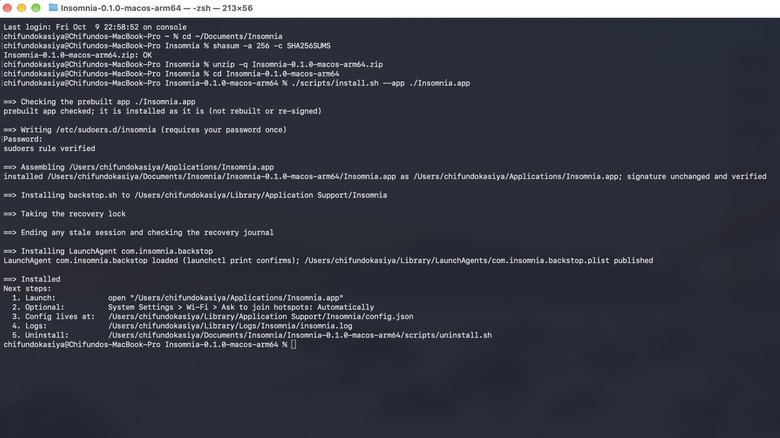
Once you're on Insomnia's download page, scroll to the bottom and download the ZIP file with the current version of Insomnia (0.1.0 as of this writing). You should also download the file called SHA256SUMS, a checksum to help ensure file integrity. You can install Insomnia from the Downloads folder, but you can also move it elsewhere if you wish. Now, open Terminal to begin the installation process. You will need to enter several commands, hitting Enter after each one to run them.
Assuming the files are still in the Downloads folder, type cd ~/Downloads to navigate to that folder. Next, run shasum -a 256 -c SHA256SUMS to ensure that the downloaded ZIP file has not been altered or corrupted. Afterward, enter unzip -q Insomnia-0.1.0-macos-arm64.zip to extract the ZIP folder. Switch to the extracted folder by running cd Insomnia-0.1.0-macos-arm64.
Now install Insomnia by entering ./scripts/install.sh –app ./Insomnia.app. You might be asked to enter your Mac's password. Once you do, press Enter, and Terminal will finish installing Insomnia. Afterward, run the tool by typing open "$HOME/Applications/Insomnia.app" and pressing Enter. If you get a notification telling you that Apple could not verify that the program is free of malware, click Done. Then, head to Privacy & Security in your System Settings, scroll down to the Security section, and click Open Anyway next to Insomnia. In the pop-up, click Open Anyway.
How to use Insomnia on your MacBook

Once Insomnia is installed, you can open it using Spotlight Search, and it will appear on the right side of the menu bar as a closed eye icon. When you click this useful menu bar app, you will see text boxes for Days, Hours, and Minutes. You can switch between them by pressing Tab and entering the length of time you want the MacBook to stay on — the default is four hours. When you close the lid, the MacBook's screen and backlit keyboard will still turn off, but the computer won't be asleep. When you open it again, you'll find that you're still logged in instead of being presented with the lock screen. If you want to turn off the no-sleep functionality, just right-click Insomnia in the menu bar and select Quit Insomnia.
When you close the lid with Insomnia running, some apps will keep running while others will freeze. To add an app to the list of running apps, right-click Insomnia in the menu bar and select Settings. Scroll down to the Lid close actions section, click Add running app, and select the app you want to keep running when the lid is closed. There are some other toggles you can tweak here depending on what actions you want to happen once the lid is closed, such as Turn off the display and keyboard backlight, Mute audio on lid close, and Low Power mode while the lid is closed.