

4 Samsung Phone Features That Make Older Galaxy Models Worth Keeping
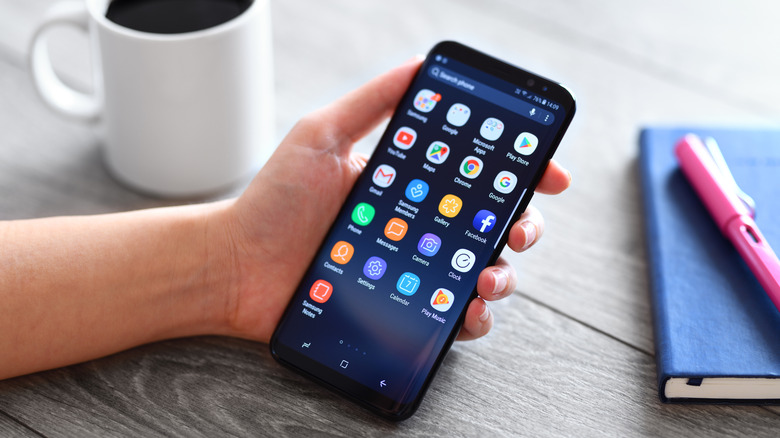
Keeping up with Samsung's flagships can be tough, especially if you own a Galaxy phone that's already out of warranty or on its last update. It's tempting to shell out for the newest device, but if your phone does the basics and the battery lasts all day, you can keep it and save money. That's the beauty of owning a Galaxy phone: Samsung doesn't move too far along the curve if your device is still on One UI 7, 8, or even 9. You just might not have all the extra One UI features integrated from Samsung's Galaxy AI suite, and that's perfectly okay.
If you're using a device with One UI 6.1 or earlier, it's a slightly different story. As someone who uses three different Galaxy phones on One UI 5, One UI 7, and One UI 9, the experience is quite different, but not jarring enough to make me toss away my old devices. As long as the camera produces acceptable photos, the battery stays healthy, the display is intact without pixel issues, and the software allows you to make calls or texts, and keep up with essential apps — then you still have a winner on your hands. Just be careful about sharing private details or banking on your phone if it can't receive the latest security updates.
1. Great battery control with One UI's Device Care settings
As a personal collector of old Galaxy smartphones, I prioritize battery life. It's easy to lose track of how many apps you download, and without restrictions, they can slowly drain your daily battery. Thankfully, no matter which Galaxy phone you own (running One UI 2.1 and onward), Device Care includes a core feature that controls which apps can access your permissions and background resources, and which can't. Your phone should manage it automatically, but you can also control it directly and see which apps might be causing unnecessary drain in the same menu.
You can do this in the Device care and Battery and device care sections of the Settings app. Once there, go to Battery, where you should see a small graph showing battery usage split by app. Below it, you will see a Background usage limits option that takes you to the sleeping and deep sleeping apps section. You'll want to ensure Put unused apps to sleep is on, then use Never auto sleeping apps to whitelist apps you use regularly, but keep it updated. For apps that might be causing unusual battery drain, you can manually add them to Deep sleeping apps to stop any activity.
It's a failsafe to prevent apps from chipping away at your phone's battery unnecessarily. But it's also great for apps you don't need to see push notifications from constantly, or that might be abusing too many permissions. If you can use this One UI feature to keep your device's battery health in good shape, it's much easier to keep holding onto that phone a little longer.
2. Pass on memorable photos with Quick Share and Private Share
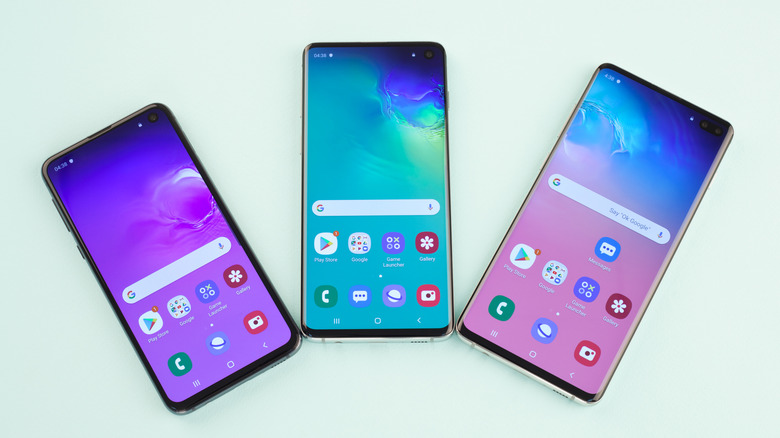
Owning a smartphone with outdated security can potentially be dangerous. You want to avoid storing anything too personal, and you don't want it to become a goldmine for hackers exploiting kernel-level security. Manufacturers rarely release security patches after official software support for a phone ends, so what you share and store is your prerogative. As such, I've been very careful with my Samsung Galaxy S10 since March 2023 since that was when it stopped receiving security patches (unless you were lucky enough to have a Verizon carrier-locked variant in the U.S., which received one more a year later).
Even though I am worried about my data, sometimes I do want to take a few images and share them from my Galaxy S10 to my daily driver. That's why I depend on Samsung's Quick Share with Private Share enabled feature. It prevents others from taking screenshots or recording, and it also limits how many files and how much data you can share at once, which is all encrypted by Samsung Knox. More importantly, it works only with Contacts and lets you set a custom expiry date. Plus, it helps avoid sending links that could get stored on Samsung Cloud, though Enhanced Data Protection with End-to-End Encryption is still a valid option. This is a great method for users who want to transfer personal content across devices locally; just note that it is Galaxy-specific and requires those devices to have Private Share installed — including Galaxy tablets.
3. Samsung's Display settings are quite customizable
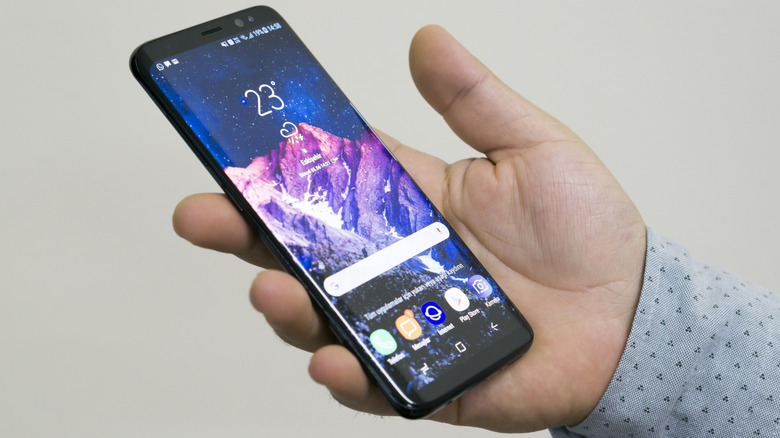
One of the best parts about Galaxy phones is that the display is still great, even on a device as old as a Samsung Galaxy S7. But you can make it even better with a few extra display options. Three great ones to adjust or enable are Eye comfort shield, Screen mode, and Screen resolution.
Eye comfort shield is a toggle that turns on the blue-light filter, which tints the screen an orange-amber color. It helps prevent blue light from keeping you awake — since blue light suppresses melatonin production – and helps reduce eye fatigue. Screen mode lets you switch between vivid and natural colors; vivid makes them pop more. The Advanced settings under the White balance slider lets you manually adjust the picture's coloring. This is a great feature for those who prefer certain color tints on your screen or who may be visually impaired. Another option is Screen resolution, still found in the Display settings. Generally, you can improve your screen quality by switching to HD+, FHD+, or WQHD+, so you don't necessarily notice you're still using older hardware to run your apps. The highest option does cut into battery life, but it's worth it if you need a sharper image.
Manually adjusting settings for each situation can feel daunting, but Samsung's built-in Routines and Modes (originally Bixby Routines) make it easier. Thankfully, that's been a staple since One UI 5. If you want to change your Display settings only when needed, using triggers (such as turning on certain modes or routines, such as nighttime mode), you can customize the "if this, then that" automation logic. These tools are powerful, and you don't need the latest Galaxy phone to use them.
4. Old Galaxy phones have interesting legacy hardware features
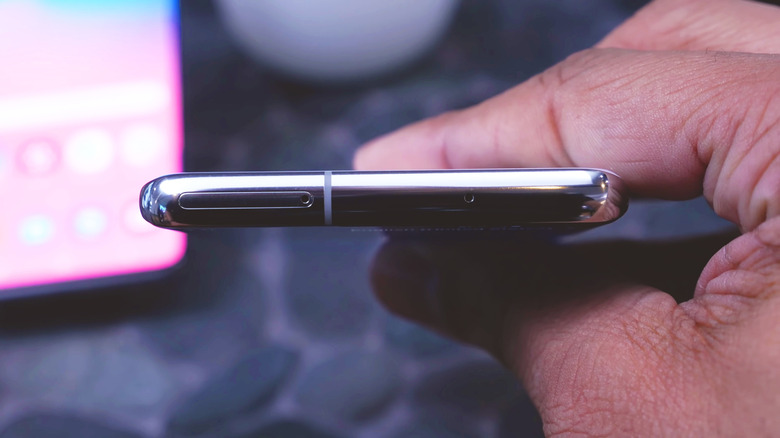
My favorite reason I keep old Samsung phones around is for their legacy features. Companies like Samsung shave off smartphone hardware features to make them slimmer, lighter, and simpler to manufacture. That means features like a 3.5mm headphone jack, a microSD card slot, or an IR blaster don't make the cut. You can technically bypass these limitations with wireless headphones, more internal storage, cloud storage, and an external IR dongle. While I don't necessarily agree with these features being removed over time, I understand Samsung had to make choices. But losing these features comes at a cost, as modern phones without a microSD card slot show.
As such, removing the microSD card slot can make buying a new smartphone even more expensive. For example, a Samsung Galaxy S26 starts at $1000 (and can be found for $900) for the 256GB option. Upgrading internal storage to 512GB adds another $200. Typically, microSD cards offer much more storage for a similar price bump; even if they don't, you can add one later with a bit of patience and some window shopping. The last Galaxy S series with a microSD card slot was the Galaxy S20 series, released in 2020, so finding compatible microSDXC cards isn't a terrible ordeal, if you're worried about availability.