

4 Things Siri Can Do With Your Calendar
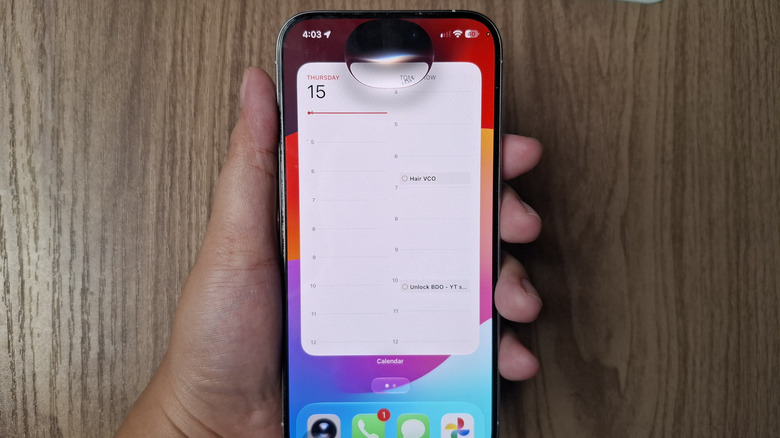
If there's one iOS 27 feature that's making the OS upgrade hard to resist, it's Siri AI. It's been on everyone's radar since the beta version of iOS 27, and for good reason: Siri AI has gone from a so-so voice assistant to a full-blown AI companion.
In fact, from basic requests like starting a timer or increasing your screen brightness, it can now fulfill much more advanced tasks. For instance, if you're trying to remember what your mom told you to bring to a gathering on Saturday, Siri AI can search your messages and emails for you. It can also do multiple requests at the same time, like finding a recipe a friend sent you, adding that recipe to your notes app, listing down the ingredients on your grocery list, and setting a reminder when to buy the ingredients.
Then, there are the features you'll most likely use everyday, particularly involving the Calendar app. As someone who's juggling different events every single day, it's hard to stay on top of your schedule. Thankfully, Siri AI works with the Calendar app to make your daily planning a lot easier to handle. Here are four Calendar-related things Siri AI can do.
Find events with just the details
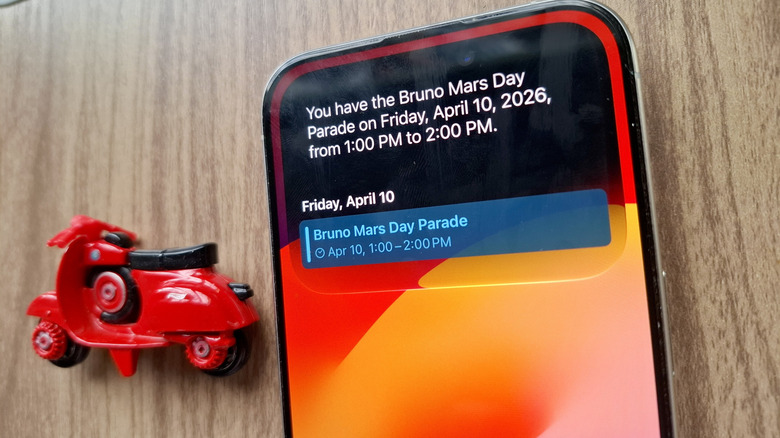
When your calendar is packed with multiple different events, it can be a challenge to remember every single detail. Sure, you can always try finding the specific event in the calendar app, but that can take a few minutes, especially if you don't remember the exact event name. In this case, it's time to put Siri AI to work.
This smart assistant can look for the event even with just one detail, such as an invitee, the event location, some part of the event name, the date, or time. Simply say, "Siri, I can't remember what upcoming event I have at X location," or "Siri, when and where is that meeting with Isabelle?"
Siri understands natural language, so just phrase your question the way you normally would. Make sure to pronounce names and locations clearly, so you'll get more accurate results. Once Siri AI pulls up the event, you can tap on it to open it in the Calendar app, where you can view more details, edit the event, or delete it as needed.
Add the events shown on your screen to your calendar
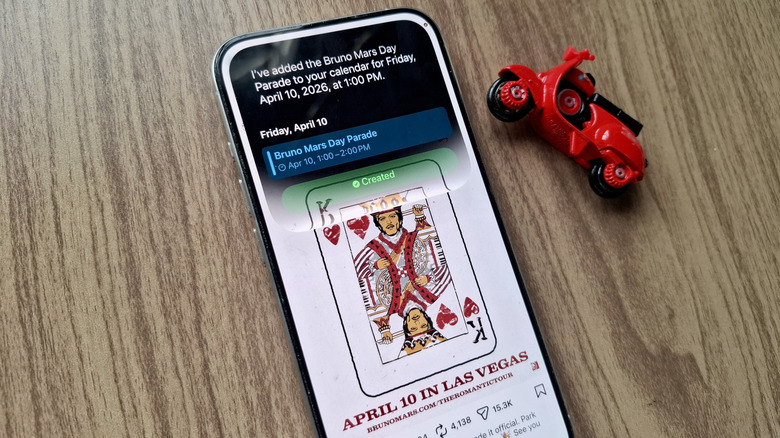
So, you're scrolling on Instagram and saw that your favorite band will perform at a nearby music festival. Instead of exiting Instagram to hop on your calendar, you can ask Siri AI to add the event for you. Just make sure the photo that includes the date and event name is clearly visible before launching Siri AI and saying "Add this event to my calendar."
Adding events also works inside Siri mode in the iPhone Camera app. If you have the event details on a physical poster, a photo on your monitor, or an image on someone else's phone, you won't have to take a picture or save it to your phone. All you have to do is go into Siri mode in the Camera and point your phone at the event details. An Add to Calendar action button will automatically appear above the shutter button. Just press it to add the event to your calendar.
The best part about this Siri AI feature is that you won't have to do this for one event at a time. If there are multiple events in view, Siri can add all of them at the same time. You'll just be prompted to choose which one to add, or to add all the available ones. One Reddit user reported that Siri effortlessly added about ten of their kid's daycare events to their calendar. We also tested this ourselves, and Siri was able to extract all 22 events from a concert poster. It's important to note, though, that adding multiple events isn't as seamless from the Siri AI app or when activating Siri with your voice/power button. It's best used in the Camera app.
Edit or delete existing events
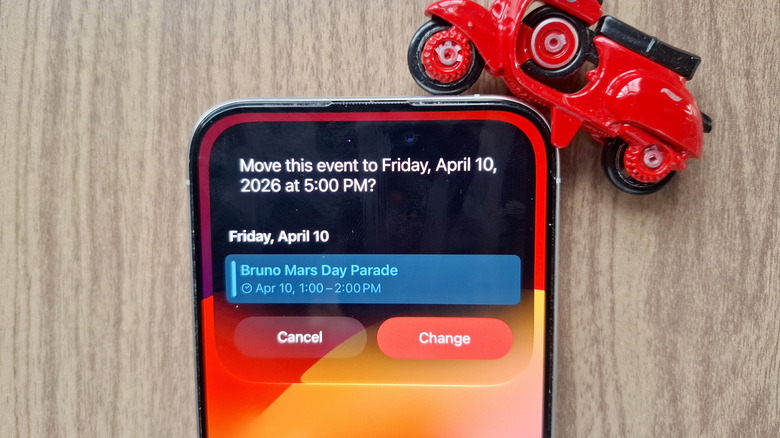
If you want to edit or delete events already on your calendar, you normally find the event itself in the Calendar app and do what you need to do. That seems simple enough. But for an even quicker way to modify existing events, you can turn to Siri AI.
Siri can change the name of the event for you, reschedule it to a different date or time, add or update the location, add a description, turn on all-day status, set the recurrence of the event, and move events from one calendar to another (e.g., from Home calendar to Work calendar). All you have to do is ask.
For instance, if your meeting with Sandra was rescheduled from 3 p.m. to 4 p.m., say, "Siri, move my 3 p.m. meeting to 4 p.m." You might need to confirm by saying yes or tapping the Change button on the Siri AI panel. To make a time-based event an all-day event, say, "Siri, schedule X event for the whole day." To repeat the same event a certain frequency, say, "Siri, set the X event to repeat every week/month/other day." The rest of the requests are just as straightforward.
Ask Siri AI questions regarding your schedule
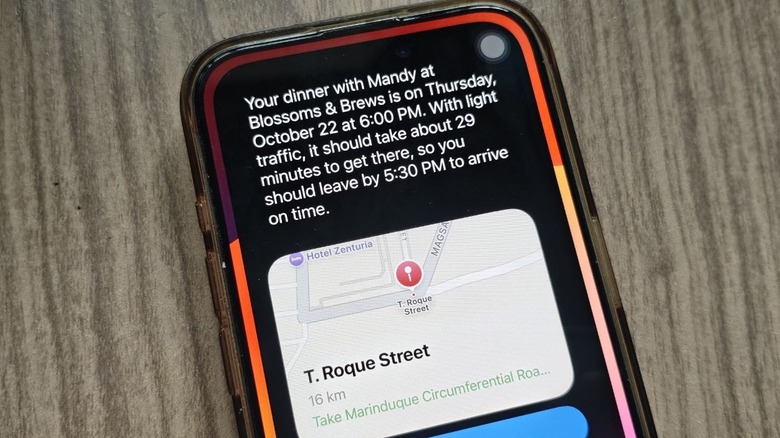
As one of the best free iPhone productivity apps, the Calendar app makes it easy to see an overview of your events just for the day, week, or month. But browsing manually through your schedule just to check where you can fit a quick lunch date can be time-consuming. To help you out, there's an option to ask Siri AI about your calendar events anytime.
For one, you can ask Siri what's on your agenda. This comes in handy when you want to be reminded about the events you need to prepare for before heading out. You can even go ultra specific and ask Siri AI what your schedule is like between 2 p.m. and 5 p.m., if you're planning on adding a new event during those times.
Siri AI can also browse through your calendar to find the closest days or times you're available if you ask it to. If you need to know whether you have anything planned for a certain day, you can ask that too. Siri AI will tell you what event is scheduled for that day. If there's nothing on your calendar, it'll say that you're free, and even ask you whether you want to schedule an event for that day. Another useful question you can ask Siri AI is what time you should leave home to get to a specific event on time or 15 minutes earlier. This works when your event already has a location included.