

8 Google Maps Tips Every Driver Needs To Know
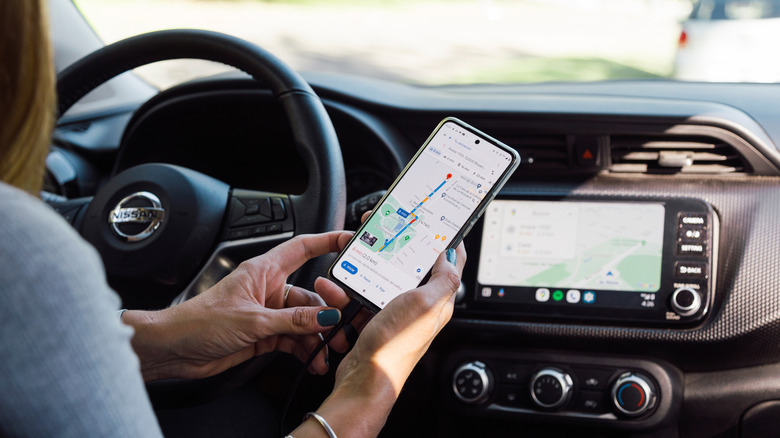
A must-have app, Google Maps takes all of the hassle and confusion out of travelling in today's complex world. It's fantastically convenient to be able to just type in a destination, hit go, and have clear step-by-step instructions on exactly how to get there. However, don't let that quick access stop you from realizing the app's full potential. Hidden deeper lies a smorgasbord of features that can really expand what Google Maps does for you, whether you're a casual commuter, delivery driver, or roadtripper.
While many of these features aren't made immediately apparent, simply knowing about them can make all the difference the next time you need something more than just basic directions. Customizing your offline maps will save you from getting lost the next time you're stuck out on a mountain road without a signal. Route avoidance options will prevent an embarrassing encounter with unexpected tolls or emission zone fees. Even just looking for a parking spot can be made easier. All of these problems can be solved by these clever Google Maps tips that every driver needs to know.
Note that a handful of these tips rely on the "Navigation" settings on your mobile device. You can find that by opening Google Maps and following these steps:
- Select your Profile icon in the top right corner.
- Select the "Settings" option.
- Select the "Navigation" option.
Avoid tolls, highways, or ferries
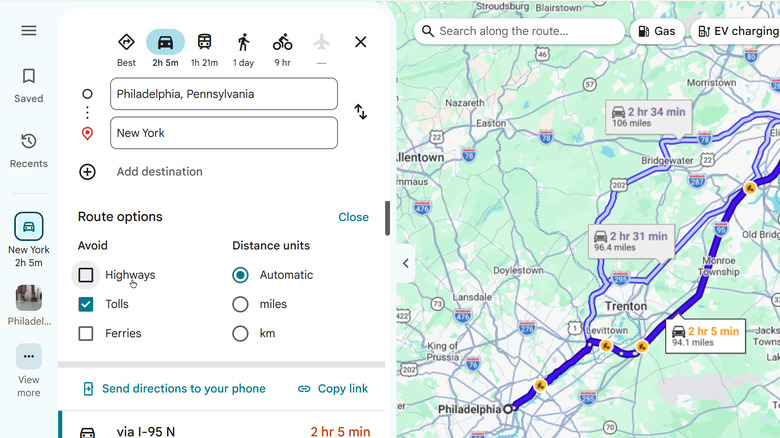
Is there anything more stressful than being half way on a long car trip and realizing you're on a highway with tolls, but have no cash for it? And while Google Maps shows toll charges for your trips, that doesn't help you when you're still 25 cents short. You can avoid that stress entirely by enabling the toll avoidance route option. Hidden behind the "options" prompt when starting a new route, you can enable a setting to avoid highways, tolls, and ferries. You can make these settings the default on mobile, too. Here's how:
- Go to your "Navigation" settings.
- Scroll down to the "Route options" section.
- Check the boxes for which aspects to avoid: Highways, Tolls, or Ferries.
Avoiding tolls is especially helpful when you live somewhere without tolls and are traveling long distances, where you might be going through different states or districts that have them. It can also make a big difference when you're driving a low-powered motorcycle, a scooter, or any other vehicle that isn't capable of highway speeds. Avoiding highways will plot out the best route without having to hop on the nearby interstate. Just remember to toggle the setting back if you use a different vehicle.
Voice instructions can talk less (or more)
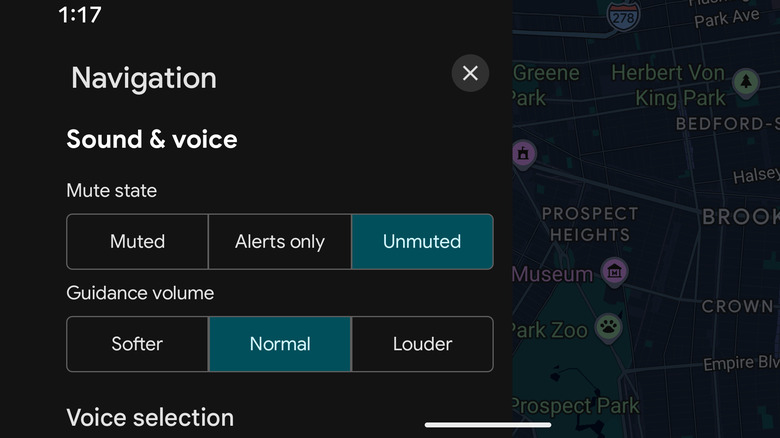
Music is a great way to stay entertained while on the road, so it can be particularly annoying when your favorite songs are repeatedly interrupted by the Google Maps voice navigation. This and more can be fixed by adjusting your settings in the smartphone app. These steps will tell you how:
- Go to your "Navigation" settings.
- Under "Sound & voice" change the settings as you see fit.
- To disable reported incident alerts, scroll down to the "Alert options" section and change the toggled setting.
You can control when the voice speaks up, whether that's for road incidents like accidents, construction, or police vehicles, plus if it plays audio cue jingles, and even how loud the voice is compared to your system volume.
On iPhone, the Google Maps voice uses whatever your smartphone's text-to-speech settings are. On Android, you can alter both voice and accent in the app itself.
The map can be 3D
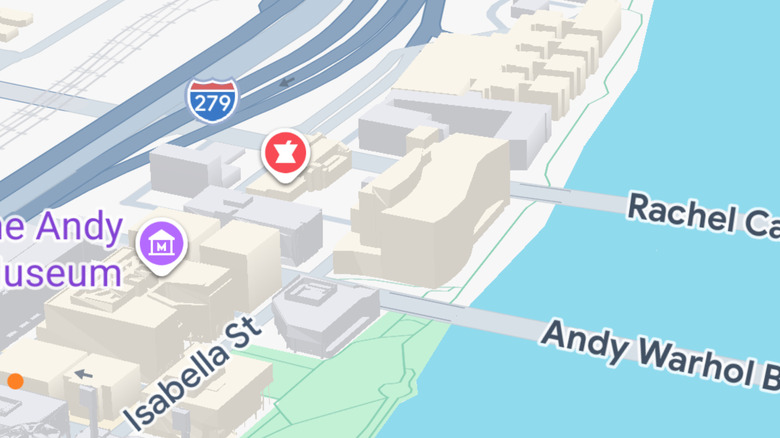
A flat map works, but it's hardly a full representation of the world. In Google Maps on mobile devices, there's an option to turn your map 3D hiding away in the layers section. Once selected, your map view will portray proper depth by giving buildings, hills, rivers, overpasses, and more a proper 3D model.
The full 3D mode is only available on select mobile devices, but all other devices have a less detailed option called "Raised buildings," which offers the 3D map for just the buildings. If you are a more visual person, identifying specific areas by the size of the buildings can really help, especially in urban areas.
If you want the "Raised buildings" option to be visible by default, you can enable it in your settings through the following steps:
- Go to your "Navigation" settings.
- Scroll down to the "Map display" section.
- Enable the "Show 3D buildings" setting.
There are Low Emission Zone warnings
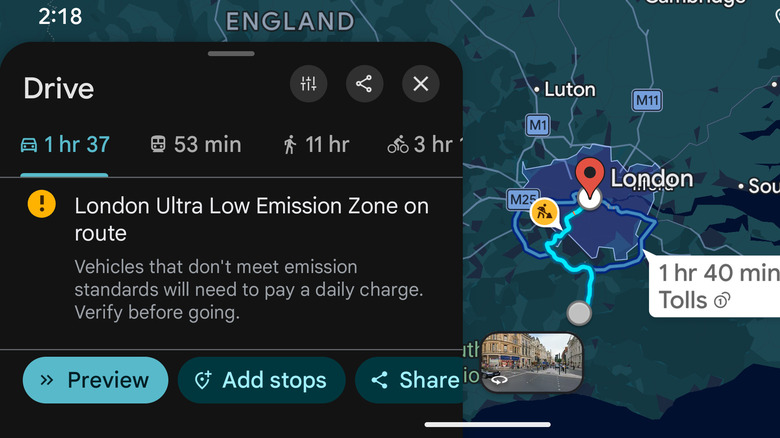
Ever wondered what the Z symbol means on Google Maps? It's more important than you think. Depending on your region, you may encounter Low Emission Zones. These are government-regulated areas where only vehicles meeting specific emission standards are allowed to move through. All other vehicles have to pay a daily charge if they want to operate in that area.
That Z icon, alongside a blue-tinted overlay, indicates where these zones are and whether your planned route will pass through them. Scrolling further down on your route window will reveal further details about that specific zone, including links to the relevant government webpage.
This is actually just one of many things Google did to help combat emissions in Europe. It was introduced alongside other features, such as notifying you when walking or taking public transit will actually be faster than driving, or the app pointing out which driving routes will have better fuel economy, plus providing more data for people using bicycles.
The app can find interesting detours
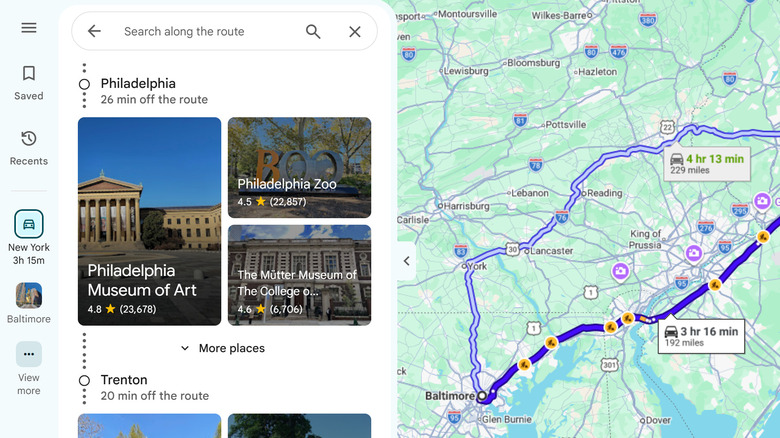
Many users know that you can add a stop to a route. Fewer realize that Google Maps will find the most interesting stops along the route for you and show you the best options. It only takes a couple of steps.
- Put in the details for the route you want to take.
- Select one of the provided route options.
- Scroll down to the "Explore new places along this route" section.
Once there, you'll be shown a list of nearby major towns along the route, how far out of the way they are, and what attractions they have on offer. By default, it shows attractions like museums and landmarks, but by scrolling further down, you can filter it by type, such as gas station, restaurant, or hotel. You can also use the search bar at the top of the sidebar to look for something more specific.
This comes in handy when planning particularly long car trips when you plan to stop every few hours to stretch or rest. These detours are also fantastic opportunities to be rewarded for contributing to Google Maps with photos or reviews.
Use Street View to find parking spots
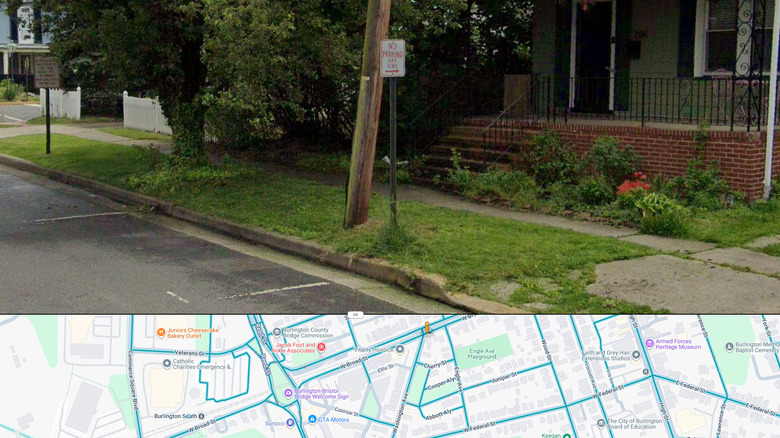
Google Street View, a feature that lets you see a location from a vehicle's perspective, is a great way to explore an area and get a bit more visual information than what a top-down map can provide. Enabled by selecting the little yellow person icon in the layers, you can use this mode to see visual details like shop entrances, road conditions, or landmarks.
The real tip is that you can also use it to locate parking spots, whether they're unmarked or have special restrictions not listed on Google Maps. When going to a busy cafe downtown, Street View can help you see if they have special parking for customers in the back. See which streets have parking meters, if there's a 2-hour limit, or if it's a private lot, for example. Once you're parked, you can even use Google Maps to find your parked car later.
Say when you want to arrive
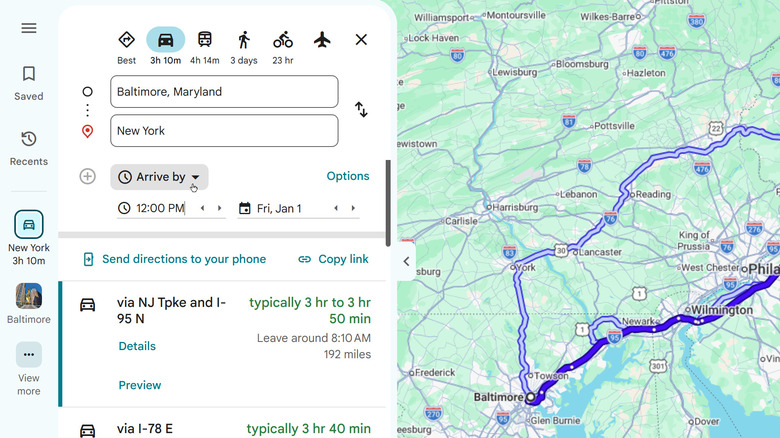
It's always important to be on time, whether it's a doctor's appointment, dinner reservation, or hotel check-in time. When preparing for a journey, you can figure out when to leave by checking how long the trip will take on Google Maps. However, you don't need to do that math yourself; the app can do it for you. When putting in a route, selecting "Leave now" will prompt you with a couple of other time options, including an "Arrive by" time. Tell it when you need to get there, and Google Maps will tell you when you need to leave.
It doesn't stop there. Google uses traffic data to estimate what might slow you down, like predicted traffic flow. A trip on the highway is pretty different at midnight and at rush hour, after all. Your route will show you the typical duration for the trip, with the "Leave around ___" time based on the longest time.
This feature cuts out a lot of the guesswork and unpredictability that might come from trying to estimate when to leave home for a journey.
Pre-download map zones for navigating without signal
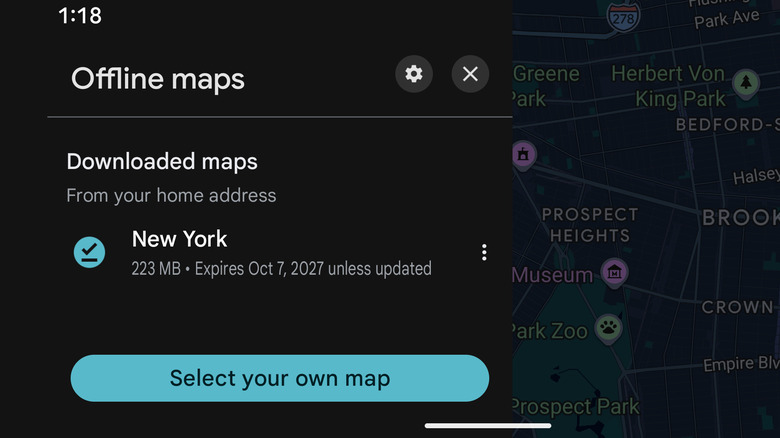
Google Maps is home to a large amount of information. It's not just streets and addresses, it's satellite views, photos, reviews, and more. To avoid the need to constantly download information, Google Maps offers the ability to download maps which remain functional even while offline. And don't worry; if you download your local area, you can still change your home location on Google Maps.
You can also expand your offline map data. Hidden in the options on your mobile device is your Offline maps archive.
- Select your Profile icon in the top right corner.
- Select the "Offline maps" option.
- Choose the "Select your own map" button at the bottom.
- Drag the map display so that the area you want to save is inside the box.
- You can pinch to control the level of zoom, as well.
- Press the "Download" button.
Google Maps can struggle in rural areas, so you might consider downloading the areas along a route of mountain zones or campgrounds. Even the long interstate roads between major cities can have signal dead spots too.