

Your AMD GPU Has A One-Click Setting That Can Extend Its Lifespan
AMD GPUs can be just as powerful as Nvidia GPUs, but to avoid early replacement, you will want to handle your GPU with care. That means avoiding excessive or unsafe overclocking or long runtimes at higher temperatures. In 2026, one of the best ways to manage your GPU is through its dedicated software, like the Nvidia app and AMD Adrenalin. If you don't already have it installed, you can download the required software from Nvidia and AMD's official websites.
AMD Adrenalin also offers power-saving and optimization settings that can help extend your AMD GPU's lifespan while squeezing out extra performance. Generally, AMD commits to at least four to six years of optimizations and full software support. More importantly, that also means you should keep your hardware healthy to take advantage of AMD's continuous support, even beyond its expected end-of-life date.
One helpful AMD Adrenalin setting that can help users make their AMD GPU last longer is the "Tuning" section under the "Performance" tab in AMD Adrenalin. In that tab and section, you can find presets for how your GPU is handled. One option is an "Undervolt" preset (depending on the GPU); otherwise, you can use "Favor Efficiency" — or "Custom" to make the desired adjustments that replicate the "Undervolt" option. Changing the recommended default parameters risks instability (and can also technically void the hardware warranty if done unsafely), so test performance yourself with in-game benchmarks and monitor changes using the AMD stats overlay.
Why should you use the Undervolt or Favor Efficiency preset?
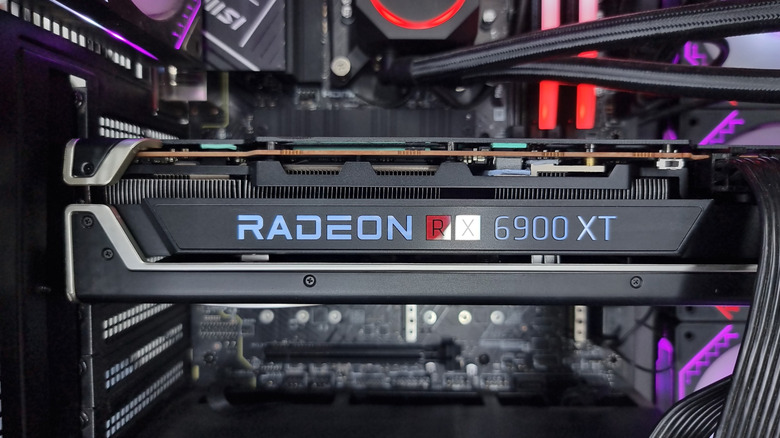
The idea behind the Undervolt and Favor Efficiency presets is to lower voltage by reducing Total Board Power (TBP), or the power limit, to cut electricity use while maintaining clock speeds so performance doesn't suffer. You can use this setting to fine-tune performance per watt, or sustained performance, while keeping temperatures and noise lower. In the end, doing so actually saves the hardware, since heat is the ultimate killer — or at the very least, the real performance-wrecker. So if you game for long sessions, you might want to undervolt this way, since it keeps things cooler and the fans aren't overworking themselves to stay cool, which is why it should be quieter.
You are also not underclocking your system to achieve this. And in some cases, you might even gain more frames if your old GPU has been struggling with overheating. More importantly, you should always test undervolting your AMD GPU, since tolerance can vary by game and task as well as the "silicon lottery of your individual card." Any of that can make manual undervolting through the "Custom" preset unstable. Instability can cause artifacting, game crashes, or unexpected system reboots; if you see any of these, add voltage in tiny increments or switch back to the default preset.
How else can you extend your AMD GPU's lifespan?
Beyond the usual maintenance, like dusting the fans, keeping the case clean, checking the cooling system, and reapplying thermal paste every few years, you can do more to extend your AMD GPU's lifespan. First, avoid excessive overclocking, especially for long periods, since it generates a lot of heat that can eventually damage the card. Another is to treat your GPU with care. That means being judicious with your settings, for example, in games.
You can cap the frame rate, lower your graphics settings, or reduce specific aspects like shadow and lighting quality. Anything that decreases the load on your GPU. If it works and your GPU can handle it, you'll also want to lean into AMD's AI features, like frame generation, which can lighten the load on the physical hardware, but use AI acceleration to make up the difference to boost performance and graphics.
Then, if you are willing to sacrifice it for some games, turn off ray tracing. This feature puts heavy workloads on your GPU for only a small graphics boost because of the complex math behind it (and sadly AMD still handles it worse than Nvidia). It can also hamper FPS, and in fast-paced action titles or shooters, that loss can be a real detriment. Lastly, keep your drivers updated; these patches usually optimize how they work and interact with games. This is especially important for new games that might need fine-tuning to run well on your GPU and to fix any bugs you encounter.