

This Open-Source App Combines Multiple Networks For Faster Download Speeds
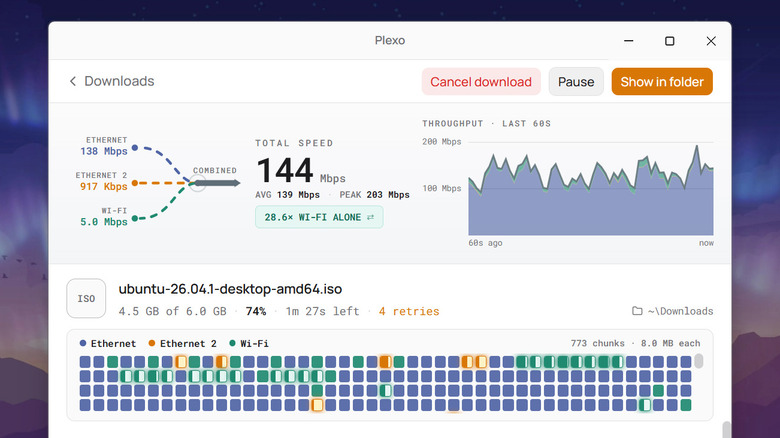
Slow download speeds are the worst. They're especially annoying when you really really need a file, and it's only 10MB, but it's still taking forever to save on your computer. Sure, switching to a different network is always a good idea. But an even better idea would be to combine the new network with your current one, speeding up the download and getting your hands on the file faster.
Well, that's exactly what Plexo offers. Plexo is a download manager and one of the underrated apps for Windows, macOS, and Linux. What makes it stand out from other download managers out there is that it's an open source desktop app and completely free to download and use. It also works in a unique way. Instead of relying solely on a single network to fetch the file, it can use multiple different internet connections to get an accelerated download speed. Those connections can be Ethernet, Wi-Fi, and mobile data over USB.
All these networks download a part of the file at the same time, but the faster ones take on more of the workload to make sure you retrieve the file as quickly as possible. Plexo then reassembles the downloaded chunks to recreate the original file. You can use Plexo for both direct download links and torrents, so it can come in handy for downloading both basic photos and videos, and larger open-source software and datasets. With that in mind, we'll walk you through how to use and manage your downloads on Plexo.
How to install and use Plexo on your computer
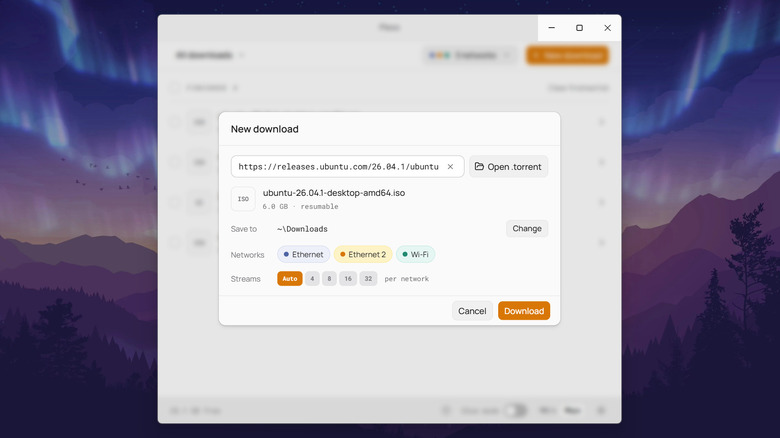
Plexo is designed to be easy to install and set up. Follow these simple steps:
- Download Plexo from the official website.
- Install the app as usual.
- Paste the download link.
- If you want to disable a network, click on it. Otherwise, leave all the available networks selected.
- Hit Download to start.
While you're downloading a file, Plexo will display the individual and total network speeds, along with the estimated time remaining and the number of parallel streams (download connections) assigned to each network. You can also manage them via the app. There's options to pause downloads (if supported), resume downloads in bulk, and queue more files to download.
We personally tested Plexo by downloading the Ubuntu Desktop OS, which is roughly 6GB. Using the built-in download manager on Chrome, the ISO file took a little over nine minutes to finish via wired internet with speeds of about 90 Mbps. Meanwhile, with Plexo and three networks (Ethernet with 90 Mbps, USB-tethered Android phone with 1 Mbps, and Wi-Fi hotspot from iPhone with 10 Mbps), the download only took six minutes and 26 seconds. It isn't a crazy difference, but it's still a significant reduction in waiting time, so we'll call that a win.
Conveniently, Plexo comes with a free browser extension for Chrome and Firefox. This lets you automatically start any download with Plexo instead of having to manually copy and paste download links to the app. With the browser extension, the "Download with Plexo" option will appear when you right-click on a file. If you also click any Download or the "Save image/video as" button, you'll be redirected to the Plexo app. You're free to set the extension to skip files smaller than a certain size and exclude some websites.
Plexo configurations and limitations
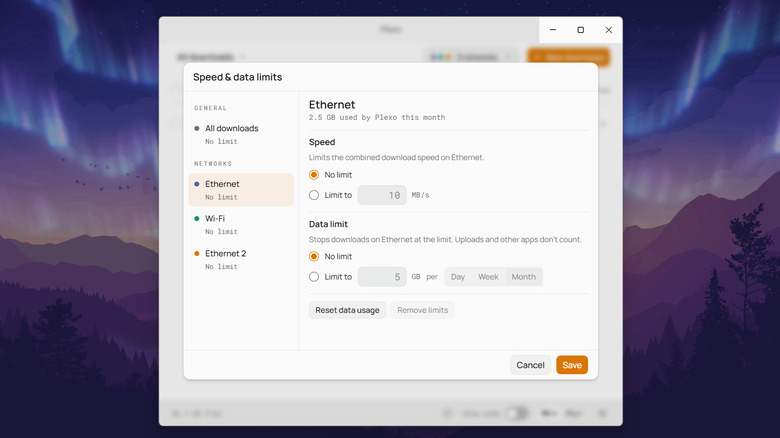
Plexo already works well out of the box, but it offers some settings you can tweak to manage your downloads better. From the home screen, click the network button at the top and select Speed & data limits. Here, you can set the total speed limit, schedule downloads for convenience, and choose how many downloads you want to enable at the same time. You can also find an option to turn on Slow mode and set its speed limit. Slow mode is a Plexo feature which restricts the total download speed limit to a certain MBps/Mbps, so your internet will still be usable for other things, such as video streaming and conference calls.
Besides the overall network, you can change the individual network settings too. Each network lets you put a cap on its speed and daily, weekly, or monthly data usage. This is a useful option when that specific network — say, your phone's mobile data — is running on a limited data allowance.
It's important to note that Plexo comes with limitations worth considering. First off, the networks you need to use should be individual connections, meaning they shouldn't come from the same router or device. For instance, your Ethernet and Wi-Fi will only count as one network if they're using the same router. If, however, you're connected to the hotspot of your friend's phone, plugged into your home network's router via LAN cable, and have your tablet tethered to your computer via USB, they'll be considered as three separate networks. When tethering an Android phone to your macOS, keep in mind that you can't simply connect it as the system doesn't support Android USB tethering. If you need to use an Android device, a popular workaround is to install and set up TetherKit first.