

A Hidden Windows Setting Could Be Slowing Down Your Internet, But You Can Turn It Off
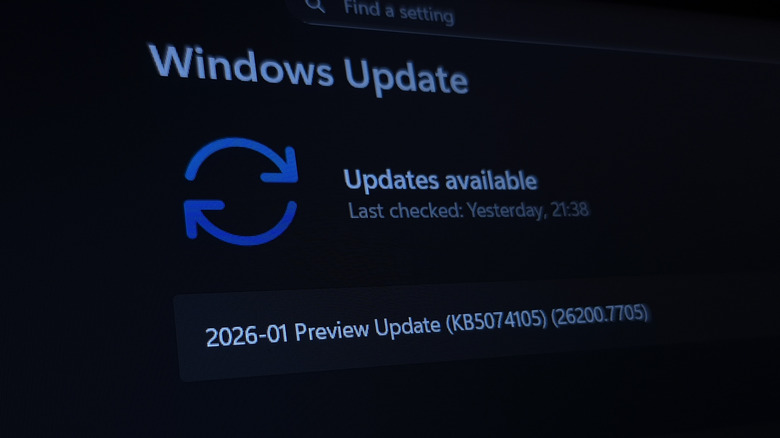
Delivery Optimization is a Windows Update feature that allows you to download Windows updates and apps more quickly. Since a download can be a package with plenty of large executables and archive files in it, Delivery Optimization allows your computer to download parts of them from various sources, including Microsoft's servers and other computers on your local network or on the internet. By default, Delivery Optimization is set to download files only from other devices on your local network, which is helpful when your internet is limited or when you're dealing with data caps or intermittent service. However, when the feature is set to download update files from other devices on the internet, it might present some glaring downsides.
Just like other PCs are feeding your computer the files it needs to download updates and apps, your computer also does the same. The end result is that this can slow down your internet connection, which can impact high-bandwidth activities like streaming HD videos, cloud gaming, and video calls. So, if you've been blaming your router for slow internet, you might want to try disabling or tweaking Delivery Optimization settings first and see if it makes a difference. Moreover, since the feature can consume a lot of data, changing the settings can speed up your Windows computer's internet and ensure that you don't prematurely blow through your data cap.
How to Disable Delivery Optimization on Windows
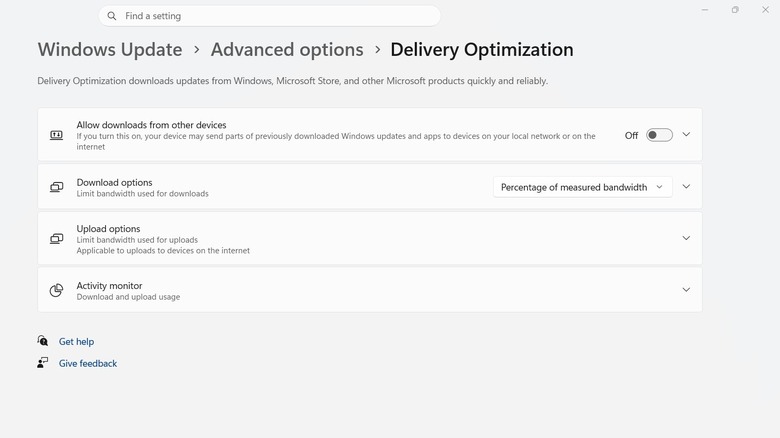
If you don't notice lag or don't have a data cap, leaving Delivery Optimization enabled for devices on the internet will most likely not have an impact. It's not even a privacy concern because none of the files your computer is sharing with others contain your personal data. But should it affect your internet, then it's a Windows feature you should turn off immediately. After disabling the feature, your updates will be downloaded straight from Microsoft's servers.
To stop downloading updates from other computers completely on Windows 11, go to Settings > Windows Update > Advanced options > Delivery Optimization. Then, toggle off Allow downloads from other devices. Now your Windows PC will not download files from other local Windows devices or upload them for others to access. If you still want to get the updates from devices on your local network, since that has no impact on your bandwidth, don't toggle off Allow downloads from other devices. Instead, click the down arrow next to the toggle and select Devices on my local network.
As for the Delivery Optimization files that are already on your drive, Windows will clean them up automatically after some time. Considering these can take up considerable space, even reaching gigabytes, you can free up space immediately using the Disk Cleanup utility. Open it using Windows Search, select the system drive (usually the C drive), tick Delivery Optimization Files, and click OK. Afterward, click Delete Files.