

8 Default Windows Features You Should Turn Off Immediately
Windows 11 might not be everyone's favorite operating system — the constant updates can be infuriating — but it's one of the most widely used worldwide. Not every OS can be one of the most popular Linux distros. Even if you don't care whether your PC runs optimally, you can still benefit from turning off some settings and features. This isn't about Windows apps you should uninstall; these are default settings that don't change unless you manually change them, which could be part of why you're getting so frustrated with your computer.
If you're not an AI person, why keep Copilot running? You don't need to send Microsoft all your telemetry either, and not every app needs to run the moment you boot up your computer. Windows is rather customizable, so it's best to make Microsoft's newest OS work for you rather than you work for it. Plus, you may find additional settings you would like to change along the way.
Taskbar search
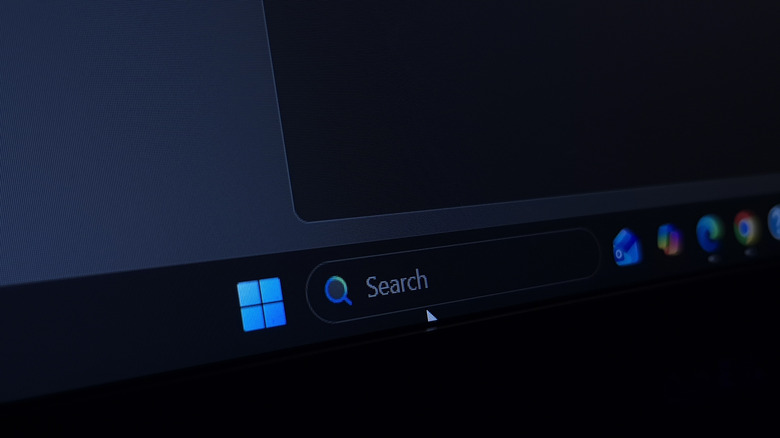
The Windows 11 taskbar can get kind of cluttered, and while it might be nice to have some apps pinned there for ease of access, too many icons there can undermine that accessibility. The taskbar search box might give you a quick way to search your computer for apps and files, but it takes up a good amount of real estate. Meanwhile, you can get rid of it and have so much more room for activities (pinned apps). Moreover, if you're somebody who finds its functionality useful, you can just as easily open the Start Menu and search there since it serves the same purpose.
To remove the taskbar search:
- Open Settings
- Click on Personalization
- Scroll down and click on Taskbar
- Click on the dropdown menu for Search
- Select Hide
There are other options within this setting that may suit your needs. If you still want that ease of access without the Start Menu, you can also select the Icon option. You can also choose the Search Icon and Label option. All save more space than the actual search box, honestly, but I prefer just apps in my taskbar.
Copilot
Artificial intelligence might be a great tool for some, but the way so many tech companies inject it into every single product is rankling for some, and Microsoft is one of the biggest culprits. Copilot is the company's virtual assistant that's supposed to help users with any questions they might have and help them complete tasks. As PCWorld's Mark Hachman put it, "Copilot just seems like a garbage buffet of artificial stupidity, licensing issues, and design decisions that don't put users first."
Plus, if you're environmentally conscientious and worried about AI data centers and the problems they cause local residents, and prefer to do most work yourself, you can turn off Copilot and not worry about it injecting itself into your computing experience. If you're vehemently against AI like Gen Z, you can fully uninstall it by:
- Open Settings
- Click on Apps
- Click on Installed apps
- Scroll down to find Copilot
- Click on the three little dots
-
Select Uninstall
This removes Copilot completely from your PC. If you think you might be interested in Copilot down the road, you can always reinstall it for free by going to the Microsoft Store.
Startup apps
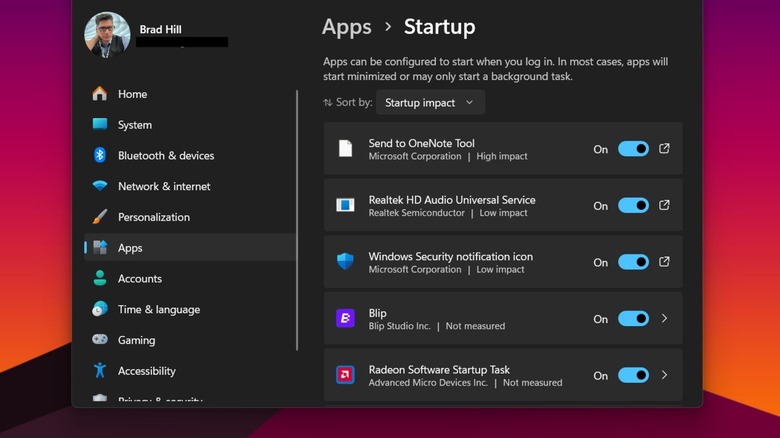
Windows tries to be helpful. It doesn't actually know what is helpful, but A for effort. One of those helpful attempts is its slew of apps that start automatically when you boot up your PC. Having your most used apps initiate once Windows boots isn't a terrible idea and might make you feel like Tony Stark in a way, but it uses up a lot of resources, slowing down the startup process, which is especially a bummer if you're a Windows 11 power user and want your computer to run faster.
You don't have to disable every single app that starts automatically, but you should definitely look over what does and then disable any you don't need on startup:
- Open Settings
- Click on Apps
- Click on Startup
From here, you can use the dropdown menu at the top to sort by "Startup impact," "Name," or "Status." Sorting by the app's impact is the smart way to do it, but it really comes down to preference. Then just scroll down and toggle any apps you want on or off.
Notifications
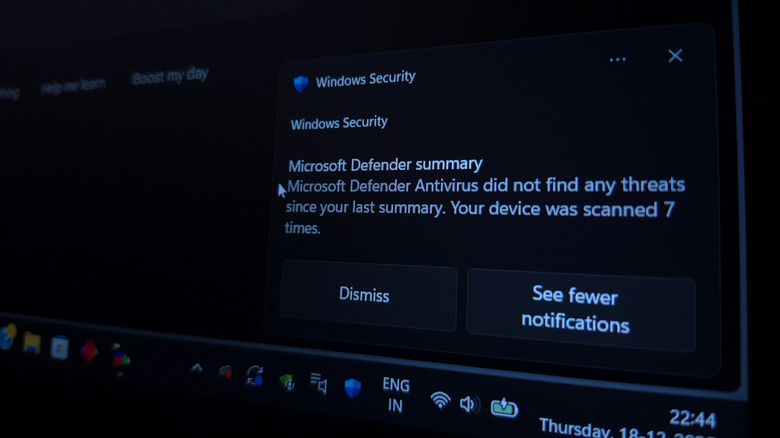
Notifications are easily one of the worst features of the digital age and partly why Gen Z is switching to minimalist tech. They're distracting. Even if they are necessary, a poorly timed notification can mess up your focus. If you don't work from home, you likely don't need notifications popping up, and if you do, you'll get way more than you want because Windows 11, by default, pushes notifications from apps, websites, and general OS alerts.
They pop up in the bottom right of the screen (where the time and date are) as banners, then gradually fade away. You can ignore them, let them pile up to check later, but when they pop up, they can get in the way of whatever you're doing. So you can either set them to Do Not Disturb or disable them completely:
- Open Settings
- Click on System
- Click on Notifications
- Optional: Click the toggle button to disable notifications
- Optional: Click the toggle button to turn on Do Not Disturb
Telemetry
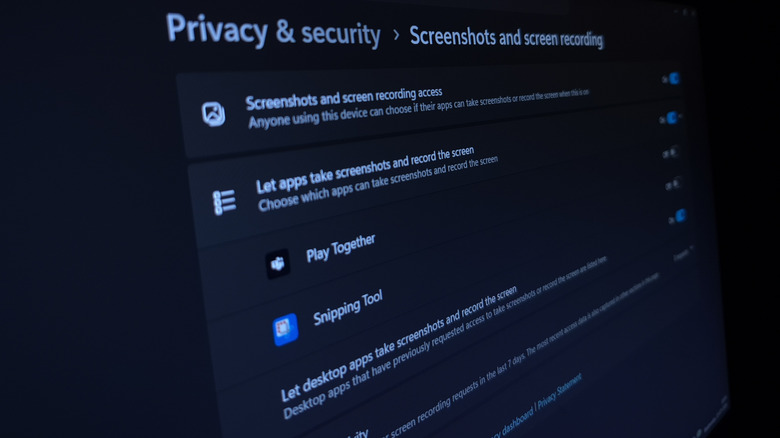
Telemetry settings, by default, let Microsoft track your every move, push personalized ads your way, and collect data about your computer, which can feel rather invasive. There are multiple places in the settings to go to disable all of this, so if you want to if you want to avoid targeted ads:
- Open Settings
- Scroll down and click on Privacy & security
- Click on Recommendations & offers
- You'll likely also want to toggle off Recommendations and offers in Settings
- Toggle off Advertising ID
If you prefer Microsoft not to collect data about your computer or your activities, turn off diagnostic data by:
- Open Settings
- Click on Privacy & security
- Click on Diagnostics & feedback
- Toggle off Send optional diagnostic data
Lastly, if you're not a fan of what AI is doing to your brain and don't want to support it in any way, then you'll want to disable 'Improve inking and typing' since Microsoft uses that to train its AI models.
- Open Settings
- Click on Privacy & security
- Click on Diagnostics & feedback
- Scroll down to find Improve inking and typing
- Toggle it off
Widgets

Widgets are great on your phone. iPhone has widgets that can actually help you get more done, while Android lets you make custom widgets, and you can place them on any page and resize them; they're completely customizable. Not so much on Windows 11. Instead, they're confined to a single location in the bottom left of your desktop (by default). Sure, that makes them easy to find, and you can move them around in that panel and choose which widgets you want to see, but they're arguably less useful than widgets on your smartphone.
Not to mention, most people probably prefer to check the weather and news on their phone, which is all that the widgets panel really offers you on Windows 11. It would be much nicer if you could slap a note from the Notepad app on the desktop somewhere. To disable the Widget board:
- Open Settings
- Click on Personalization
- Scroll down and click Taskbar
- Click the toggle button next to Widgets
Fast startup
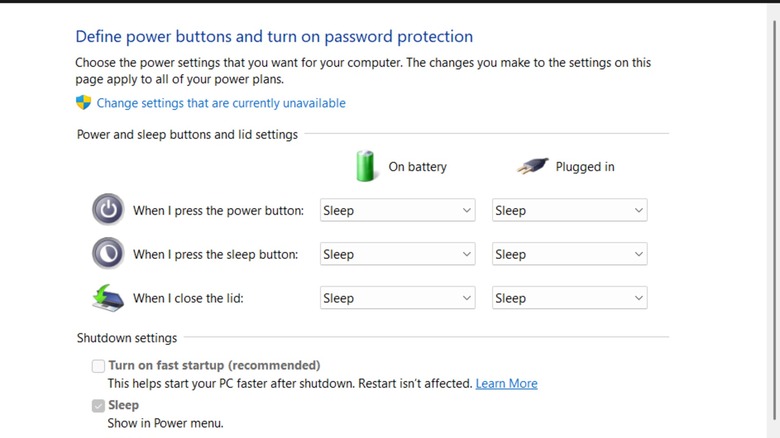
Shutting down your PC doesn't actually shut it down completely. At least not by default. "During Fast Startup, the kernel session is not closed, but it is hibernated," according to Microsoft. Sure, Windows closes you out of all of the apps you had open, and you'll have to sign in again the next time you boot up, but it preserves the state of your OS from the last time it was running, which lets your computer start faster. As convenient as that is, it can lead to some issues. It would be better to restart your PC instead, as that actually cold boots Windows, clearing the kernel session.
Moreover, a cold boot can help fix any bugs you may or may not have experienced and clear temporary data. If you'd rather not restart your PC periodically and would prefer just a simple cold boot (as long as you don't mind waiting an extra second or two), it's best to just disable Fast Startup and start getting that full shutdown your PC is crying for.
- Open Control Panel
- Click System and Security
- Find the Power Options section and click on 'Change what the power buttons do'
- Uncheck 'Turn on fast startup (recommended)
Online speech recognition
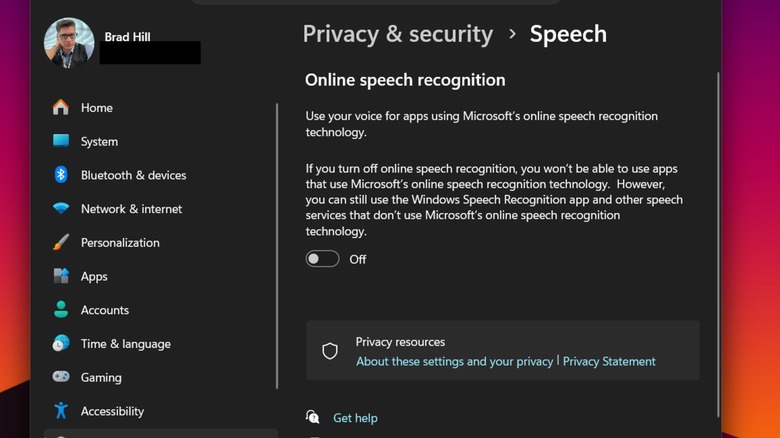
Microsoft's online speech recognition is a feature that lets you use voice commands in some apps. It's kind of neat because you can get Windows 11 to recognize your voice like Siri. It's a great accessibility tool for anyone who can't use a mouse and keyboard, but unless you need it, you might as well disable it.
There are two types of speech recognition: device-based and online. Device-based speech recognition uses your voice strictly on your device, and no data is sent to Microsoft. You'll be turning off online speech recognition, which uses cloud-based technology that's supposed to be more accurate than the device-based version. While you can still use this feature without Microsoft using your voice to train its speech recognition models as long as you deny permission, you might prefer turning it off altogether.
- Open Settings
- Click on Privacy & security
- Click on the Speech page
- Click Online speech recognition to toggle it off
When you turn this off, only device-based features are available, such as Narrator.