

4 Tricks & Habits That Can Significantly Improve Your Google Search Results

AI search overviews in Google Search are here to stay. Even if you use a Chrome alternative, as long as you're using Google Search, they can still show up when you type a search query. They bury the traditional search results, and depending on what you're searching for, you don't need to visit any website (even though that's the wrong way to use AI overviews).
But even though AI overviews can sometimes make your search much faster, they can provide you with factual inaccuracies, hallucinations, outdated information, and broken links. They can even miss important context and niche websites that have valuable information. Sometimes you need to take control of the way you Google to get exactly what you need.
If you're looking for something specific, good search results come down to learning how to use tricks to aggressively narrow down your search. While there are many available, you can more than get by with a few techniques like using quote search, operators, and reverse image search. There's even a way to completely hide the AI overviews if you find that they're getting in the way of your search results. With the way Google is pushing AI on users, we're at the point where ignoring AI overviews requires serious intent.
Double quotation marks make results more relevant
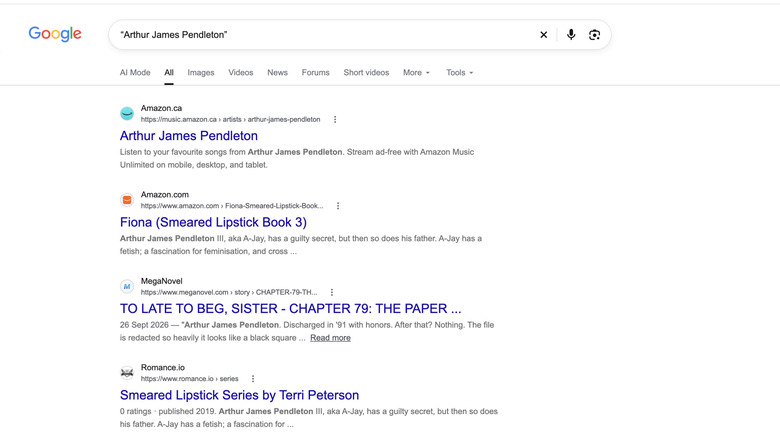
Enclosing your search term(s) in double quotation marks tells Google to find an exact match. Imagine you searched for Arthur James Pendleton without using double quotes. The search results will be a mixed bag because it'll also include pages that simply mention all three search terms, regardless of order or proximity.
The top result might be the exact term you searched for. But let's say that's not the Arthur James Pendleton you're looking for. When you scroll down, you'll find that you're also getting hits like James Pentelton, Arthur Pendleton, Pendleton James, or James Arthur. These results can span dozens of pages, meaning your work is cut out for you to find the person you want.
When you type "Arthur James Pendleton" instead, Google will ensure that every result it returns has that full name in it, presented in that exact order. It could be in various places, including the title, text, and URL. Instead of dozens of pages, you might narrow it down to a few. Furthermore, if an exact match doesn't exist, Google will let you know. It's not just useful for names, though, because it works well with any specific search query. This makes it perfect for finding the original author or source of a quote or passage of text.
Operators help you filter your results
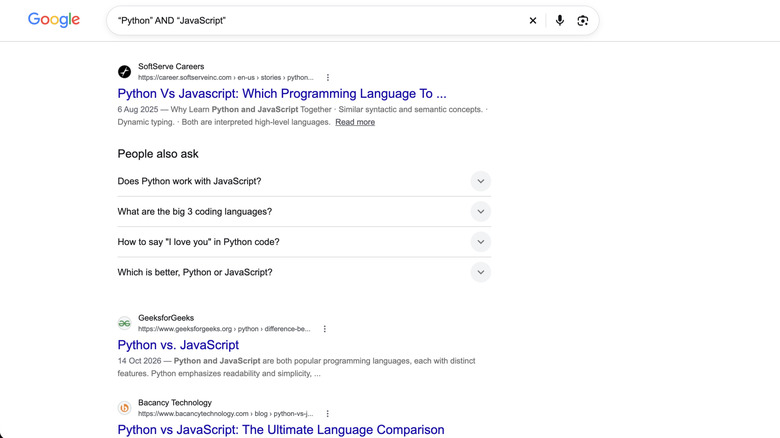
Operators are keywords and symbols you include in your search to fine-tune or filter your results. There are several important ones you need to know. The AND operator tells Google to find results that contain both search terms. A search query like "Python" AND "JavaScript" will return results that contain both programming languages. If you replaced AND with the OR operator, Google will return results with either term. The AND and OR operators must always be in capital letters.
Then you have the NOT operator, represented as a minus (-) sign. It tells Google to exclude results that contain certain words. Suppose you're looking for a sunny destination other than Mexico because you've already been there and want a new experience. You can exclude it with a search query like this: Sunny destination for holiday -mexico.
If you don't want to search the entire internet but a particular site, you can use the site: operator. Let's say you want to see all of BGR's coverage of the iPhone 18 Pro. An example search query would be site:https://www.bgr.com "iPhone 18 Pro". If you want to narrow it down to accessories but exclude chargers, then it would look something like this: site:https://www.bgr.com "iPhone 18" AND "accessories" -charger. If you want "iPhone 18 Pro" to be in the title, you can use the intitle: operator. Here's an example: site:https://www.bgr.com intitle:"iPhone 18 Pro."
Search using images (reverse image lookup)
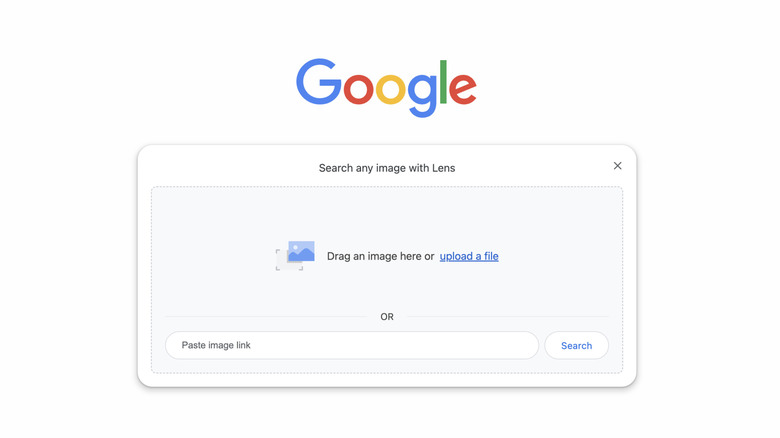
Sometimes, all you have is an image to go by. It can be a car, building, flower, animal, or even a celebrity. Instead of typing search terms describing what you're looking at, you can just do a reverse image lookup via Google Lens. It may turn up empty if the original image hasn't been indexed — that's just something to keep in mind in case you think it can find anything. To do a reverse image lookup using Google Lens on desktop, do the following:
-
Go to the Google homepage. If you're in Chrome, just open a new tab.
-
Click Search by Image (the camera icon) to open Google Lens.
-
Upload an image or paste a link to the image.
-
If you pasted a link, click Search.
If you're using a phone, it's best to use Chrome or the Google app since they have Google Lens built-in. Here's what to do:
-
Open a blank tab.
-
Tap Search by Image (the camera icon) to open Google Lens.
-
Take a photo of what you want to search for by tapping the shutter button.
-
Alternatively, tap the picture frame icon next to the shutter button to search using a picture in your gallery.
To search from a website in Google Chrome, you can right-click the image on desktop or long-press it on mobile. In the menu, select Search This Image with Google Lens or Search Image with Google.
Hide the AI search overviews
There are several ways for you to avoid AI overviews in Google Search if you really want to just focus on the search results. One of them is to type -ai before typing your search query. As we saw earlier, typing the minus sign before a word will exclude it from the search results. In this case, Google will remove any result containing the word AI.
Another way is to create a custom filter that takes you to the Web tab every time you type a search query. This tab has no AI overviews. However, the overviews aren't without their use, especially if you need to look up short instructions or a quick recipe. So disabling the web filter can take some doing. What you can do instead of typing -ai or using a web filter is install an extension that removes the AI overviews, as you can easily toggle them on and off.
You can install an extension called Hide Google AI Overviews for Chrome and other Chromium browsers. Once it's added to Chrome, it'll do its thing, giving the traditional Google Search experience that AI Overviews took away. It even hides the AI Mode tab, so only use it if you absolutely don't want to see AI in your Google searches. But if you decide you want these AI features back, disable the extension. Just right-click the extension in the toolbar, select Manage Extension, and toggle it off.