

4 Keys To Building A Quiet PC
We may receive a commission on purchases made from links.
One of the most irritating things about using a PC can be the loud noises it makes. Luckily, a powerful PC doesn't necessarily have to be a noisy one, and it doesn't matter if you are building a gaming PC, a workstation, or a computer for general purposes. The fans you install play a role in the overall noise a PC produces, but there's more to it than just this part of PC building. Airflow restrictions, component temperatures, fan speeds, where the computer is placed, and vibration can all influence how loud the PC sounds.
The good news is that building a quiet PC doesn't generally require costly hardware or time-consuming modifications. A few carefully chosen components, running fans at lower RPM, placing the PC in a place where airflow isn't restricted, and reducing unnecessary vibrations can make a noticeable difference in the sounds your PC makes. The key is to reduce unnecessary noise without compromising cooling or overall performance. Here are some ways to cut down on PC noise.
Optimize fan placement and airflow
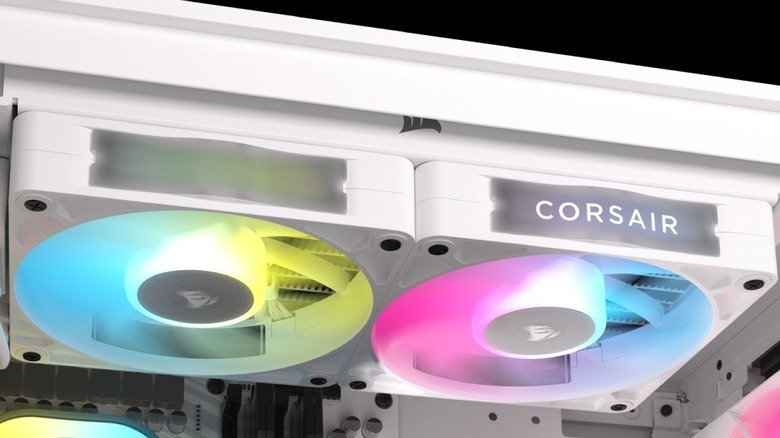
One of the most common mistakes when building a PC is adding more fans for better cooling. More fans don't always mean better cooling. The recommendation is to use five fans, with three being intakes and two being exhausts. Adding more fans means increasing noise sources. To reduce the noise, the goal is to provide enough airflow to keep components cool while running as few fans as possible at the lowest practical speed.
While the recommendation is five fans, there is no harm in using four. In that case, three fans can be intakes, and the fourth one can be exhaust. I'm using four fans in my darkFlash DK352 case, which provides positive air pressure for my setup. Another thing to remember is keeping the fan speed in check. While higher RPM increases airflow, it also increases the noise. Avoid setting every fan to run at the maximum speed all the time. Instead, use your motherboard's fan-control software or UEI/BIOS to create a fan curve that gradually increases as the temperature rises.
Choose quiet components and tune their power consumption
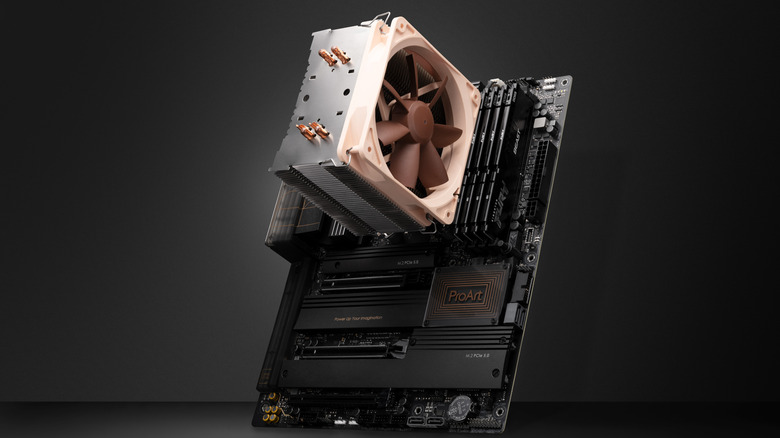
Even excellent airflow can't eliminate noise from every component. The CPU cooler, graphics card, power supply, and HDD you choose can contribute to the sound your PC makes. An air CPU cooler generally doesn't produce much noise, but it's worth checking the reviews of your selected model before purchasing, as noise levels can vary. Similarly, look for a power supply with a quiet fan and enough wattage for your system.
Some models, like the Corsair RM850x, feature Zero-RPM Fan Mode, which keeps the fan off at low or medium workloads. Supported AMD and Nvidia graphics cards can also offer a similar feature. Considering an SSD instead of an HDD can also result in less noise. Traditional HDDs contain moving parts that produce noise, but SSDs have no moving parts and operate silently. SSDs are also considerably faster.
Lastly, consider using larger fans at slower speeds, as they often provide better airflow than smaller ones at low or maximum speed. For instance, a 140 mm fan at its maximum speed of 1,500 RPM can provide better airflow than a 120 mm fan at its maximum speed of 2,000 RPM. However, the former may be louder in this case, but reducing the fan speed can solve that issue.
Reduce vibration with simple DIY fixes
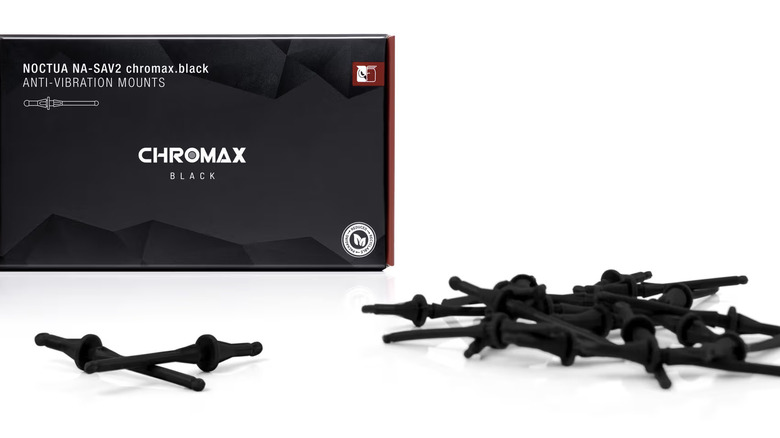
Sometimes vibrations from fans can transfer to the PC case and produce a rattling sound. This can happen when fans are mounted with standard screws. Anti-vibration mounts can help reduce this noise by isolating the fan from the case. If you notice a buzzing or rattling sound, then check whether any screws securing the fans, brackets, or case panels have become loose.
You can also gently press against the outside of the case panel (either the metal or tempered glass) to see if the noise changes. If it does, the panel may be resonating, although the vibration may not be that strong. However, in the case of tempered glass, be especially careful because tempered glass is vulnerable to impact damage, particularly around its edges.
Also, ensure that the cables are away from the fan blades. Cleaning dust filters and heatsinks regularly is similarly important because accumulated dust can restrict airflow and cause the fans to work harder.
Position your PC tower correctly
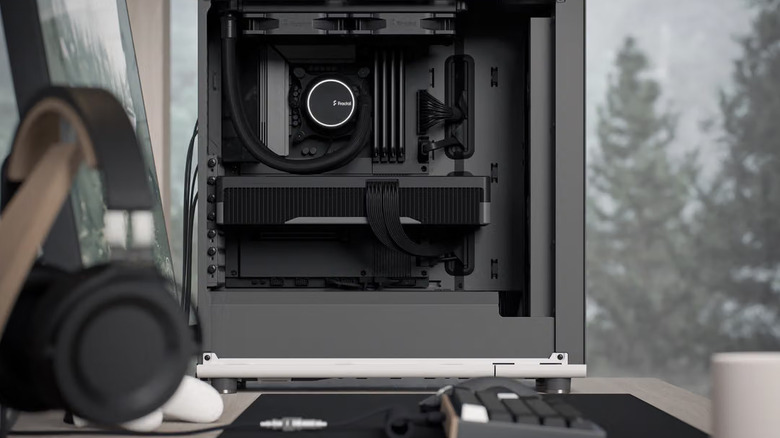
Where you place your PC can affect both its cooling performance and the noise reaching your ear. Ideally, you need to keep the PC in an open location where the front intakes and the rear exhaust, or any top or bottom ventilation openings, have enough room to circulate air. Avoid placing the PC in cramped cabinets, enclosed compartments, or on top of carpets for better cooling.
A stable surface may also help prevent vibrations from transferring into furniture. If your PC produces a humming or rattling sound, and the solution isn't simple DIY, try moving it away from hollow desks and shelves that may increase the vibration. Also, placing the PC under the desk is perfectly fine as long as there is enough clearance around the case for proper airflow.
That can also make its operating noise less noticeable by moving it farther from your ears. It may even help prevent vibrations from being transmitted through the desktop. However, if there are noticeable vibrations, it may be worth getting the PC examined by a qualified technician.