

5 Reasons Why Your PC May Be Overheating
An overheating computer is not something to be taken lightly. Both the short- and long-term effects of your PC components reaching dangerous temperatures can be a massive pain to deal with. Momentary instances of overheating cause your PC to shut down in a bid to protect itself, which can be an inconvenience when you're in the middle of an intense video game, totally immersed in a virtual scenario. Meanwhile, it's absolutely not recommended to repeatedly use a computer that is operating at very high temperatures all the time. Prolonged exposure to this heat can cause your internal components to burn out in no time. Given how expensive PC parts have become because of the growing prevalence of AI, the last thing you'd want is to deplete your savings due to your carelessness.
This makes it important to identify the reasons why your PC is constantly overheating. Usually, a lack of maintenance — on both the physical and digital front — is to blame here, but people who want more specific reasons will eventually point to one (or more) of these common mistakes that are ruining your computer and causing your system's temperatures to spike constantly.
Improper placement
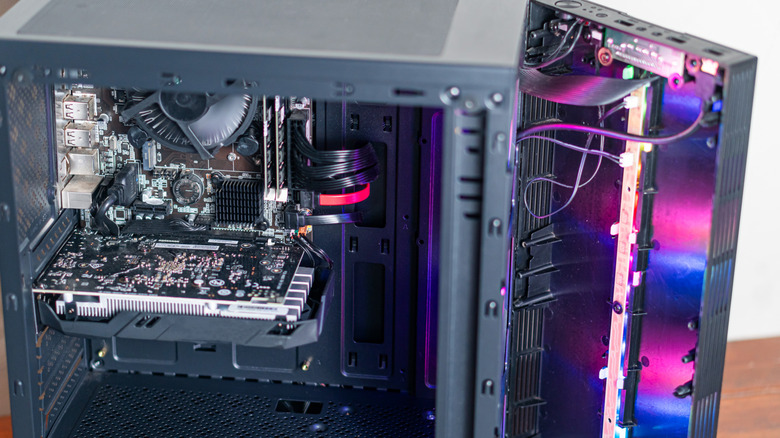
Many people who want to place their PC in a manner that it occupies a minimal amount of space in their room will be setting themselves up to fail in terms of overheating. This is because these unsuspecting users end up pushing their computer to a corner of their room or to the edge of an enclosed desk, giving just enough space to hook up any wires. This isn't recommended in the slightest, since there's a real chance that you're outright blocking the airflow of your PC and causing its components to heat up needlessly.
This makes it very important to follow one particular rule to avoid damaging your PC: give your computer some space so that your fan actually has some space to expel hot air. This tip isn't just limited to your PC — you should also keep your gaming consoles in an open area with enough room for air to circulate around the unit. Fail to do this, and your Xbox Series X or PlayStation 5 will start overheating, causing them to become very loud as they beg you for more breathing room!
On a similar note, make sure that you're not placing your computer right next to a window that receives a ton of direct sunlight. You might be surprised at how quickly your PC overheats when the sun is beating down on it throughout the day. Unless you're a nocturnal gamer, do yourself a favor and place your computer somewhere else.
Inadequate cooling solutions
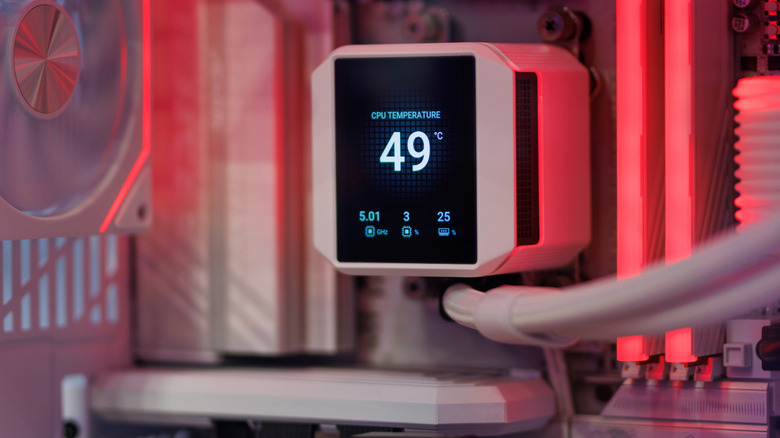
Most people settle for basic air cooling for their PCs, which is usually enough to keep your machine chugging on even when you're playing the most system-intensive video games. It does make your computer or laptop sound very loud when the fans are working overtime, but that's a small price to pay for this economical solution.
However, if your computer has too many heavy-duty components, then chances are that a solitary fan won't be enough to keep your PC running smoothly. While you can always install more fans for more adequate cooling, some people go above and beyond with a liquid cooling solution that both looks pretty neat and does a far better job of negating any possible overheating issue. Usually, if your PC is overheating even after you install a competent AIO (All-In-One) liquid cooler, then the cooling solution itself may be broken ... or there's another culprit at play.
One thing that most people forget to check when trying to discern why their PC is overheating is the cooling paste applied to their CPU and GPU. Usually, they've either applied low-quality cooling paste (used as an energy sink to draw heat away from your internals) or haven't reapplied said paste in a while. The drawbacks of the former are quite obvious — a cooling paste that is poorly made won't be a great help when it comes to absorbing heat — while old cooling paste usually dries up and becomes ineffective, making it important to reapply this paste from time to time. Fail to do so, and your CPU or GPU will eventually show signs that it's about to fail.
A buildup of dirt or dust
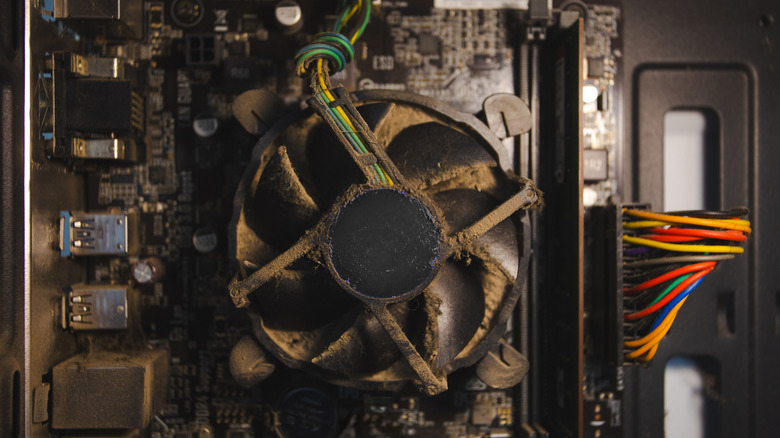
No matter how clean the room you keep your PC in may be, dust buildup is a reality that you'll have to contend with sooner or later. Over time, it can reach a point where heat gets trapped far too easily in your computer unit, causing temperatures to spike as your PC's airflow gets blocked. If you've been facing this overheating issue for a while now, it's time to open your computer and give it the cleaning it deserves.
For beginners to this process, here are some essential tips for cleaning and maintaining your PC. The most important thing you'll need is a can of compressed air. Place it near any dirty areas — although make sure to keep some distance, since the blast of air can be far more powerful than you'd expect — and start spraying to remove any stubborn dust particles that are preventing your PC from reducing its temperatures to acceptable levels. Make sure to spray in bursts to prevent moisture from developing around the nozzle. Also, if you're cleaning the fan, it's highly recommended to hold onto a fan blade before blasting it with air. Letting these blades spin for too long can damage their bearings or, in exceedingly rare cases, accidentally generate current that can damage your PC's components.
Once this is done, it's time to focus on more stubborn dirt patches that show no signs of going away. A great solution for this is to use isopropyl alcohol on a cotton swab or microfiber cloth and rub at the affected area to remove any accumulated dust. Finally, wipe down the exterior of the PC, and your system should be a lot more resistant to overheating issues.
Excessive overclocking
Most gamers or heavy-duty editors are well-versed in overclocking to maximize their PC's performance potential. By either using dedicated overclocking software or tweaking some options in your system's BIOS/UEFI settings, you can remove the limitations set by the manufacturer and unlock even greater performance from your components. However, there's a reason why these limits are set in the first place. Using an overclocked CPU or GPU for too long can lead to several debilitating problems, to the point where overheating will become much more likely in your system.
If regular BSODs (blue screens of death) and glitches are making you tear your hair out, then it's probably time to give your overclocking endeavors a rest. After all, going too far in this department can cause temperatures to flare up in your system's key components, and we've already talked about the long-term damage that can turn your PC into a hunk of junk if you continue to expose it to a higher temperature load than it can safely handle. Unless you have a proper cooling solution set in place — usually an AIO cooling unit — you might be best served to steer well clear of overclocking altogether.
Running outdated or infected hardware/software
If you're using intense editing software or playing a high-end AAA game for too long, then your PC's components are bound to heat up over time. This is to be expected, and most people shouldn't be too worried about their computer running at higher temperatures as long as they've installed proper cooling solutions or aren't performing such system-intensive tasks over an extended period of time. However, if you notice your CPU or GPU temperatures spiking when you're doing basic tasks, then things may be a bit more serious.
It's possible, for example, that you could be a victim of outdated drivers. To find out, do a driver checkup and download the latest software to help your PC's components work efficiently once again, and your system's temps should come back to normal.
Another reason why your computer may be overheating is because of viruses and malware that have infected your system. Usually, these malicious programs end up running a truckload of background processes that intentionally slow your system down and make it overheat when performing basic tasks. Scan your system regularly (or at least pay attention to warnings from Microsoft Defender) and call for professional help if you find a particular piece of stubborn malware refuses to die. It may be that you'll need to wipe your machine to rid yourself of the problem application — a major inconvenience, but starting anew on a wiped system is often better than dealing with the downsides of an infected, overheating PC going into meltdown mode.