

Why Your Laptop Is So Loud (And What You Can Do To Fix It)

We may receive a commission on purchases made from links.
Except for, say, the MacBook Air, which has no moving parts, even the best laptops you can buy can get pretty noisy, especially over time. But why are these even noisy in the first place? After all, big desktop systems have many large fans, as do current-generation gaming consoles like the PlayStation 5 and Xbox Series X, yet these devices are relatively quiet. The answer, as it turns out, comes down to heat dissipation.
There's a decent amount to unpack here, but the issue comes from multiple directions. When your laptop's CPU and GPU work hard, they generate heat as a byproduct. This heat is transferred to a heat sink, and then a fan moves air through that heat sink to transfer heat out of the laptop. However, laptops are small on the inside, so the fans tend to be small and spin at high RPMs. These days they also tend to be "blower" style fans, because that makes it easier to make laptop flatter. A small high RPM fan and a large low RPM fan might move the same amount of air, but one sounds like an angry bee while doing it, while the other might only produce a barely audible "woosh" noise. So where do those noises come from and is there anything you can do to quiet your laptop without the risk of overheating the device and damaging it?
Clean the dust from the fans and heatsinks
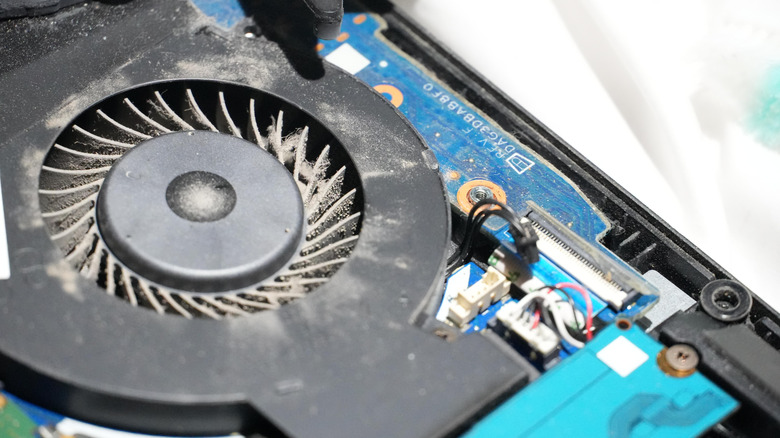
Cleaning and maintaining your computer are the most obvious solutions to keeping noise levels down. A dust-caked fan can't move as much air as it should, forcing it to spin faster to compensate. Likewise, clogged air vents force higher RPM as the fan becomes desperate for intake air volume. The vanes of heatsinks are also dust traps, and this makes cooling less efficient for the same reason. That said, if you open a modern laptop, you're more likely to see a solid metal heatsink design with heat pipe or vapor chamber technology used to move the heat from the hot microchip package to where the air can carry it away.
Regardless of what specific cooling design your laptop has, if it uses active airflow for cooling, then dust is the enemy and you'll need to open it up every once in a while to clear it all out. Cleaning the inside of a laptop isn't hard, but it can be scary the first time. Since each laptop model has a different way to open it and a different cooling system design, it's a good idea to watch a video online of someone else doing it first to know what you're in for. Most of the time it just involves removing a few screws, popping off the bottom cover, and then carefully brushing out and vacuuming the dust from the fan and vents. Of course, you can accidentally damage your laptop if you touch the wrong components, so be careful.
Replace dried-out thermal paste on the CPU and GPU
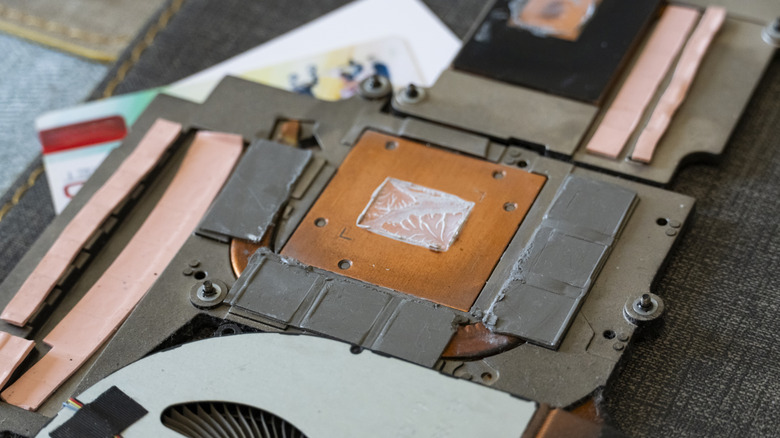
There is a chain of handoffs when it comes to moving heat away from the processors in your laptop. The chip package itself is connected to a heat spreader using a thermal interface material, or TIM. These days, you have the choice of thermal pads or thermal paste, but remember that the manufacturer has specified a minimum heat transfer rate required for the cooling to work correctly. The heatsink is attached to the other side of the heat spreader using more TIM, allowing heat to pass from the spreader to the heatsink through this thermal material where the fan can then use air to move heat out of the system.
Over time, thermal materials age, dries out, and lose much of its heat conduction. This is why you should replace your laptop's thermal paste every few years. If you've cleaned out the vents and fans, and your laptop is still louder than it was when it was new, there's a good chance the thermal paste has started failing. Because the paste is not moving as much heat as it used to, your processors are reporting higher temperatures, and so the fans spin up. However, in this case the fans won't make a difference because the bottleneck is between the heatsink and processor. Applying thermal paste isn't hard, but it can be scary to disassemble your laptop to access where the thermal paste is located.
Use a cooling pad with large, slow-spinning fans
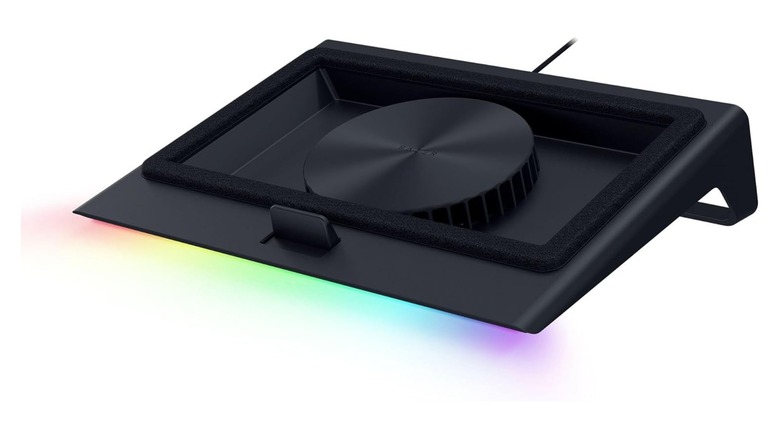
While you can't make the fans inside bigger and quieter, you can give them a helping hand. Laptop cooling pads may seem like a gimmick, but if you use the right one with a compatible laptop, they can be quite effective. The idea is that the pad lifts your laptop off your desk or other flat surface, which is intended to improve airflow. Most laptops suck in air from below and then exhaust it to the sides or rear, sometimes both, so a cooling pad forces more air through the bottom vents and out of the exhaust vents. By increasing the volume of air flowing through the laptop, you should see lower temperatures.
If the cooling pad can shave a few degrees off your CPU or GPU temperature, the internal fans won't have to spin up as fast, reducing noise. Cooling pads usually have large, low-RPM fans that barely make any noise. High-end models, like the Razer cooling pad, use a foam seal to optimize this form of airflow assistance. But the bottom vent design can make some cooling pads less effective because they don't line up well with where the laptop's intake zones are. This is why you need to match the pad you buy to the layout of your laptops bottom vents. If you have a laptop with no bottom vents, then a cooling pad won't do any good.
Adjust the laptop's fan profile in the manufacturer software
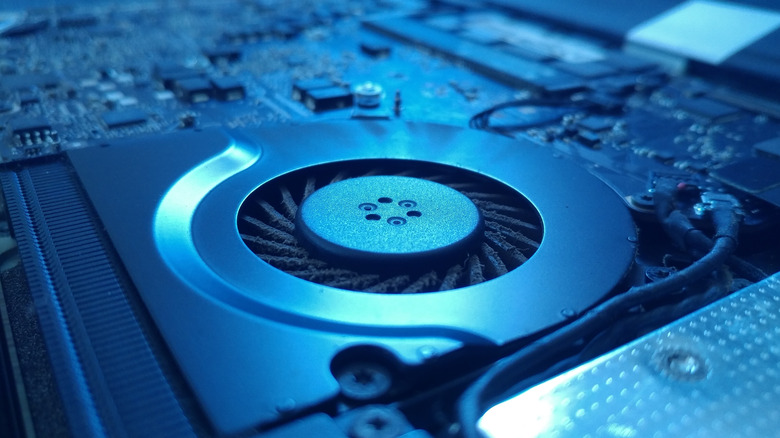
Depending on what's being asked of it, modern computers can change the fan speed to strike a balance between a safe temperature and noise. Usually, the factory fan curve is decent, allowing your laptop to stay quiet under normal everyday loads (like browsing the web or watching videos) and spin up the fans for more intense usage (such as opening an intense 3D game or crunching numbers in a productivity app) to compensate for the extra heat. The fan curve is simply an expression of how fast the fan is set to run at different temperatures or processor loads. You can alter this behavior using a third-party application, software that came with your laptop, or sometimes in the manufacturer software.
Default fan curves tend to be rather conservative, which means there's often a little wiggle room to lower fan speeds in some places without letting your laptop reach dangerous temperatures. You'll have to look up at what temperatures your specific CPU and GPU start "throttling" speed and adjust your fan curve, so you never cross that threshold. This will require some trial and error, but if there was any safe headroom in the default curve, it could result in lower noise across the entire curve.
Switch to a quieter power mode

Modern computers are able to operate within a wide power envelope. Processors can dynamically change the speed at which they run, aiming for a more power-efficient mode when outright performance isn't the goal. If you choose a lower power mode, your computer won't make as much heat and therefore won't need to spin the fans up until they become noisy. Now, this might sound like you're giving up a lot of performance in exchange for quiet operation, but modern CPUs and GPUs are so powerful that they can happily handle most everyday tasks at even a fraction of their maximum performance.
If you use Windows, a quick fix is to activate the Energy Saver Mode, which will also make your battery last longer, but other options like "best efficiency" or "balanced" could be a better mix of noise and performance, depending on the type of laptop you have. You can find the three main power modes if you open the Start Menu and search for "Choose a power plan." Some laptops come with their own utility software, which may offer additional power modes and settings, or custom "silent" modes.
Undervolt the CPU and GPU
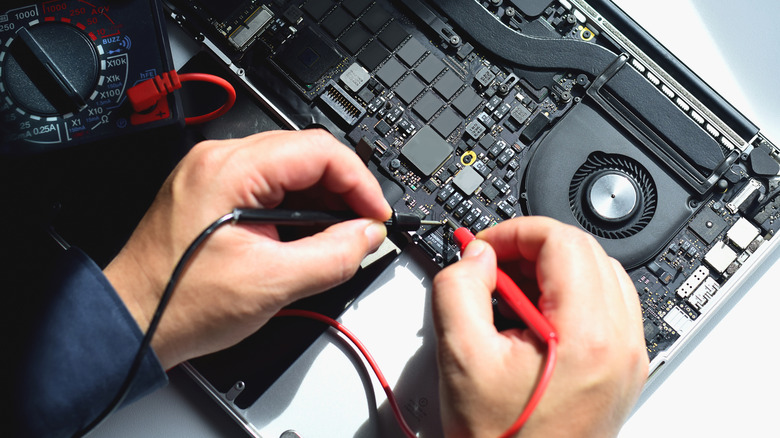
You've probably heard of overclocking your PC or laptop, but undervolting? There is a big difference between undervolting and overclocking. Overclocking forces a processor to run at higher speeds than it's been rated for, while undervolting lowers the voltage to the processor or graphics card. Undervolting isn't about higher performance, at least not entirely. Here, you reduce the voltage supplied to a CPU or GPU as low as you can without introducing instability. This is possible for the same reason overclocking is. Some CPUs work fine with lower voltages, and if yours does it can have many benefits. Remember, watts = volts x amps, so any reduction in voltage will have a significant effect on the total wattage the CPU or GPU uses.
The watts a processor consumes directly affects how much heat it generates. Cut the wattage, and you'll have less total heat. Less heat means less fan noise! There's also the fringe benefit of longer battery life as well, since you're drawing less power from the battery. Just bear in mind that undervolting can cause data loss and instability if you take it too far. Which is why you should test your laptop thoroughly using PC stress testing software to ensure that your lower voltage level is rock-solid.
Cap your frame rate in games

By default, your laptop will try to run your games at the absolute maximum number of frames per second it can manage at the current settings. This sounds like a good idea, but there are a number of good reasons you don't want this. First, if the frame rate is faster than the refresh rate of your monitor, then you literally can't see the additional rendered frames. Second, if the difference between the average and maximum frame rate for a given game is large, you'll experience this as an unpleasant lurching from high to low frame rates and back.
But, letting your laptop run wild in games also means your laptop is going to become hot and noisy, since the processors are being pushed to their limits. If you limit the frame rate of your game, then you can quiet it down and enjoy stable gameplay. There are a few ways to achieve this. Many modern games have a maximum frame rate slider, so you can simply slide that down to whatever you consider the minimum playable frame rate for that type of game. You can enable V-Sync, which only allows the game to render the number of frames the monitor can actually display. Your graphics card utility software likely has a frame-limiter feature too, and you might even have the option to set it on a per-game basis.
Dock your laptop further away from your seat
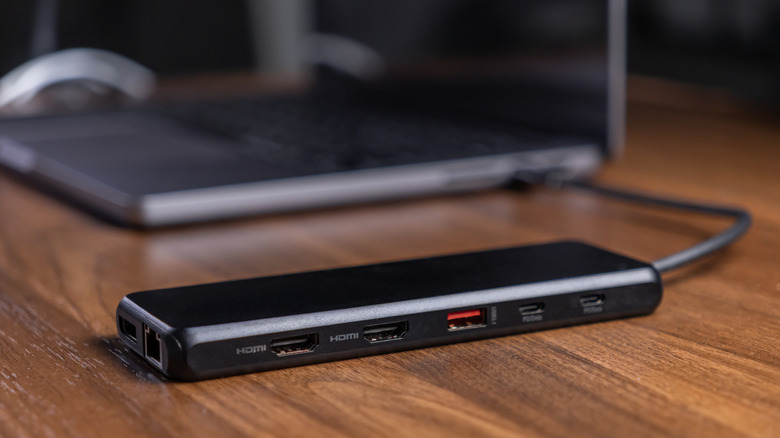
If you, like many people, plug your laptop into a desktop setup when you get home or at work, then you have another noise-killing trick at your disposal. All you have to do is increase the distance from your noisy laptop fans to your ears. It's that simple.
Sound is subject to the inverse square law. For every doubling of distance between you and the noise source, you'll enjoy a reduction in volume by 6 decibels. Remember that decibels are logarithmic, not linear. Humans perceive a 10-decibel reduction as a halving of volume, so you don't have to move your laptop that far away to get a serious change in noise level. HDMI cables can be quite long, even without an active repeater, and the same is true of USB 2.0 cables — longer cables mean the source of noise is further from the user. For a little extra sound isolation, you can also place your laptop behind a physical barrier that will absorb or deflect sound.
Use noise-canceling headphones

The best solutions are often the simplest. While it's not that hard to make a laptop quieter in general, when you're actually pushing the machine to its limits, the fans are going to spin at maximum volume no matter what. If you're doing work or playing a game that actually requires that performance, then you need a different approach. Active noise-canceling headphones are perfect for this situation. How noise-canceling headphones actually work is fascinating. Microphones on the outside of the headphones continuously sample the ambient noise, and then an algorithm generates a destructive anti-sound wave that cancels it out.
This technology can struggle with sudden unexpected sounds, but a constant hiss or roar from fans is well suited to this approach. With the headphones on, you'll be sitting there in complete silence even if your laptop is loud enough to wake the neighbors. Speaking of which, this is obviously only a good strategy if you're the only one that's going to be disturbed. Your significant other probably won't appreciate a small jet engine going off next to them on the couch while watching TV. If the headphone approach sounds like it's going to work for you, be sure to check out our best noise-canceling headphones roundup.